Ten minutes. That's genuinely all it takes to go from zero to running your first Gemini 3.1 Flash-Lite prompt — either in a browser with no setup, or via API with working Python code. I walked through both paths when the model launched on March 3, 2026, and this is the exact sequence that worked without hitting a single wall. Pick your path and follow along.
Two Ways to Access Flash-Lite
Gemini 3.1 Flash-Lite is available through two official channels as of March 2026:
| Method | Best For | Requires Coding? | Free Tier? |
|---|---|---|---|
| Google AI Studio | Testing, prototyping, prompt iteration | No | Yes |
| Gemini API | Building applications, automations, pipelines | Yes (Python / JS / etc.) | Yes (1M input tokens free) |
Both paths are in preview. Enterprise teams with compliance requirements should look at Vertex AI on Google Cloud instead — that's a separate setup outside the scope of this guide.
Via Google AI Studio
No billing setup. No SDK. Just a browser and a Google account.
Open AI Studio
Go to aistudio.google.com and sign in with any Google account. First-time users get a default project and API key created automatically. If you already have a Google Cloud account, you may need to import a project from the Projects panel in the top navigation — it takes about 30 seconds.
Once you're in, click Create new prompt in the left sidebar.
Select Gemini 3.1 Flash-Lite
In the top-right configuration panel, open the Model dropdown. Look for Gemini 3.1 Flash-Lite Preview — it was added to the dropdown on March 3, 2026, alongside the broader Gemini 3 series rollout.
Two settings worth adjusting before you run anything:
Thinking Level — Flash-Lite defaults to minimal, which is the fastest and cheapest setting. For general testing that's fine. If you want to see the model reason through something more complex, switch it to medium or high using the thinking level selector just below the model dropdown.
Temperature — defaults to 1.0. For factual or structured tasks (translation, classification, data extraction), bring it down to 0.2–0.5 for more consistent output.
Run Your First Prompt
Type your prompt in the message input and click Run. Here are three prompts that demonstrate Flash-Lite's range well:
Translation (minimal thinking — fast and cheap):
Translate the following product description into French, Spanish, and Japanese.
Keep the same tone and length.

"Wireless noise-cancelling headphones with 30-hour battery life and foldable design."
Classification (low thinking — good for moderation queues):
Classify the following customer review as: Positive, Negative, or Neutral.
Reply with only the label.

"Delivery was late but the product itself is exactly what I needed."
UI generation (medium or high thinking — tests reasoning depth):
Generate the HTML and CSS for a simple weather dashboard card.
It should show: city name, current temperature, condition (e.g. "Partly cloudy"),
and a 3-day forecast row. Use a clean, dark-mode design.
After each run, check the token usage panel in the bottom-right corner of AI Studio. You'll see input tokens, output tokens, and estimated cost. This is the fastest way to calibrate whether Flash-Lite's pricing actually works for your use case before you write a single line of API code.
Via Gemini API
If you're building something — even a quick automation script — move to the API. Here's the minimal path.
Get Your API Key
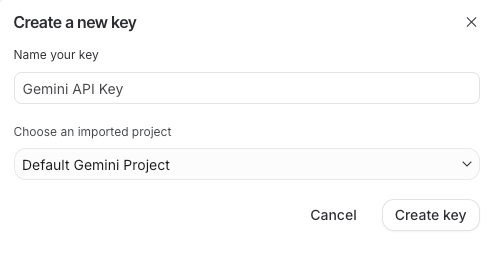
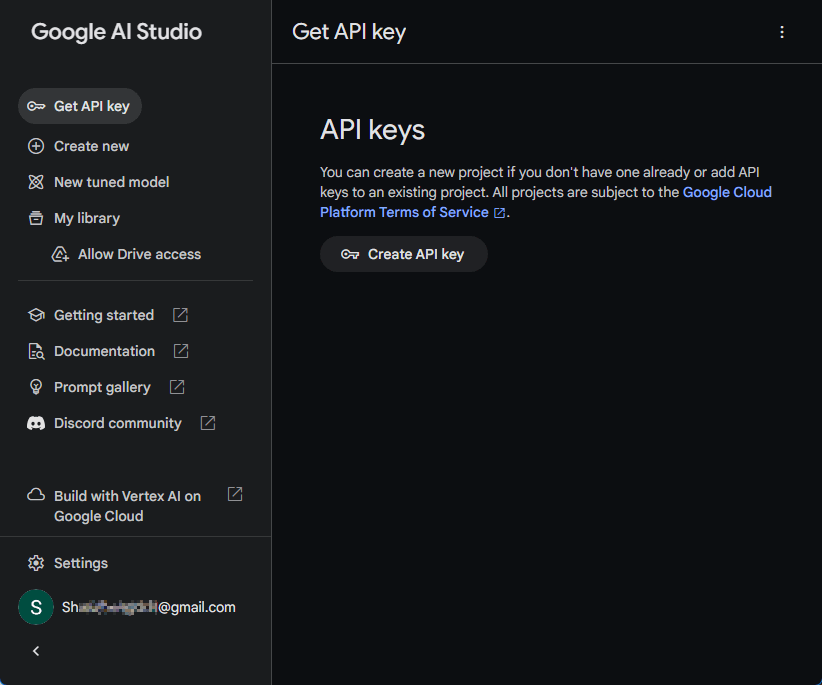
Go to aistudio.google.com/app/apikey. Click Create API** key**, select your project from the dropdown, and copy the key.
Set it as an environment variable immediately. Per the Gemini API key documentation, never hardcode keys in source files — especially anything going to version control:
# macOS / Linux
export GEMINI_API_KEY="your-api-key-here"

# Windows (Command Prompt)
set GEMINI_API_KEY=your-api-key-here

# Add to .bashrc or .zshrc for persistence
echo 'export GEMINI_API_KEY="your-api-key-here"' >> ~/.zshrc
The free tier for Flash-Lite during preview includes 1 million input tokens — enough to run a real workload before you see a bill.
Make Your First Request
Install the SDK. You need Python 3.9 or higher:
pip install -q -U google-genaiBasic call — this is the minimal working version:
from google import genai

client = genai.Client()
# Picks up GEMINI_API_KEY from environment automatically

response = client.models.generate_content(
    model="gemini-3.1-flash-lite-preview",
    contents="Translate this to German: 'Your order has been confirmed and will ship within 2 business days.'",
)

print(response.text)
With explicit thinking level control — useful once you're optimizing cost vs. quality on a specific task type:
from google import genai
from google.genai import types

client = genai.Client()

# Minimal thinking — fastest, cheapest, best for bulk translation/classification
response = client.models.generate_content(
    model="gemini-3.1-flash-lite-preview",
    contents="Classify this review as Positive, Negative, or Neutral: 'Works as described, no complaints.'",
    config=types.GenerateContentConfig(
        thinking_config=types.ThinkingConfig(thinking_level="minimal")
    ),
)

# High thinking — for complex reasoning or UI generation tasks
response = client.models.generate_content(
    model="gemini-3.1-flash-lite-preview",
    contents="Design a database schema for a multi-tenant SaaS app with role-based access control. Include table names, key fields, and relationships.",
    config=types.GenerateContentConfig(
        thinking_config=types.ThinkingConfig(thinking_level="high")
    ),
)

print(response.text)
One thing worth knowing: thinking_budget from the Gemini 2.5 series still works for backward compatibility, but the Gemini 3 developer guide recommends migrating to thinking_level for more predictable performance. Don't use both in the same request.
For JavaScript, Go, or Java equivalents, the SDK libraries page has install commands and matching code samples for each language.
Which Access Method Is Right for You?
Direct answer:
| If you... | Use this |
|---|---|
| Want to test a prompt right now, no setup | Google AI Studio |
| Are building an app, script, or pipeline | Gemini API |
| Need to iterate on prompts before writing code | AI Studio first, then API |
| Are running large batch workloads overnight | API + Batch API (50% discount, 24h turnaround) |
| Work in an enterprise with compliance requirements | Vertex AI |
The workflow I've settled into: prototype in AI Studio with thinking level toggling to find the right setting for the task, validate the output, then move the exact model string and config to API code. It cuts API trial-and-error significantly.
Both paths use the same underlying model — gemini-3.1-flash-lite-preview — and both support the full Gemini API feature set: function calling, context caching, streaming, and multimodal inputs. The only difference is where you're calling it from.
You might also find these useful:
What Is Gemini 3.1 Flash-Lite? A Plain-English Guide
How to Use Gemini 3.1: A Complete Beginner's Guide