You've wired up your AI coding agent. It runs, completes tasks, generates PRs. And then you go tell your teammates what happened. Manually. This tutorial closes that loop — step by step, with working commands.
Why Manual Status Updates Break Your AI Coding Flow
The Gap Between Agent Execution and Team Awareness
An AI coding agent finishes a refactor and exits. The output is in your terminal. Your teammates are in Lark, waiting. Nothing bridges those two unless you build the bridge. Every tool call your agent makes has a structured result. None of it lands in your team's communication channel unless something explicitly sends it there.
The workflow cost isn't one big thing — it's the sum of small interruptions. Switch to Lark, find the channel, format the summary, paste the link, tag people. Multiply that by every agent task across a sprint. The time adds up, but the bigger issue is the mental mode-switch that breaks your flow.
What "Done" Actually Means When an Agent Finishes a Task
When an agent exits with code 0, you know the execution completed. But your team needs more than that: what changed, where it is, whether it needs review, and what comes next. That context lives in the agent's stdout and the resulting git state. Routing it into Lark automatically means your team gets the signal immediately, and you don't need to context-switch to deliver it.
Prerequisites
Installing larksuite/cli
# Install the CLI globally
npm install -g @larksuite/cli

# Verify installation
lark-cli --version

# Optional: install the SKILL package for Claude Code / AI agent integration
npx skills add larksuite/cli -y -g
Node.js is required. The CLI is a Go binary wrapped in an npm package. If you'd rather build from source (requires Go 1.23+ and Python 3):
git clone https://github.com/larksuite/cli.git
cd cli
make install
Creating a Lark App and Getting Credentials
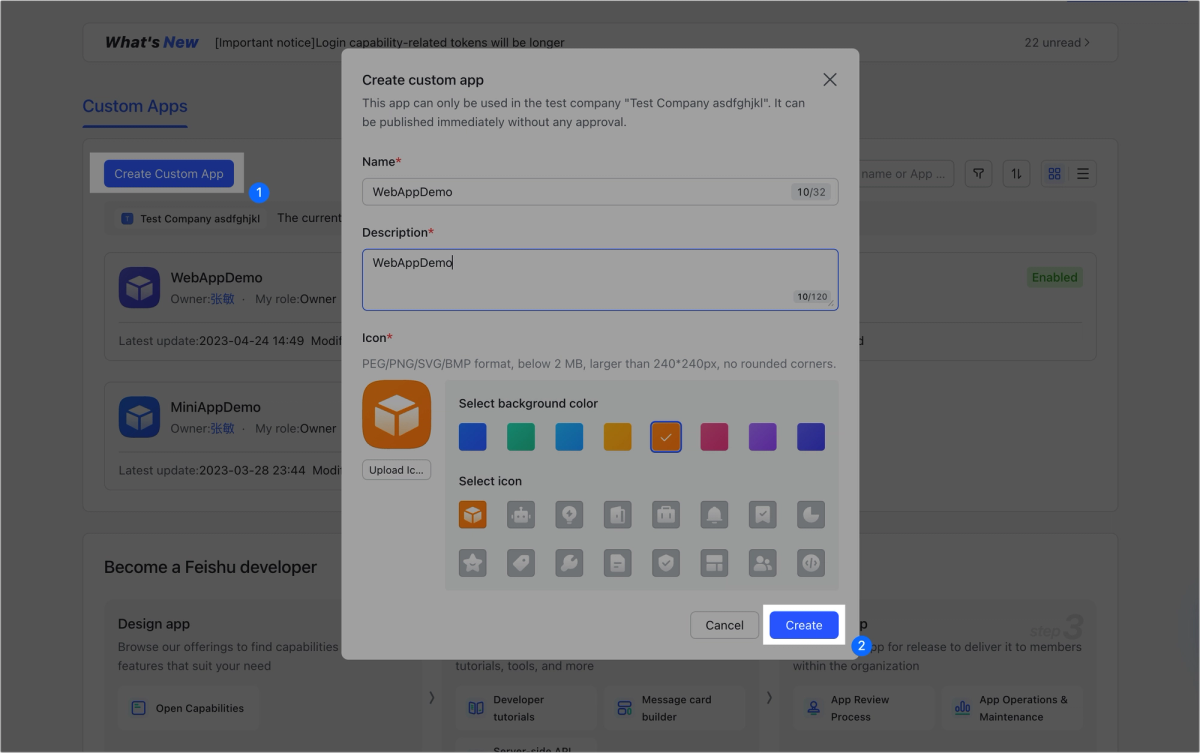
You need a self-built app on the Lark Developer Console. This is different from a webhook bot — it gives you a persistent App ID and App Secret usable across sessions and CI environments.
- Go to
open.larksuite.com/app(international) oropen.feishu.cn/app(domestic China) - Click Create App → Custom App
- Copy the App ID (format:
cli_xxxxxxxxxxxx) and App Secret from the Credentials page - Under App Capabilities, enable Bot
- Publish the app (Version Management & Release) — the app must be live to call APIs
Store these as environment variables in your shell profile or CI secret manager:
export LARK_APP_ID="cli_xxxxxxxxxxxx"
export LARK_APP_SECRET="your_app_secret_here"
Run the one-time interactive setup to register credentials with the CLI:
lark-cli config initRequired Permissions Scope
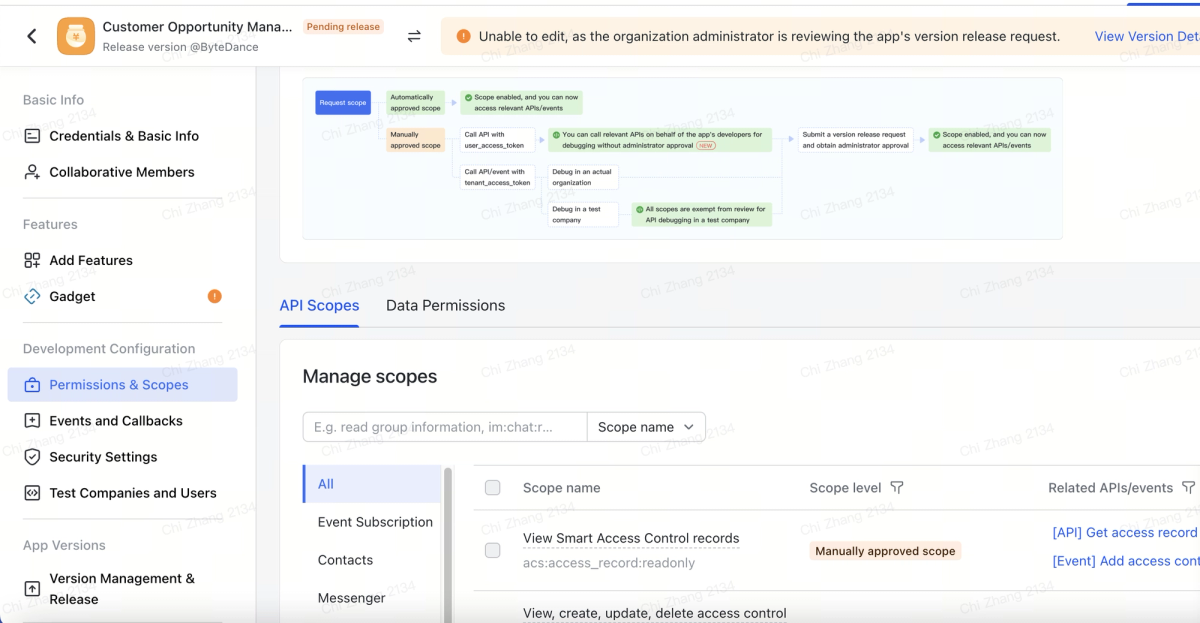
You only need what you're actually calling. For this tutorial:
| Operation | Required Scope |
|---|---|
| Send group message (bot) | im:message, im:message:send_as_bot, im:chat |
| Update Base record | bitable:app, bitable:record |
| Create doc | docx:document, drive:drive:readonly |
Add scopes in the Lark Developer Console under Permissions & Scopes. After adding scopes, re-publish the app version for them to take effect.
Authenticate once interactively:
# Use --recommend for a curated minimal scope set
lark-cli auth login --recommend

# Or specify exact scopes for tighter control
lark-cli auth login --scope "im:message im:message:send_as_bot im:chat bitable:app bitable:record"

# Verify the token is valid
lark-cli auth status
Step-by-Step: Wiring Lark CLI Into Your Agent Workflow
Step 1 — Agent Completes Task, Outputs Result to stdout
The starting point is capturing your agent's output. The exact command depends on your agent setup — here's the pattern for Claude Code in --print mode, which outputs to stdout and exits:
#!/bin/bash
# Run agent and capture output + exit code
AGENT_OUTPUT=$(claude --print "$TASK_PROMPT" 2>&1)
AGENT_EXIT=$?
For a Claude Code scheduled task or a longer interactive session, you can tail the session transcript. For most automated scenarios, --print mode with a scoped prompt is the cleanest approach: one prompt, one structured output, one exit code.
If you're using a different agent, the principle is the same: capture stdout to a variable and track the exit code. Everything downstream in this tutorial uses those two values.
Step 2 — CLI Sends Message to Lark Channel with Task Summary
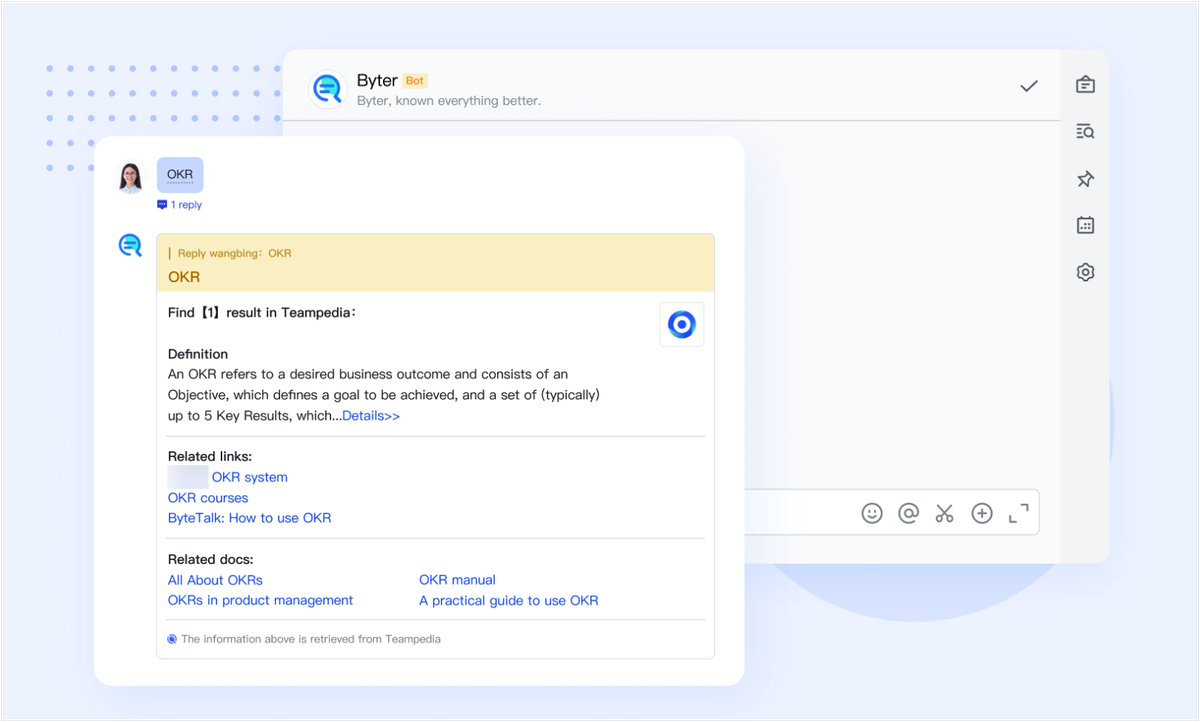
Once you have the output, send it. You'll need your group's chat_id. The fastest way to get it:
# List chats your bot is in
lark-cli im chat list --json | jq '.[].chat_id'
Then add the bot to your team's channel (from the Lark app, invite the bot to the group). With the chat_id in hand:
CHAT_ID="oc_xxxxxxxxxxxx"

# Send task completion notification as bot
lark-cli im +messages-send \
  --as bot \
  --chat-id "$CHAT_ID" \
  --text "✅ Refactor complete: auth module\n\nPR: https://github.com/your/repo/pull/42\n\nSummary:\n$AGENT_OUTPUT"
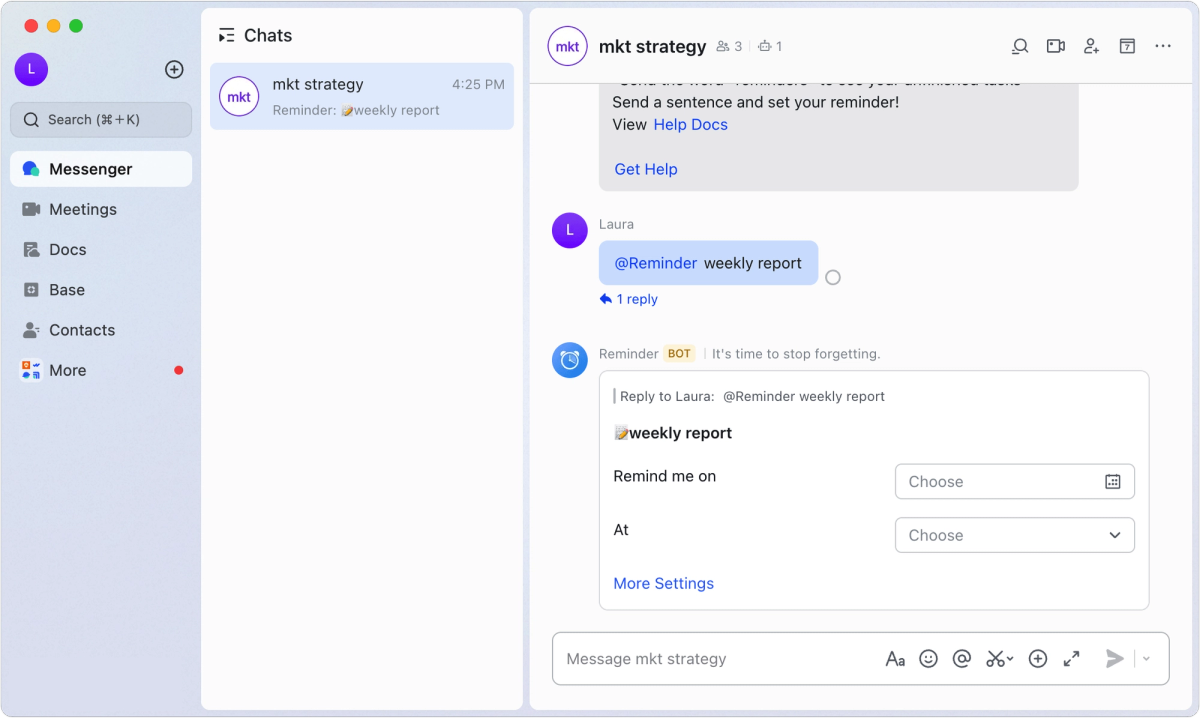
The --as bot flag sends under your bot identity rather than your personal user account. For automated pipelines, always use --as bot. The --as user flag requires user OAuth and is for interactive developer use.
To preview without sending:
lark-cli im +messages-send \
  --as bot \
  --chat-id "$CHAT_ID" \
  --text "test message" \
  --dry-run
Step 3 — Update Task Status in Lark Project Tracker
If your team tracks work in Lark Base, you can sync the completion status directly. You need three IDs from your Base URL:
app-token: the part after/base/in the URL (format:appXXXXXXXXXXXX)table-id: the table identifier (format:tblXXXXXXXXXXXX)record-id: the specific record to update (format:recXXXXXXXXXXXX)
To find record IDs programmatically:
# List records in a table (returns JSON with record IDs)
lark-cli base records list \
  --app-token "$BASE_APP_TOKEN" \
  --table-id "$TABLE_ID" \
  --json | jq '.[].record_id'
Once you have the record ID, update it:
# Update task status and add completion note
lark-cli base records update \
  --app-token "$BASE_APP_TOKEN" \
  --table-id "$TABLE_ID" \
  --record-id "$RECORD_ID" \
  --fields "{\"Status\": \"Done\", \"Completed\": \"$(date -u +%Y-%m-%dT%H:%M:%SZ)\", \"Notes\": \"Completed by agent, PR #42\"}"
The --fields flag takes a JSON string of field name → value pairs. Field names must match exactly what's in your Base schema. If you're not sure of field names:
lark-cli base fields list \
  --app-token "$BASE_APP_TOKEN" \
  --table-id "$TABLE_ID" \
  --json | jq '.[].field_name'
Step 4 — (Optional) Trigger Follow-Up Agent from Lark Event
The reverse direction — Lark event triggers an agent — is outside what lark-cli does on its own. The CLI is a sender, not a listener. To trigger agents from Lark events (e.g., someone comments "run agent" on a task), you need a webhook receiver or the Lark OpenAPI MCP server.
A simple webhook approach using a lightweight server:
# Example: minimal webhook receiver (Node.js, not production-hardened)
# Listens on PORT, runs agent when it receives a specific message payload
node webhook-receiver.js &

# In webhook-receiver.js:
# app.post('/lark-event', (req, res) => {
#   if (req.body.event?.message?.content?.includes('run agent')) {
#     exec('claude --print "run the daily audit task"', callback)
#   }
# })
For anything beyond simple webhook triggers, use the MCP server — it handles event subscriptions, auth, and the bidirectional API surface properly.
What This Looks Like End-to-End
Example: Refactor Task → Agent Runs → Lark Notification → Team Reviews
Here's a complete script tying the steps together. Save it as agent-notify.sh and call it from your CI pipeline or terminal:
#!/bin/bash
# agent-notify.sh
# Usage: ./agent-notify.sh "refactor the auth module and open a PR"
set -euo pipefail

# Config — set these in your environment or .env file
CHAT_ID="${LARK_CHAT_ID:-oc_xxxxxxxxxxxx}"
BASE_APP_TOKEN="${LARK_BASE_TOKEN:-}"
TABLE_ID="${LARK_TABLE_ID:-}"
RECORD_ID="${LARK_RECORD_ID:-}"
TASK_PROMPT="${1:-}"

if [ -z "$TASK_PROMPT" ]; then
  echo "Usage: $0 <task prompt>" >&2
  exit 1
fi

echo "→ Running agent task: $TASK_PROMPT"

# Step 1: Run agent, capture output and exit code
AGENT_OUTPUT=$(claude --print "$TASK_PROMPT" 2>&1) || true
AGENT_EXIT=${PIPESTATUS[0]:-$?}

# Step 2: Send result to Lark channel
if [ "$AGENT_EXIT" -eq 0 ]; then
  STATUS_EMOJI="✅"
  STATUS_TEXT="complete"
else
  STATUS_EMOJI="❌"
  STATUS_TEXT="failed (exit $AGENT_EXIT)"
fi

lark-cli im +messages-send \
  --as bot \
  --chat-id "$CHAT_ID" \
  --text "${STATUS_EMOJI} Agent task ${STATUS_TEXT}: ${TASK_PROMPT}

---
${AGENT_OUTPUT:0:1000}"

# Step 3: Update Base record if IDs are set
if [ -n "$BASE_APP_TOKEN" ] && [ -n "$TABLE_ID" ] && [ -n "$RECORD_ID" ]; then
  COMPLETION_STATUS=$([ "$AGENT_EXIT" -eq 0 ] && echo "Done" || echo "Failed")
  lark-cli base records update \
    --app-token "$BASE_APP_TOKEN" \
    --table-id "$TABLE_ID" \
    --record-id "$RECORD_ID" \
    --fields "{\"Status\": \"$COMPLETION_STATUS\", \"Notes\": \"$(echo "$AGENT_OUTPUT" | head -3 | tr '\n' ' ')\"}"
  echo "→ Base record updated: $COMPLETION_STATUS"
fi

echo "→ Done. Lark notification sent."
Call it with:
LARK_CHAT_ID="oc_xxx" ./agent-notify.sh "refactor the auth module"The script truncates agent output to 1,000 characters for the Lark message (${AGENT_OUTPUT:0:1000}) — Lark's IM API enforces a message content size limit, and long raw terminal output makes poor notifications anyway. If you need the full output visible to teammates, create a doc instead:
lark-cli docs +create \
  --title "Agent Output: $(date +%Y-%m-%d)" \
  --markdown "# Task\n$TASK_PROMPT\n\n# Output\n\`\`\`\n$AGENT_OUTPUT\n\`\`\`"
Known Limitations and Edge Cases
Rate Limits on Lark Messaging API
The Lark messaging API applies frequency controls. For the webhook-style custom bot, the documented limit is 100 messages per minute and 5 messages per second. For the app API (what lark-cli uses via App ID + Secret), limits vary by API endpoint — the Feishu/Lark Open Platform rate limit documentation specifies per-endpoint thresholds.
In practice, for a developer notification workflow — one or a few messages per agent task completion — you won't hit these limits. Where it becomes relevant is if you're running many parallel agent tasks simultaneously and all posting to the same channel on completion. In that case, stagger your notification calls with a short sleep between them:
# If posting multiple notifications, add a small delay between calls
for RESULT in "${RESULTS[@]}"; do
  lark-cli im +messages-send --as bot --chat-id "$CHAT_ID" --text "$RESULT"
  sleep 1  # stay well under 5/sec
done
If you do hit a rate limit, the API returns HTTP 429. The CLI will surface this as an error. Add retry logic with backoff for any pipeline that might send bursts:
send_lark_message() {
  local retries=3
  local delay=2
  for i in $(seq 1 $retries); do
    if lark-cli im +messages-send --as bot --chat-id "$1" --text "$2"; then
      return 0
    fi
    echo "Lark send failed (attempt $i/$retries), retrying in ${delay}s..." >&2
    sleep $delay
    delay=$((delay * 2))
  done
  echo "Lark send failed after $retries attempts" >&2
  return 1
}
Auth Token Refresh in Long-Running Pipelines
The token stored by lark-cli auth login has an expiry. For interactive developer use, the CLI handles refresh automatically. In CI environments or long-running scheduled pipelines, this can be a problem: the token stored at pipeline setup time may have expired by the time the pipeline runs a week later.
The recommended approach for CI:
# In CI: authenticate using App ID + App Secret directly, not stored user token
# The app's tenant access token is auto-managed by the CLI when credentials are in env
export LARK_APP_ID="cli_xxx"
export LARK_APP_SECRET="your_secret"

# Then run commands — the CLI fetches a fresh tenant token per session
lark-cli im +messages-send --as bot --chat-id "$CHAT_ID" --text "$MSG"
When LARK_APP_ID and LARK_APP_SECRET are in the environment, the CLI uses the app's tenant access token flow (which auto-refreshes using the app secret) rather than the stored user OAuth token. This is the intended pattern for headless/CI contexts.
If you're using user identity (--as user) in CI, that requires a stored user token and will break when it expires. Use bot identity for automation pipelines.
What Breaks When the Lark App Loses Permissions
If your Lark app's permissions are removed or expire, CLI calls will return permission errors (typically HTTP 403 with a Lark error code). Common causes: an admin revokes the app's access, a scope you rely on wasn't included when the app was published, or the app wasn't added to the target group.
Quick diagnostics:
# Check current auth and scope status
lark-cli auth status

# Run the CLI's built-in health check
lark-cli doctor

# Test a specific command with verbose output
lark-cli im +messages-send --as bot --chat-id "$CHAT_ID" --text "test" --dry-run
If auth status shows valid credentials but commands still fail, check that: (1) the bot was added to the target group chat, (2) the required permission scopes are listed and the app version with those scopes is published, and (3) you're not accidentally calling --as user with a bot-only scope or vice versa.
FAQ
Can I Run This in a CI/CD Pipeline Without Manual Auth?
Yes. Set LARK_APP_ID and LARK_APP_SECRET as environment variables in your CI secrets. The CLI uses these to fetch a tenant access token automatically — no browser OAuth required. Don't store user tokens in CI; use bot identity (app credentials) for all automated contexts.
Does It Work with Multi-Agent Setups?
The CLI is a stateless command-line tool — each invocation is independent. Multiple agents can call it concurrently from separate processes without contention. The only shared resource is the Lark API rate limit per app. If you're running dozens of parallel agents that all notify on completion, stay under the 5 messages/sec ceiling with the retry pattern above.
One practical note: concurrent writes to the same Base record from multiple agents will have a last-write-wins outcome. If multiple agents update the same task record simultaneously, use separate records per agent task, or serialize the updates in a wrapper script.
What's the Difference Between Lark CLI and Lark MCP for This Use Case?
The larksuite/lark-openapi-mcp server connects your AI agent to Lark as an MCP tool — the agent can query and write to Lark during its execution chain, using natural language. It's the right choice when the agent needs to read a Lark doc to inform its work, or post an incremental update mid-task.
lark-cli is the right choice for the notification layer after execution: a shell script or CI step that delivers structured output to Lark once the agent has finished. It doesn't require MCP infrastructure and works from any shell.
Rule of thumb: MCP for agents that need Lark as working context; lark-cli for agents that need Lark as a delivery target.
How Do I Handle Failures When the CLI Call Itself Errors?
Don't let a failed Lark notification abort your pipeline. Wrap CLI calls so that notification failures are logged but non-fatal:
# Notification failure should not fail the pipeline
notify_lark() {
  lark-cli im +messages-send --as bot --chat-id "$1" --text "$2" || {
    echo "WARNING: Lark notification failed. Message: $2" >&2
    return 0  # non-fatal
  }
}

# Then in your pipeline:
notify_lark "$CHAT_ID" "Agent task complete: $TASK_PROMPT"
This ensures your agent's actual work (PR creation, code changes, etc.) isn't blocked by a transient Lark API error.
Is This Approach Safe for Production Workflows?
The same safety principles that apply to any CI automation apply here. Specific to lark-cli:
- Use bot identity, not user identity, in production pipelines. User tokens expire and are tied to a person's account.
- Scope the app narrowly. Only grant the permissions your pipeline actually calls. An app that can only send messages to specific groups and update specific Base records has a small blast radius if credentials are compromised.
- Don't include sensitive data in Lark messages. Agent output that includes secrets, credentials, or private user data should be filtered before being sent to a channel.
- The official README's security warning is real: the CLI acts under your authorized identity within its granted scope. Review what scopes you've granted before running it in contexts with access to sensitive data.
Related Reading
- How Lark CLI Fits Into an AI Coding Agent Workflow — The architecture overview that precedes this tutorial: why this integration exists and where it sits in the agent execution chain.
- Claude Code Auto Mode: How Cloud Auto-Fix Changes PR Workflows — Auto Mode and Cloud Auto-Fix are the agent execution side; this tutorial handles the team notification side.
- What Is Model Context Protocol? — The MCP alternative when you need bidirectional Lark integration inside the agent loop, not just delivery after completion.
- Claude Code vs Verdent: Multi-Agent Architecture Compared — Multi-agent setups where parallel agents each post completion notifications to Lark.
- Best Claude Code Alternatives for Agentic Workflows in 2026 — Tool comparison for the agent layer that feeds into this notification pipeline.