"AI coding tools for VS Code" covers at least four different things, and installing the wrong one wastes a week. Inline completion, chat, agent mode, and approval-gated execution are separate workflows with separate blast radii. The marketplace does not sort them for you.
This article maps the categories, then looks at four extensions with current official VS Code documentation. Product facts were checked on 2026-08-18; re-check before standardizing on anything.
What Counts as an AI Coding Tool in VS Code
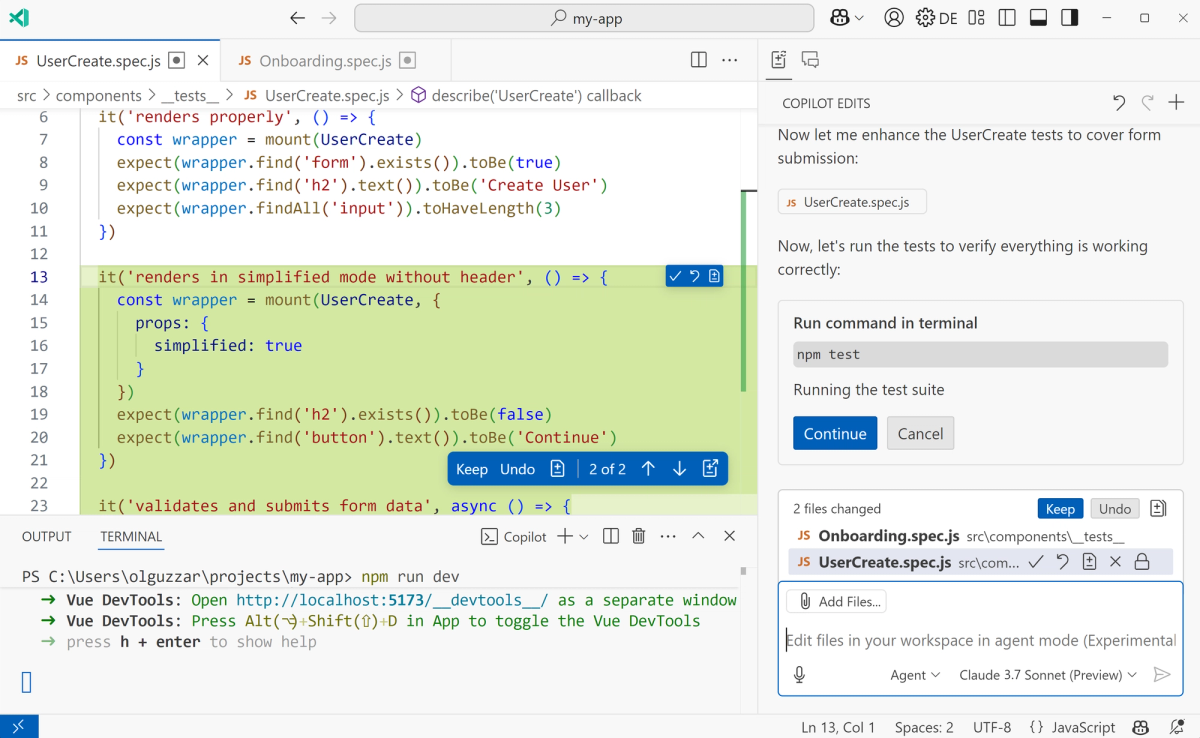
VS Code defines the surface. Its extensibility documentation groups built-in AI capability into code completion, agent mode, chat, and smart actions; extensions plug in through language model tools, MCP tools, chat participants, or direct Language Model API access.
The distinction that matters is where code runs. Language model tools and chat participants run inside the extension host and can reach VS Code APIs. MCP tools run outside VS Code and cannot. So "supports MCP" tells you a tool can reach external systems; it says nothing about what it may do inside your workspace.
Three questions separate the categories:
- Context — what can it read without being told: the open file, the workspace, external services?
- Permissions — can it write files, and does it ask first?
- Execution — can it run terminal commands, and under whose approval?
Completion tools answer no to the last two. Agents answer yes to both, which is why they need governance autocomplete never did.
AI Coding Tools for VS Code by Workflow
GitHub Copilot for Native Editor and Agent Workflows
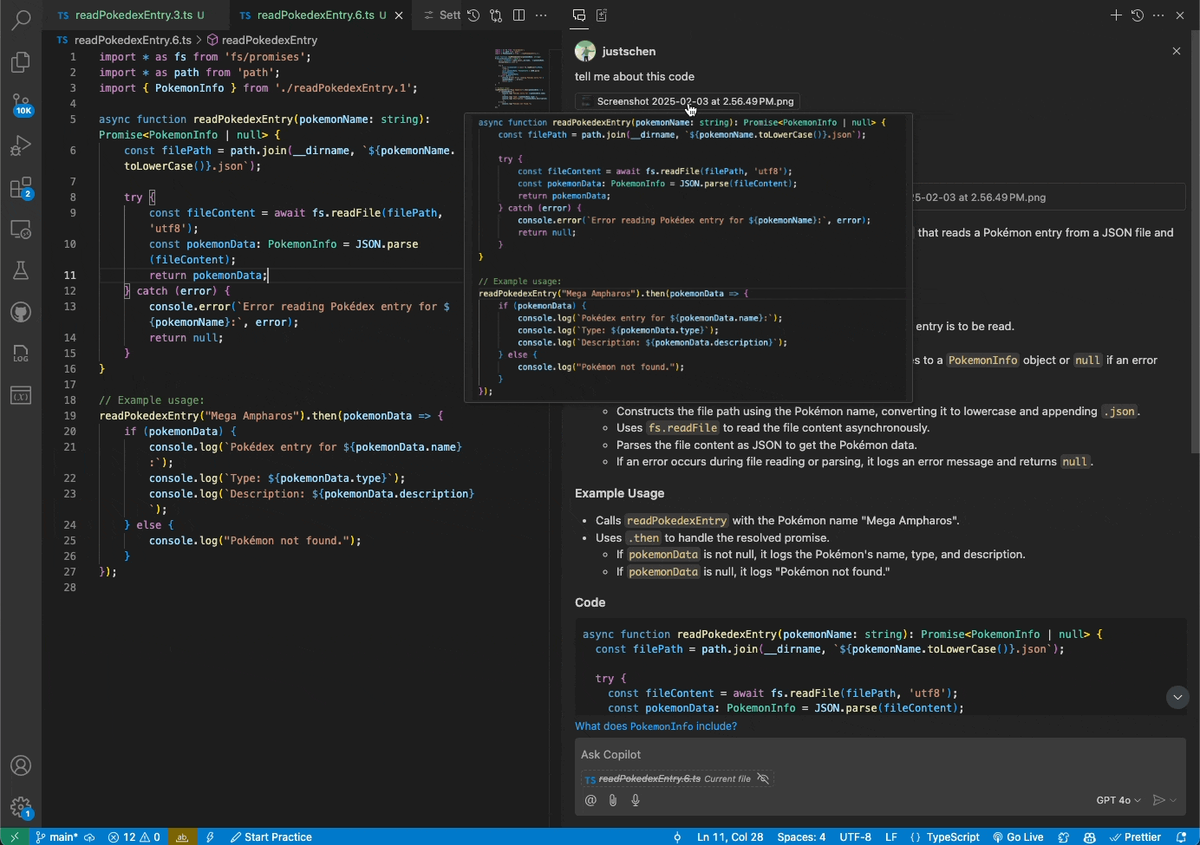
Copilot is wired into the editor rather than bolted on. Completion, chat, and agent mode share one surface, and agent mode is where tool calling happens — MCP servers are available there, not in ask mode.
What makes it evaluable is that the controls are documented settings. VS Code's reference lists chat.tools.terminal.autoApprove, which ships with a deny-list including rm, rmdir, del, kill, curl, chmod, and chown, and a separate chat.tools.global.autoApprove that the documentation describes as disabling critical security protections. There is also chat.agent.maxRequests, defaulting to 25, which caps how many requests one agent turn can make.
Read those three before your first agent run. They define the failure ceiling.
Gemini Code Assist for Agent Mode and Context Tools
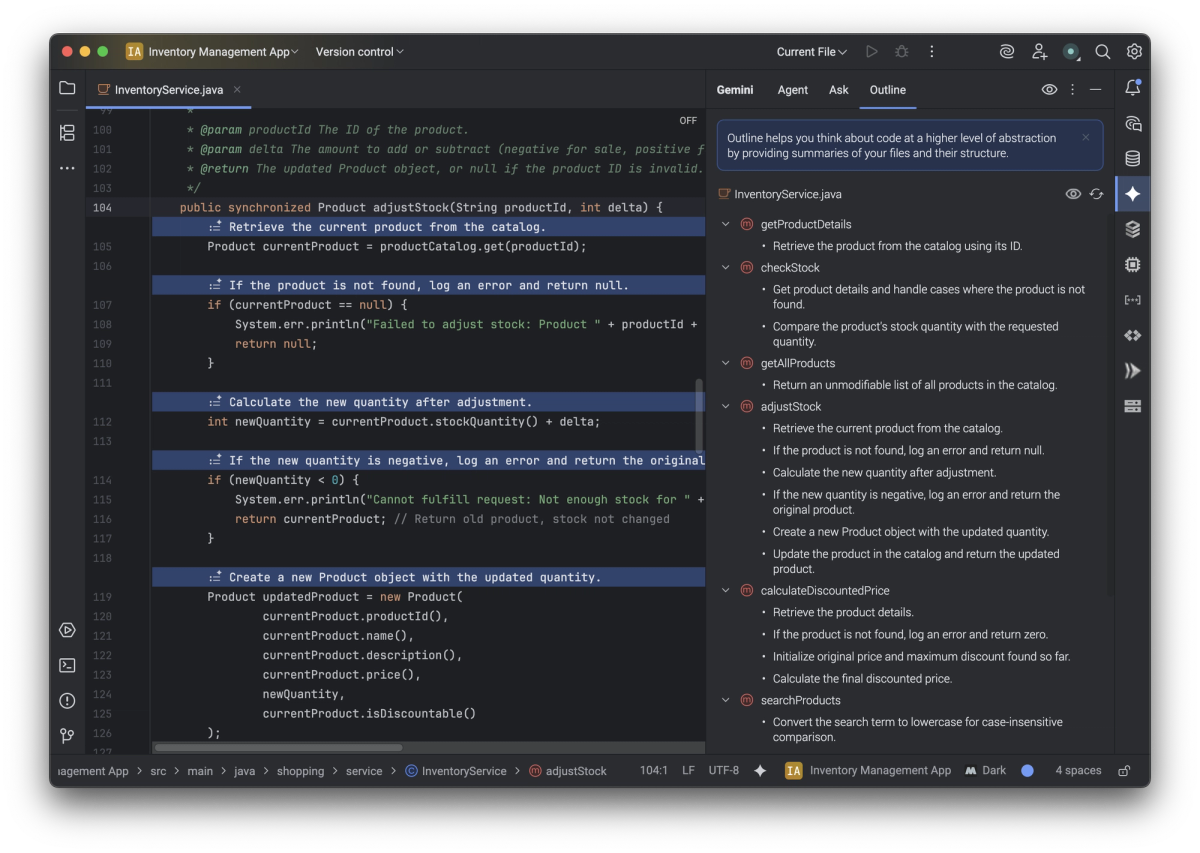
Agent mode is available in VS Code and IntelliJ. In VS Code it exposes Gemini CLI's built-in tools; IntelliJ has its own built-in tool set and configuration surface, so the two are not interchangeable. Google's documentation describes context drawn from the IDE workspace plus built-in tools like grep, terminal, file read, and file write, MCP configuration, Markdown context files, and an approval flow where you comment on, edit, and approve plans and tool use mid-execution. Auto-approve is an explicit opt-in.
One eligibility change matters more than any feature. As of 2026-06-18, the Gemini Code Assist IDE extensions and Gemini CLI stopped serving the individuals, Google AI Pro, and Google AI Ultra tiers, with those users directed to Google's Antigravity platform; Standard and Enterprise remain Google Cloud products. Evaluation notes written before June describe a plan you may no longer be able to buy.
Cline for Approval-Based Agent Tasks
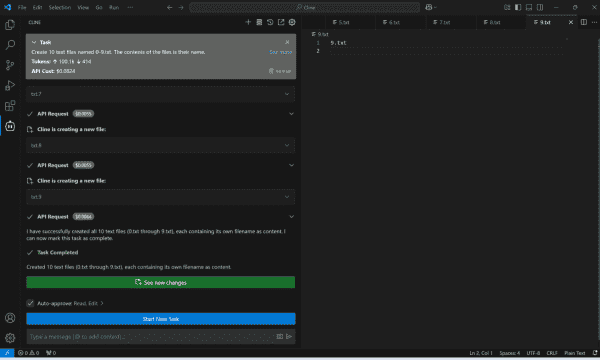
Cline is the clearest example of approval-gated execution. Its repository describes Plan mode, where it explores the codebase and proposes a strategy, and Act mode, where every file edit and terminal command requires approval unless you toggle auto-approve. Project rules live in .clinerules files, read by the CLI, the VS Code extension, and the JetBrains plugin.
It is model-agnostic, but the provider relationship depends on how you configure it: Cline supports its own usage billing and ClinePass alongside BYOK, and its terms state that when you use Cline-provided API keys, the model provider treats Cline as the direct customer. If you need the contract to sit with your own model vendor, configure BYOK explicitly rather than assuming it.
The cost of the approval model is attention. Per-action gates are real overhead, and teams that respond by enabling blanket auto-approve have removed the reason they chose it.
Tabnine for Governed Team Deployments
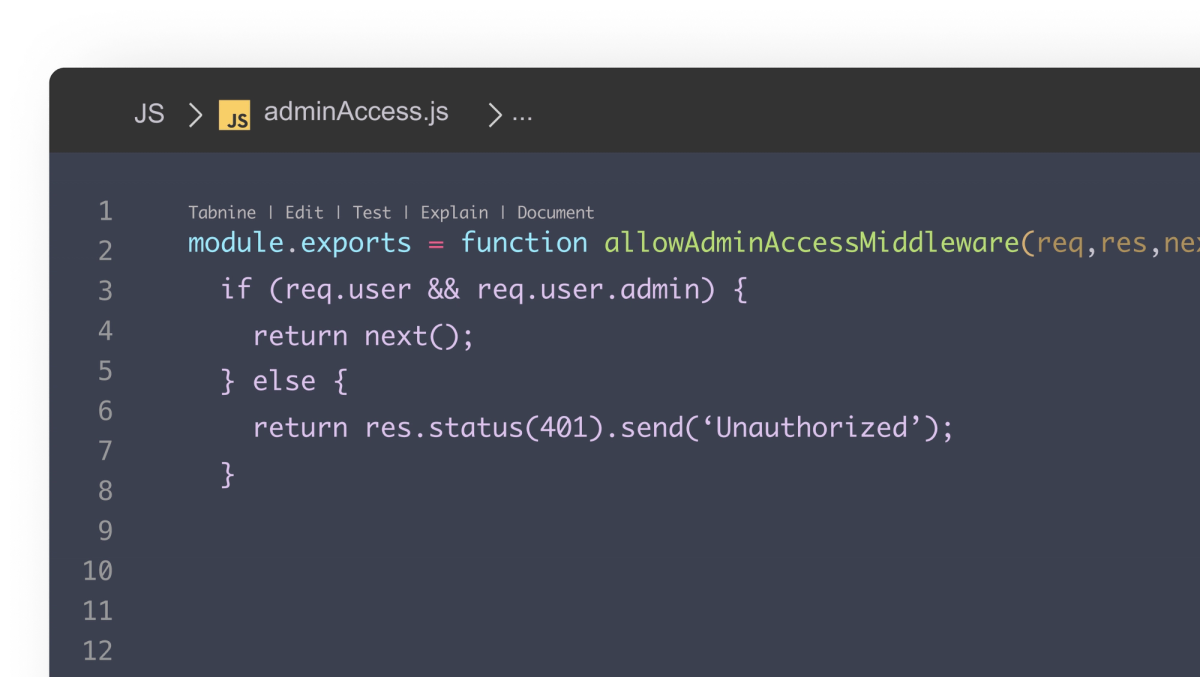
Look here when the constraint is where code may run. Tabnine publishes two paid plans — a Code Assistant Platform and an Agentic Platform, at $39 and $59 per user per month annually — with SaaS, VPC, on-premises, and air-gapped deployment listed for both, plus per-user and per-team LLM access control.
One integration detail belongs in a VS Code article: documented support starts at VS Code 1.93.1, and the CLI editor companion ships as a VS Code extension, so it installs into VS Code and its forks but not into JetBrains, Eclipse, or Zed. Mixed-editor teams get an uneven experience across their two halves.
Compare Context, Permissions, and Execution
Compare on the three axes rather than ranking.
Context varies less than vendors imply. All four read the open workspace and extend reach through MCP. The difference is whether context selection is visible — Gemini's context drawer and Copilot's instruction files both target that.
Permissions is where they diverge. Copilot's terminal auto-approve list and Cline's per-action gates are the same idea at different granularity; Tabnine's controls sit a level up, at the team and deployment layer.
Execution is the axis to decide first, because it is the one that can break a machine. An extension that can run rm under an auto-approve rule is a different risk class from one that writes files only after a diff review.
Build a Fair VS Code Pilot
Comparisons collapse when each extension gets a different task. A workable setup:
- One repository, three fixed tasks — a scoped bug fix, a cross-file refactor, a test-writing task
- Fix the model where you can, so you compare harnesses rather than models
- Same approval posture for every candidate; do not let one run with auto-approve
- Shared configuration in the workspace, not personal settings, so runs are reproducible
- Record rejected suggestions and rollbacks, not just successes
Do not measure speed. Without an identical model, prompt, and machine, timing describes your setup rather than the tools.
When VS Code Is Not the Right Host
Some problems are not extension-selection problems.
If the work is one developer supervising one agent in one editor, VS Code is a good host and this comparison is the right shape. If it is several agents running in parallel against isolated workspaces, coordination becomes a first-class constraint. VS Code has moved toward this — the Agents window runs and tracks multiple agents in parallel, supports session worktrees and side-by-side review, and can integrate results — while still keeping one session view active at a time, with the Changes panel following it. So the question is not whether the editor can host parallel work, but how much of your attention the coordination costs once plan review and merge sit on top of it. That is the category Verdent works in, and it is a different question from which extension to install, not a better answer to the same one.
Either way: pick the host first, then the tool.
FAQ
Can one workspace run two AI extensions safely?
Technically yes, and it is common during evaluation. Watch for duplicate inline completions competing on the same keystrokes, conflicting keybindings, and two agents holding write access to the same files. Disable inline suggestions on all but one — github.copilot.enable takes per-language values, which is cleaner than disabling the extension outright.
How should teams separate extension telemetry policies?
Treat each extension as a separate data flow with its own vendor, not as one "AI policy." Record what leaves the machine, whether code is retained, whether an enterprise setting overrides the individual default, and who administers it. Do not assume one switch covers it: VS Code documents telemetry.telemetryLevel as affecting participating third-party extensions, while also noting that some extensions might not respect the setting. Check each vendor's own control.
Which settings belong in a shared workspace file?
Anything that changes behavior rather than appearance: approval rules, MCP access, request caps, instruction file locations. Keep model choice and UI preferences personal. Instruction and prompt files default to .github/instructions and .github/prompts, and AGENTS.md support is on by default — version those so a new hire inherits the same setup.
What should developers document before switching extensions?
Four things: settings changed from defaults, workspace files the old extension depended on, the approval posture you had settled on, and one task the old tool handled well. The last is your regression test — if the new extension fails it, you learn that during evaluation rather than three weeks in.
Can accessibility tools conflict with AI extension shortcuts?
Yes, and it is under-tested. Chat and agent activity produce audio signals and screen reader announcements — VS Code exposes settings such as accessibility.signals.chatUserActionRequired plus verbosity controls for inline chat and completions. Agents that stream edits also move focus, which can disorient screen reader users. If anyone on your team uses assistive technology, include them in the pilot rather than validating afterward.
Related reading
- For a closer look at one of the four above, start with what a governed team deployment actually commits you to.
- Once a tool is chosen, the harder problem is who owns an agentic workflow when it runs across a team.
- If your pilot needs a repeatable scoring method, this harness evaluation checklist works across vendors.
- When a vendor cites benchmark scores, it helps to know what a benchmark like SWE-bench Pro can and cannot tell you.
- And if the host question is still open, compare how two agent-first editor surfaces differ in day-to-day control.