The support form says “Sent,” but the team inbox is empty. That single word hides several separate events: the Lovable app accepted a click, a server function ran, Resend accepted a request, and a recipient server handled the message. A Resend Lovable integration is ready only when you can tell which event happened and which one failed.
This documentation-based tutorial, checked September 29, 2026, builds one path: a signed-in user submits a support request, and a server function emails a fixed team inbox. No live send was performed for this article.
What You Will Build
The browser sends only the support message. The function verifies the signed-in user, reads RESEND_API_KEY from a backend secret, and asks Resend to send one plain-text message from your verified domain to your team's fixed address. The UI displays success only after the function returns a Resend email ID; later, you check delivery in Resend.
Lovable also offers built-in branded app emails on paid workspaces. This route is for projects that specifically need Resend's account, API, and delivery records.

Before You Connect Resend and Lovable
Confirm where the app runs server code. Lovable Cloud includes Edge Functions and project secrets. With your own Supabase backend, Lovable can deploy functions there, while secrets and logs live in Supabase. A frontend-only page needs a backend route.
Prepare the Domain and Sender
Add a domain or transactional subdomain, such as notify.example.com, in Resend. Copy its DNS records and wait until the domain is verified before using support@notify.example.com as from. Resend's domain setup calls for DKIM and SPF and recommends DMARC. Verification does not replace a function's old onboarding@resend.dev sender; update it and redeploy.
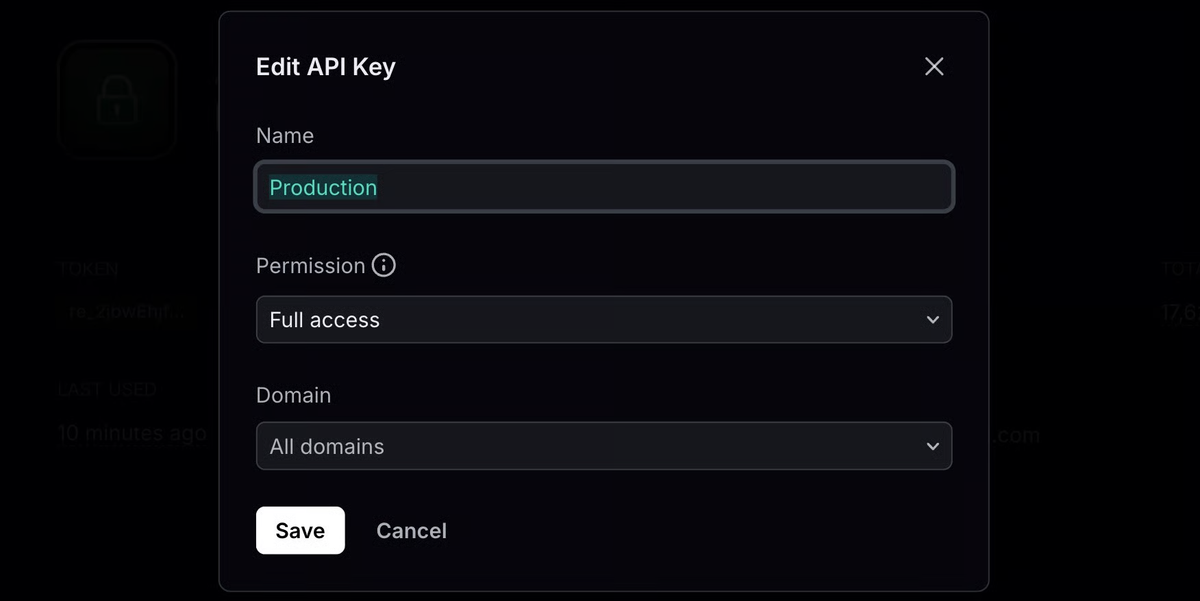
Create a Resend API key with sending access and a domain restriction. Choose one team inbox you control. Resend's test domain can send only to the account owner's address; other recipients require your verified domain. Resend's Lovable integration guidance describes the sender switch.

Define the Email Event and Test Data
Use one event: an authenticated support form submission. The browser supplies a message of at most 2,000 characters. The server derives the sender's account email from a verified session and keeps the destination address in server code or configuration. Do not accept to, from, or an arbitrary reply_to value from the request body; otherwise, a form can become an email relay.
Prepare a test user, team inbox, and short message. Success means one function invocation, one Resend ID, one matching dashboard record, and one delivery result. Those do not prove a human saw the message.
Store the Resend Credential Safely
In Resend, copy the key once. In a Lovable Cloud project, add RESEND_API_KEY through the secure prompt Lovable opens or More → Cloud → Secrets. With your own Supabase project, put the same name in that project's Edge Function secrets. Lovable's secret handling injects Cloud secrets into server functions; they are not browser variables. Never put the key in a VITE_ variable, a frontend file, a prompt transcript, or a browser request.
Check the secret's name, never its value. If exposed, revoke it in Resend and replace the backend secret. A Supabase publishable key has a different permission role from the Resend sending key.
Create the Server-Side Email Function
In the main Lovable project chat, request a single function. Lovable's Edge Function workflow creates and deploys it from a prompt; the function's code and logs remain available for review. Use a request like this:
Add one authenticated support form. On submit, call a server-side Edge Function namedsend-support-request. Verify the caller's session on the server, derive the user's email from that session, validate a plain-text message of 1–2,000 characters, and send exactly one transactional email through Resend to our fixed support inbox. ReadRESEND_API_KEYonly from backend secrets. Use our verifiedsupport@notify.example.comsender, return the Resend email ID, and show an error when Resend rejects the request. Do not log the key or full message. Show me the function and client diff before I test it.
Replace the example addresses and review the generated function. After session and message validation, the server-only call should resemble:
const response = await fetch("https://api.resend.com/emails", {
  method: "POST",
  headers: {
    Authorization: `Bearer ${Deno.env.get("RESEND_API_KEY")}`,
    "Content-Type": "application/json",
  },
  body: JSON.stringify({
    from: "Support <support@notify.example.com>",
    to: ["team@yourdomain.com"],
    subject: "New support request",
    text: `From: ${user.email}\n\n${message}`,
  }),
});
Here user comes from a server-verified session and message passes the length check. This is not a complete endpoint: the function must reject unauthenticated calls, check response.ok, handle a missing secret, and return the Email API's ID after acceptance. The browser chooses neither address.
Trigger and Test One Transactional Email
Open the Lovable preview as your test user, submit the support form once, and inspect the browser response. The button should show a pending state and prevent a second click until the first request settles. Confirm the function returned an ID, then find that ID in Resend's email activity. A 200 from your own function without a Resend ID is not sufficient evidence.
First use your owned team inbox to verify real receipt. For repeatable delivery-path tests, Resend supplies special addresses, including delivered@resend.dev and bounced@resend.dev; route to one of these only in a controlled test configuration, never by letting a browser user choose a recipient. Record the function result, Resend's status, and whether the message appeared in the expected inbox or spam folder. Then restore the fixed team address.
Diagnose Failed or Missing Messages
Start at the first missing checkpoint. If the browser never calls the function, inspect the UI handler and session. If the function rejects the request, check its invocation logs for authentication or validation errors. If Resend rejects it, compare the API error with the secret, verified from domain, recipient, and quota. A 429 can mean a rate limit: Resend currently starts teams at 10 requests per second, shared by their API keys.
If Resend accepts the request but the inbox is empty, inspect the event against the email ID. Delivered means the recipient's server accepted the message, not necessarily that it reached the inbox. Check spam, mail filters, suppression, and the sender's authentication records before changing application code.
Security and Production Limits
The example deliberately stops at one event and one destination. Before letting real users trigger it, add a server-enforced per-user cooldown or rate limit, deduplicate retries, and decide how long support messages should remain in logs. Do not log API keys, access tokens, or full message bodies. If you later send customer-facing mail, derive each recipient from an authorized record rather than trusting a browser-supplied address.
Plan for two quotas: Lovable's function and backend usage, and Resend's sending allowance. Resend's current free tier lists 100 transactional emails per UTC day and 3,000 per month, including inbound mail if enabled. This tutorial does not configure marketing broadcasts, a support mailbox, or an automated retry queue. A retry can produce a duplicate unless the event has a stable identifier and the send is made idempotent.
FAQ
Can a Lovable App Receive Inbound Email Through Resend?
Yes, but receiving is a separate flow. Resend can route inbound messages to a webhook. Your Lovable app would need a public server endpoint, verified webhook signatures, and a decision about where to store or display the message. The sending function above does not create an inbox.
How Do You Add a Reply-To Address to a Lovable Email?
Add Resend's reply_to field to the server-side send payload. Use a fixed support mailbox or the signed-in user's address after confirming that address is verified, depending on where replies should go. Do not forward an unchecked address from the browser. Resend lists reply_to in its send API.
Can a Lovable App Send Resend Email Attachments?
Yes. Resend accepts attachments as content or a hosted file path, with a 40 MB limit per email after Base64 encoding. Retrieve and authorize the file on the server before attaching it; a user-supplied URL or storage path must not grant access to another user's file.
Does Resend Test Mode Work with Lovable Preview URLs?
Resend has no separate sandbox or production-approval mode. A Lovable preview can invoke your backend function if that project and session are configured to do so; the preview URL does not verify a sending domain or relax Resend's recipient rules. Use a verified sender for real destinations or Resend's designated test addresses to simulate events.
Can Lovable Use Email Templates Hosted in Resend?
Yes. In the server-side request, use a published Resend template ID or alias and its variables instead of html or text. Resend's template payload rejects a request that combines those body fields. Keep variable values within their documented limits and test the rendered email before replacing the plain-text example.
Conclusion
For this one support event, the release check is concrete: the authenticated request reaches the function, the function uses a backend secret, Resend returns an email ID, and the destination receives or records the message. When any checkpoint is missing, fix that boundary before adding more email types. The next workflow deserves its own recipient rule, retry policy, and test.