You're mid-session in Codex CLI, and the model asks you to paste the relevant Jira ticket or copy the error from your observability dashboard. You do. It works — but you just became the integration layer between your tools and your coding agent. MCP is the mechanism that's supposed to close that gap: instead of you fetching external context, Codex fetches it directly. Here's how to actually make that work.
What MCP Means in Codex CLI
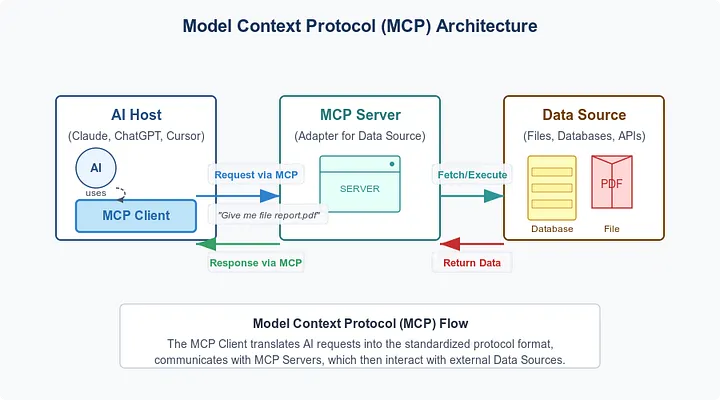
Why terminal agents need external tools
Codex CLI's built-in capabilities cover your local filesystem, shell commands, git operations, and web search. That's enough for most coding tasks that live entirely within a repository. It's not enough for tasks that require live context from external systems: a ticket with the acceptance criteria, a deployment that just failed, a PR that needs review against a security scan result.
MCP (Model Context Protocol) is the standard that lets Codex connect to external services as a client. Configure a server, and Codex gains access to that server's tools — functions it can call during a session without you manually fetching and pasting the data yourself. One practical integration is the Google Sheets MCP Server for reading and writing spreadsheet data.
Client vs server confusion
The terminology trips people up because "MCP" covers two different roles Codex can play:
Codex as MCP client — Codex connects to external MCP servers (GitHub, Linear, Sentry, your internal tools) and calls their tools during sessions. This is what this article covers.
Codex as MCP server — Codex exposes its own capabilities so other agents or tools can drive it. The CLI subcommand for this is codex mcp-server, separate from codex mcp (documented in the Codex CLI reference). This is a different feature and not covered here.
If you're trying to connect Codex to external tools, you want the client side.
What Codex CLI Supports Today
Official MCP support surface
Codex CLI supports two MCP transport types, as documented on the official configuration reference:
stdio — the MCP server runs as a local child process that Codex launches and communicates with via stdin/stdout. The standard path for locally-installed tools: language server protocols, CLI-based MCP servers (uvx-launched, npm-launched), and internal tools that run on your machine.
Streamable HTTP — Codex connects to a remote MCP server via HTTP. The same pattern is used by the Gmail MCP Server for email workflows. Supports optional OAuth and bearer token authentication. The path for cloud-hosted MCP services: GitHub's official MCP endpoint, hosted Notion integrations, and similar remote services.
Configuration lives in ~/.codex/config.toml (global, applies to all sessions) or .codex/config.toml in a project directory — documented in Codex config basics (applies to that project only, requires the directory to be trusted). The CLI and IDE extension share the same config file — changes in one surface appear in the other.
Typical setup flow
Two ways to add a server:
Via CLI command (preferred for first-time setup):
# Add a stdio server:
codex mcp add <name> --command <executable> --args <arg1> <arg2> --env KEY=VALUE

# Add a Streamable HTTP server:
codex mcp add <name> --url https://service.example.com/mcp/ --bearer-token-env-var TOKEN_VAR

# List configured servers:
codex mcp list

# Show a specific server's config:
codex mcp show <name>

# Remove a server:
codex mcp remove <name>

# OAuth login for HTTP servers that support it:
codex mcp login <name>
Via direct config.toml edit (see the sample configuration for a full reference):
# ~/.codex/config.toml

# stdio example — local MCP server launched as a child process
[mcp_servers.my-tool]
command = "uvx"
args = ["my-mcp-package"]

[mcp_servers.my-tool.env]
TOOL_API_KEY = "env-var-name"   # pass env vars the server needs at launch

# Streamable HTTP example — remote MCP server
[mcp_servers.github]
url = "https://api.githubcopilot.com/mcp/"
bearer_token_env_var = "GITHUB_PAT"  # name of the env var holding the token

# Optional settings (apply to any server):
# enabled = false      # skip initialization without removing the entry
# startup_timeout_sec = 15   # override the 10-second init timeout
# tool_timeout_sec = 120     # override the 60-second tool call timeout
Configuration precedence (highest first): project .codex/config.toml (closest to working directory) → project root → global ~/.codex/config.toml.
Inside a session, use /mcp to see which servers are connected and which tools are available.
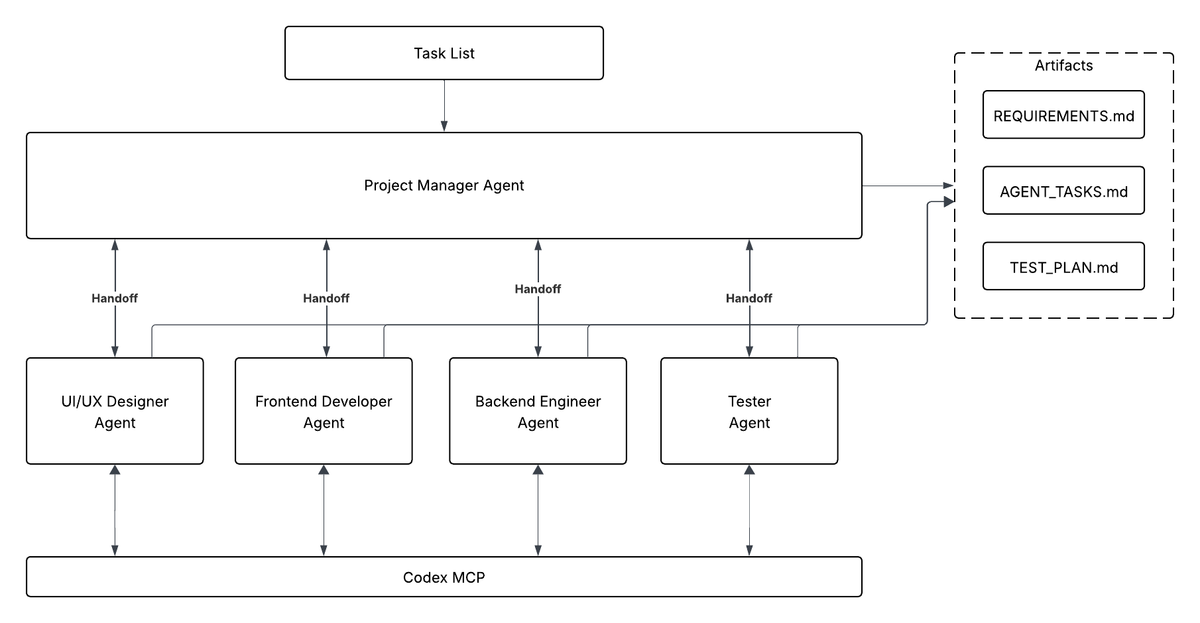
Practical Use Cases
Docs and ticket systems
GitHub — GitHub's official MCP server is hosted at https://api.githubcopilot.com/mcp/ and supports Streamable HTTP (see GitHub MCP Server documentation). Configuration:
[mcp_servers.github]
url = "https://api.githubcopilot.com/mcp/"
bearer_token_env_var = "GITHUB_PAT"
Set GITHUB_PAT to a personal access token with the required scopes (least-privilege: repo read for most read operations). Codex can then fetch issue details, list PRs, search the repository, and post comments — without you pasting any of it.
Notion — available as an MCP server (check the official Notion MCP documentation for the current endpoint and auth method). Useful for pulling spec documents, design decisions, and project context into a Codex session.
Linear — available via Codex's plugin marketplace (which bundles auth, skills, and MCP config as a single installable unit). If you're already using Codex plugins, the plugin path is simpler than manual MCP config for Linear.
Deployment and observability tools
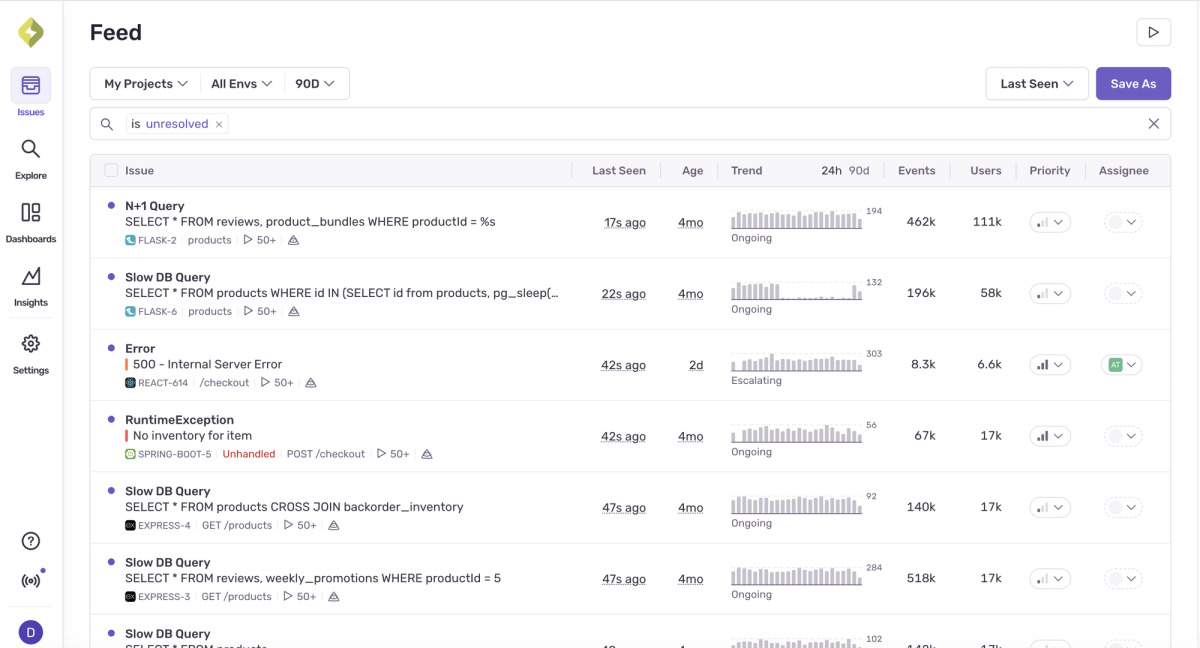
Sentry — the Sentry MCP server gives Codex access to error traces, stack traces, and issue history. When debugging a production error, Codex can fetch the actual stack trace from Sentry rather than working from a screenshot or a paste.
Vercel — available in Codex's plugin marketplace. Gives Codex access to deployment status, logs, and environment configuration.
For any observability tool that provides an MCP server (check their documentation for current availability), the pattern is the same: add the server to config.toml, configure auth, and Codex can pull live deployment or monitoring context during debugging sessions.
Team workflow integrations
Internal tools — if your team has internal services with HTTP APIs, wrapping them in an MCP server makes them accessible to Codex. The MCP protocol is not complex to implement on the server side; existing libraries cover Python, TypeScript, and Go. An internal documentation service, a staging environment status endpoint, or a proprietary test runner can all be exposed as MCP tools.
CI/CD systems — if your CI system exposes an MCP server or can be wrapped in one, Codex can check build status, read test failures, and access pipeline logs directly during a debugging session instead of requiring you to paste output.
Common Failure Modes
Auth and environment issues
Bearer token env var not found: The bearer_token_env_var field takes the name of an environment variable, not the token value itself. If the env var isn't set when Codex launches, the server will fail to connect.
# Set before launching Codex, or export in your shell profile:
export GITHUB_PAT="ghp_your_token_here"
codex
For stdio servers, env vars set in the [mcp_servers.name.env] block are passed to the child process at launch. These are additional env vars for the server process — the server doesn't automatically inherit your entire shell environment unless the server implementation requests it.
Absolute path required for stdio executables: If Codex can't find the executable specified in command, it fails silently or with a generic "server not found" error. Use the absolute path if the executable isn't in the standard PATH Codex inherits:
# Find the path:
which uvx      # macOS/Linux
where uvx      # Windows PowerShell

# Use absolute path in config:
# command = "/Users/username/.local/bin/uvx"
Startup timeout exceeded: The default startup timeout is 10 seconds. MCP servers that take longer to initialize (JVM-based servers, servers that authenticate on startup) may fail to connect. Increase the timeout:
[mcp_servers.slow-server]
command = "java"
args = ["-jar", "/path/to/server.jar"]
startup_timeout_sec = 30
OAuth flow doesn't complete: For HTTP servers supporting OAuth, run codex mcp login <name> separately before starting a session. The login command opens a browser window for OAuth. If Codex is running in a headless environment without browser access, OAuth login won't work — use bearer token auth or a pre-authenticated service account instead.
Tool discovery and permissions
Server connects but shows no tools: Run /mcp inside a Codex session to see connected servers and their available tools. If a server is listed but shows zero tools, the issue is usually on the server side (the server initialized but returned an empty tool list) or the server requires additional auth before exposing tools.
Codex can see tools but the calls fail: Tool call timeout is 60 seconds by default. For tools that make slow API calls or do significant processing, increase tool_timeout_sec. For tools that return errors, check whether the error is from Codex (transport or auth) or from the MCP server itself — Codex surfaces both but doesn't always make the distinction clear in the session UI.
Project-scoped config not loading: Project config (.codex/config.toml in the project directory) only loads for trusted projects. If you add an MCP config to a project and it doesn't load, the project directory may not be trusted. Codex prompts for trust on first use of a directory; you can also check and set trust in Codex settings.
FAQ
What is MCP in Codex CLI and do I need it?
MCP is the protocol Codex uses to connect to external tools beyond its built-in capabilities (filesystem, shell, git, web search). You don't need it for coding tasks that live entirely within a repository. You do need it if you want Codex to fetch context from external systems during a session — ticket details, deployment status, error traces, documentation — without you pasting it manually. If you find yourself regularly copy-pasting external context into Codex sessions, MCP is what removes that step.
How do I set up MCP tools with Codex CLI?
Two paths: codex mcp add at the command line (interactive, recommended for first setup) or directly editing ~/.codex/config.toml (replicable, scriptable). Each MCP server entry needs a name and either a command + optional args + optional env (for stdio servers) or a url + optional bearer_token_env_var (for Streamable HTTP servers). After adding, start a Codex session and run /mcp to verify the server is connected and showing its tools.
Why is my MCP connection failing?
The most common causes, in order of frequency: (1) the env var for the bearer token isn't set when Codex launches; (2) the executable for a stdio server isn't on the PATH Codex inherits — use an absolute path; (3) the startup timeout is too short for the server to initialize — increase startup_timeout_sec; (4) the project directory isn't trusted, so project-scoped config isn't loaded. Check /mcp inside a session to see the connection state, and look at Codex's session logs for error messages from the server initialization.
Can Codex CLI connect to my company's internal tools?
Yes, if your internal tools expose an MCP server. For tools with HTTP APIs, a lightweight MCP wrapper is the standard path — MCP server libraries exist for Python, TypeScript, and Go. The server can run locally (stdio transport, launched as a child process by Codex) or be hosted on your internal infrastructure (Streamable HTTP transport, accessible via URL). Internal MCP servers behind a VPN work with Streamable HTTP transport as long as the URL is reachable from the machine running Codex.
Related Reading