Just got back from a late-night session trying to get the new Codex app running on my M3 MacBook Pro, and yeah — it actually works out of the box way smoother than I expected for a day-one release. I've been poking around AI coding tools for years now, and OpenAI dropping this desktop app on February 2nd caught my attention fast. If you've been waiting to try it but aren't sure where to start, this is the no-fluff guide. I walked through every step myself, hit a couple of snags on the way, and documented exactly what to do. Let's get into it.
System Requirements
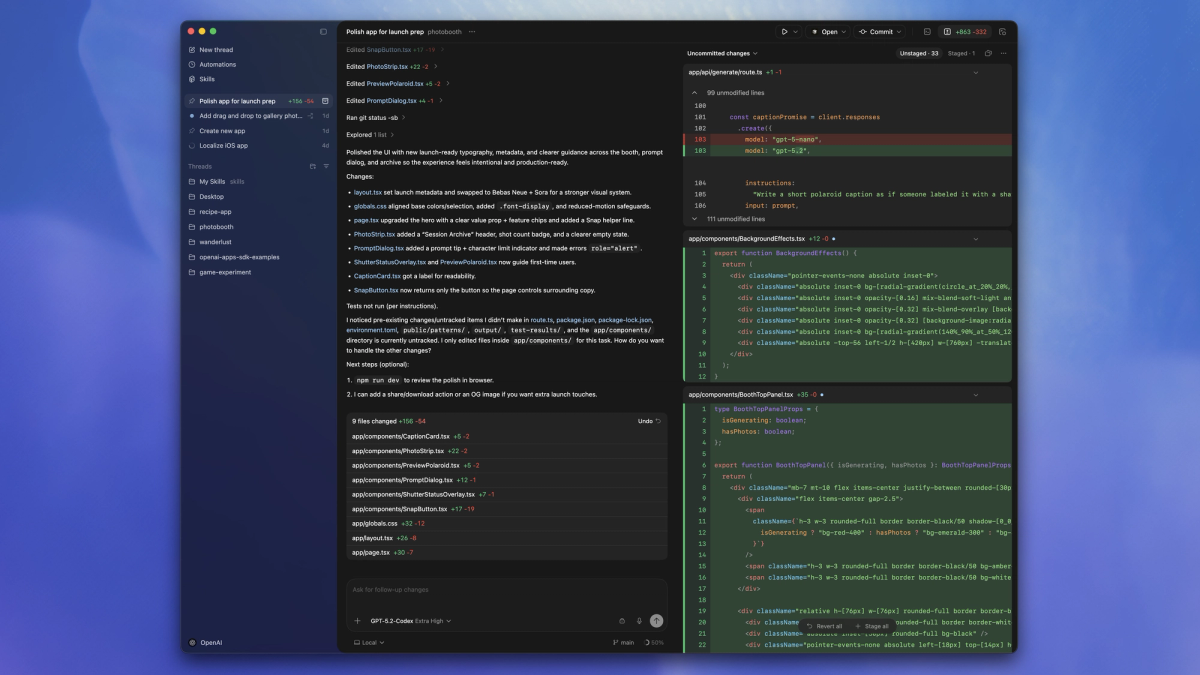
Before you even think about hitting download, let's make sure your machine is actually ready. I learned this the hard way so you don't have to.
The Codex app is macOS only right now — no Windows, no Linux. And here's the important part: it requires Apple Silicon. That means M1, M2, M3, or any newer chip. Intel-based Macs are out of the picture for this one.
| Requirement | What You Need |
|---|---|
| OS | macOS (Apple Silicon only) |
| Chip | Apple M1 / M2 / M3 or later |
| Download size | ~25.4 MB (DMG installer) |
| Account | ChatGPT account or OpenAI API key |
| Internet | Required for sign-in and cloud features |
Quick way to check your chip: hit the Apple menu in the top-left corner, click About This Mac, and look for "Apple M1," "M2," "M3," etc. If you see "Intel" anywhere in there, this app isn't going to work for you — keep an eye on OpenAI's notification form for when Windows and Linux versions land.
One thing worth noting: if you're running macOS Sequoia (15.x) or later, your system's Gatekeeper security might flag the installer. I'll cover that in the troubleshooting section below, because it tripped me up on first install.
Download and Installation Steps
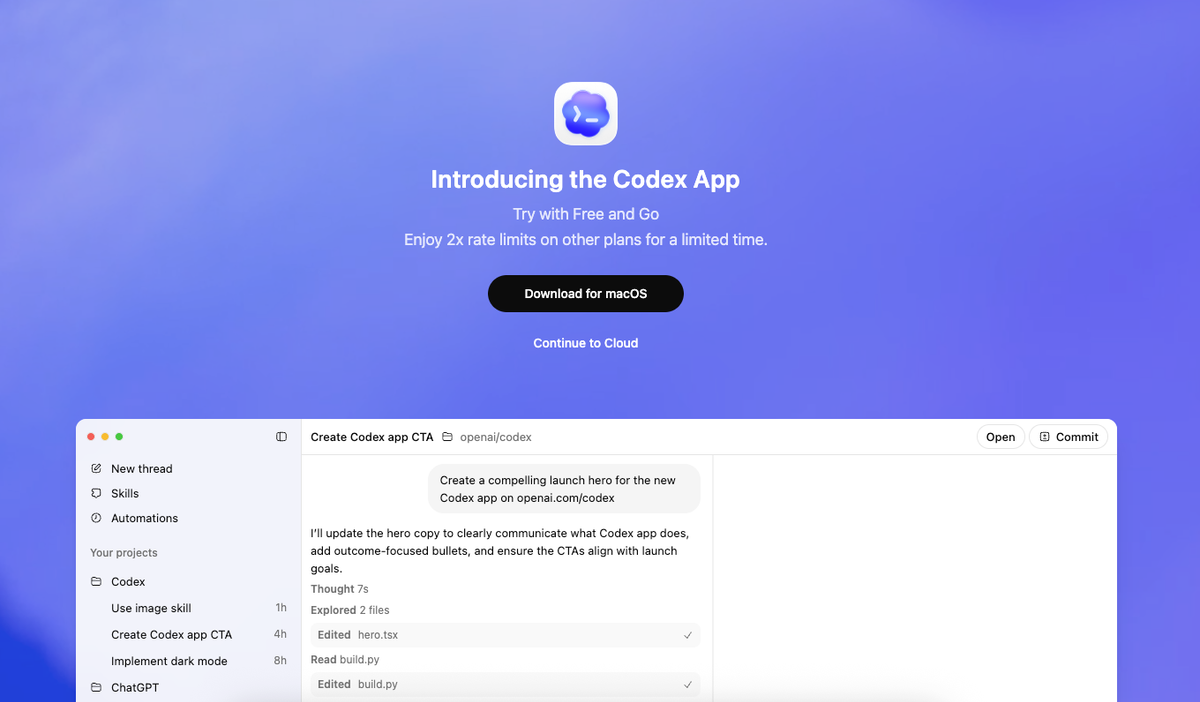
Straightforward process. Took me about two minutes from start to finish once I knew where to click.
Step 1 — Go to the official download page. Head to chatgpt.com/codex. That's the only legit source. Don't download from random mirrors or third-party sites — I checked, and a couple of them were serving outdated or sketchy builds.
Step 2 — Click the macOS download button. You'll grab a .dmg file, roughly 25.4 MB. It should start downloading immediately. If your browser blocks it, just click "Allow" when the download prompt pops up.
Step 3 — Run the installer. Once the .dmg finishes downloading, double-click it to mount. You'll see the familiar drag-to-Applications setup. Drag the Codex icon into your Applications folder. Done.
Step 4 — Launch and sign in. Open Codex from your Applications folder (or hit Spotlight — Command + Space, type "Codex"). The sign-in screen will be the first thing you see. More on sign-in options in the next section.
Alternative: Install via HomebrewIf you're a terminal person like me, you can skip the DMG entirely. Codex now ships as a Homebrew cask (not a formula — this confused a lot of people when it first changed). Run this:
brew install codex --caskIf you previously installed Codex via the old formula method and Homebrew is refusing to upgrade, uninstall the formula first, then install the cask:
brew uninstall codex --formula
brew install codex --cask
This is documented in the openai/codex GitHub repo, which is worth bookmarking if you plan to stay on top of updates.
Sign-In Options Explained
Two ways in. They're not exactly equal, so pick the right one for your setup.
Option A: Sign in with your ChatGPT
accountThis is the recommended path. When you log in this way, everything syncs — your sessions in the Codex app, the CLI, and the IDE extension all share the same context. Your usage limits and any credits you've purchased also apply across all of these surfaces. If you already have a ChatGPT subscription, this is a zero-effort setup.
Option B: Sign in with an OpenAI
API keyMore control, more flexibility — but with a trade-off. Some features, specifically cloud-based threads, won't be available when you authenticate this way. Tasks run locally will still work fine. This option is better suited for developers who want to pay per-token through the OpenAI API rather than drawing from a subscription's usage pool.
Here's a side-by-side so you can decide without overthinking it:
| Feature | ChatGPT Account | OpenAI API Key |
|---|---|---|
| Cloud threads | ✅ Yes | ❌ Not available |
| Local task execution | ✅ Yes | ✅ Yes |
| Syncs with CLI & IDE | ✅ Yes | ✅ Yes |
| Usage from subscription | ✅ Yes | ❌ Pay per token |
| Best for | Most developers | Power users / custom builds |
Which plans actually include Codex?Right now, as a launch promotion, Codex is temporarily available to Free and Go tier users too. But that won't last forever. The plans that include Codex permanently are Plus ($20/month), Pro ($200/month), Business ($25/user/month billed annually), and Enterprise/Edu (custom pricing). There's no standalone Codex subscription — it's bundled into ChatGPT. You can also buy additional credits if you hit your usage cap on any paid plan.
Check the current plan details and what's included on OpenAI's official pricing page.
First Project Setup Checklist
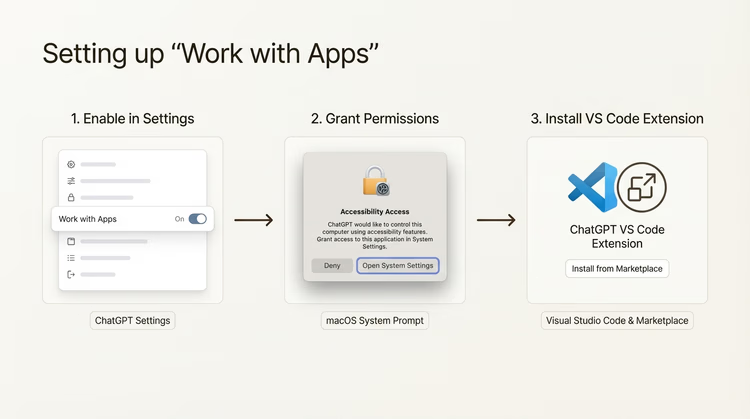
Alright, you're signed in, app is open. Now what? I put together this checklist based on my own first-session experience. Follow it in order and you'll have a working project thread in under five minutes.
- Pick a project folder — Codex will ask you to select one on launch. If you've used Codex CLI or the IDE extension before, your past projects will show up automatically. If not, just point it at any local repo or folder.
- Make sure "Local" is selected — There's a toggle in the interface. "Local" means Codex runs tasks on your machine using your own environment. This is what you want for most development work.
- Send your first message — Type a prompt. Ask it to explain a file, write a function, or debug something. Codex will spin up an agent in its own isolated worktree — meaning it works on a separate copy of your code, so nothing in your main branch gets touched without your say-so.
- Review the diff before merging — The app shows you exactly what the agent changed, inline. Comment on it, approve it, or open it in your editor to tweak manually. This review step is where you stay in control.
- Run a quick test — There's a built-in terminal per thread. Use it to run your test suite, start a dev server, or execute any custom command right from the app. No need to switch windows.
- Set up an AGENTS.md file (optional but recommended) — This is a project-level config file that tells Codex how to behave in your repo — coding style, rules, context. The official Codex docs walk you through this. Smaller AGENTS.md files also mean your usage limits stretch further, which I noticed firsthand.
Common Installation Issues
I hit two of these myself during setup. Here's exactly how to fix them.
Issue 1: "Apple could not verify this app is free of malware"This is macOS Gatekeeper doing its job. It flags apps that aren't signed through Apple's notarization process. It does not mean the app is dangerous — this is a known issue that gets reported regularly on the openai/codex GitHub issues page.
Fix: Go to System Settings → Privacy & Security, scroll down, and click "Open Anyway" next to the Codex warning. You'll need to enter your password.
Issue 2: Codex crashes immediately after opening (quarantine attribute)If you installed via Homebrew or downloaded the binary manually and the app just dies on launch with no error message, the culprit is usually macOS's quarantine extended attribute. This is particularly common on Sequoia (macOS 15.x).
Fix: Open Terminal and run:
xattr -d com.apple.quarantine /opt/homebrew/bin/codexIf you installed via the DMG instead of Homebrew, swap the path to wherever the binary lives (usually /Applications/Codex.app). Relaunch after running the command.
Issue 3: Homebrew says "Cask not installed" when trying to upgradeThis happens if you originally installed Codex via the old Homebrew formula. The package switched to a cask format. Just run the uninstall-then-reinstall sequence from the installation section above.
Issue 4: Sign-in loop or "session expired" errorClose the app completely, clear your browser cookies on chatgpt.com, and re-authenticate. If you're using an API key, double-check it hasn't expired in your OpenAI platform dashboard.