You spin up three Claude Code sessions in 1Code — one refactoring a module, one adding tests, one fixing a bug — and twenty minutes later two of them have edited the same file in incompatible ways. That collision is the failure mode that separates "running parallel agents" from "running parallel agents successfully," and it's exactly what 1Code's worktree isolation exists to prevent. This guide walks the workflow that keeps parallel sessions from colliding: bound each task, isolate with worktrees, review before merging, and clean up what fails. The setup steps follow 1Code's actual interface — verify the current menus against the official docs, since an actively developed app changes.
Steps below reflect 1Code's interface as of June 2026. Confirm current behavior against the official 1Code repository before relying on specific menus or commands.
Before You Start
Confirm the supported platform and agent installation
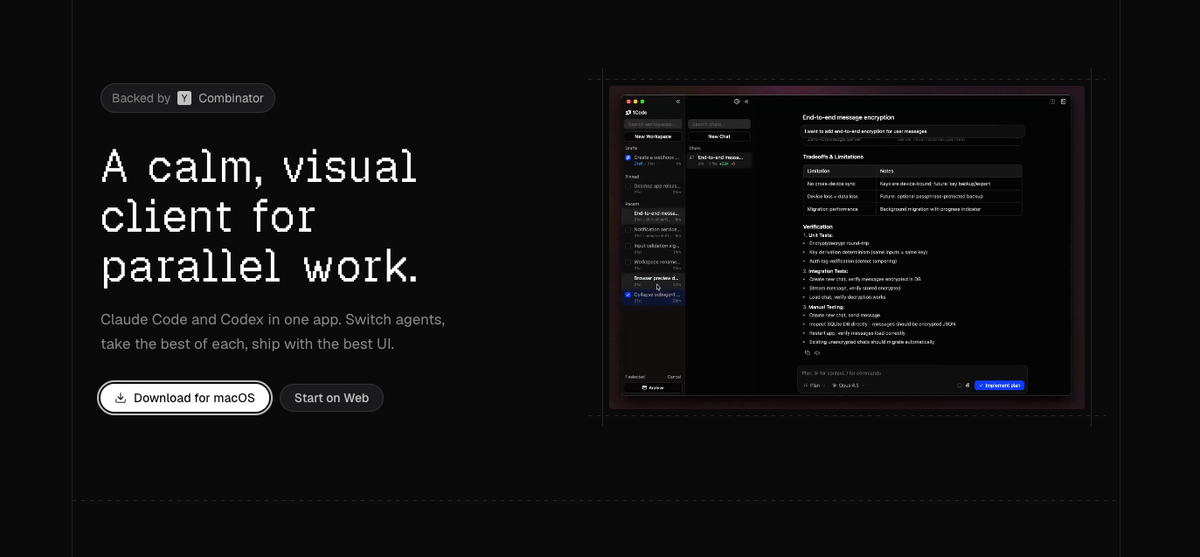
1Code is a desktop client for macOS, Windows, and Linux, available either as a self-built open-source app or through a 1code.dev subscription with pre-built releases. Before the workflow below, confirm two things: that you're on a supported platform with a working install, and that the Claude Code agent itself is available to 1Code (the client runs the agent binary, so the agent has to be present — a self-build downloads the required binaries as part of setup). You'll also need to be signed in with your Anthropic account or your own API key, since 1Code uses your existing Claude entitlement to run the agent. This is the explainer-level setup; this guide assumes you're installed and authenticated and focuses on the parallel-worktree workflow.
Protect uncommitted repository changes first
Before you start parallel sessions, commit or stash any uncommitted changes in your repository. This matters because worktrees and parallel agents operate on your repository's state, and starting from a clean, committed state means there's a known-good point to return to and no loose changes that could get tangled with agent edits. A clean working tree before you begin is the simplest insurance against confusion later — you always know what the agents started from. Make this a habit: clean tree first, then spin up sessions.
Connect Claude Code and Open a Project
Select Claude Code as the agent runtime
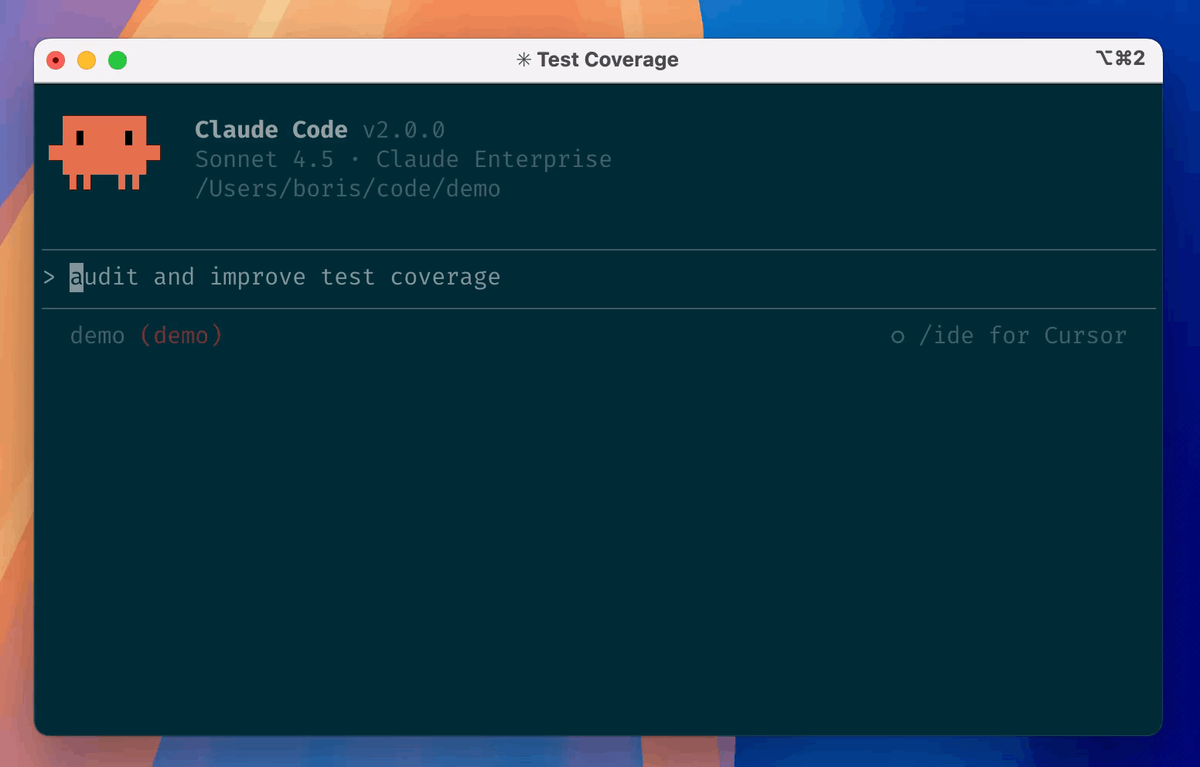
In 1Code, you choose which agent runs a session — Claude Code or Codex. For this workflow, select Claude Code as the agent for your sessions. 1Code lets you switch agents per session, so this is a per-session choice rather than a global lock; you're picking Claude Code for the work at hand. The agent you select is what provides the actual coding intelligence — 1Code is the interface and orchestration around it, so "select Claude Code" means "route this session's work through the Claude Code agent."
Open an existing local project
Point 1Code at an existing local project — a git repository on your machine. Because the parallel workflow relies on git worktrees, the project needs to be a git repository (worktrees are a git feature, covered below). Open the project in 1Code so it becomes the working context for the sessions you're about to create. With a local project open and a clean working tree, you're ready to start bounded parallel sessions — the part where collisions are either prevented or created.
Run Parallel Work Without Collisions
Give each session a bounded task
The single most effective collision-prevention habit is scoping each session to a bounded, well-defined task. Vague, sprawling tasks ("improve the codebase") send agents wandering across files unpredictably, which is how two sessions end up in the same file. Specific tasks ("add input validation to the signup form handler," "write unit tests for the auth module") keep each agent's footprint narrow and predictable. Bounded scope isn't just good prompting — it's what makes the file ownership of each session knowable in advance, which is the foundation of running several without overlap.
Decide when a worktree is necessary
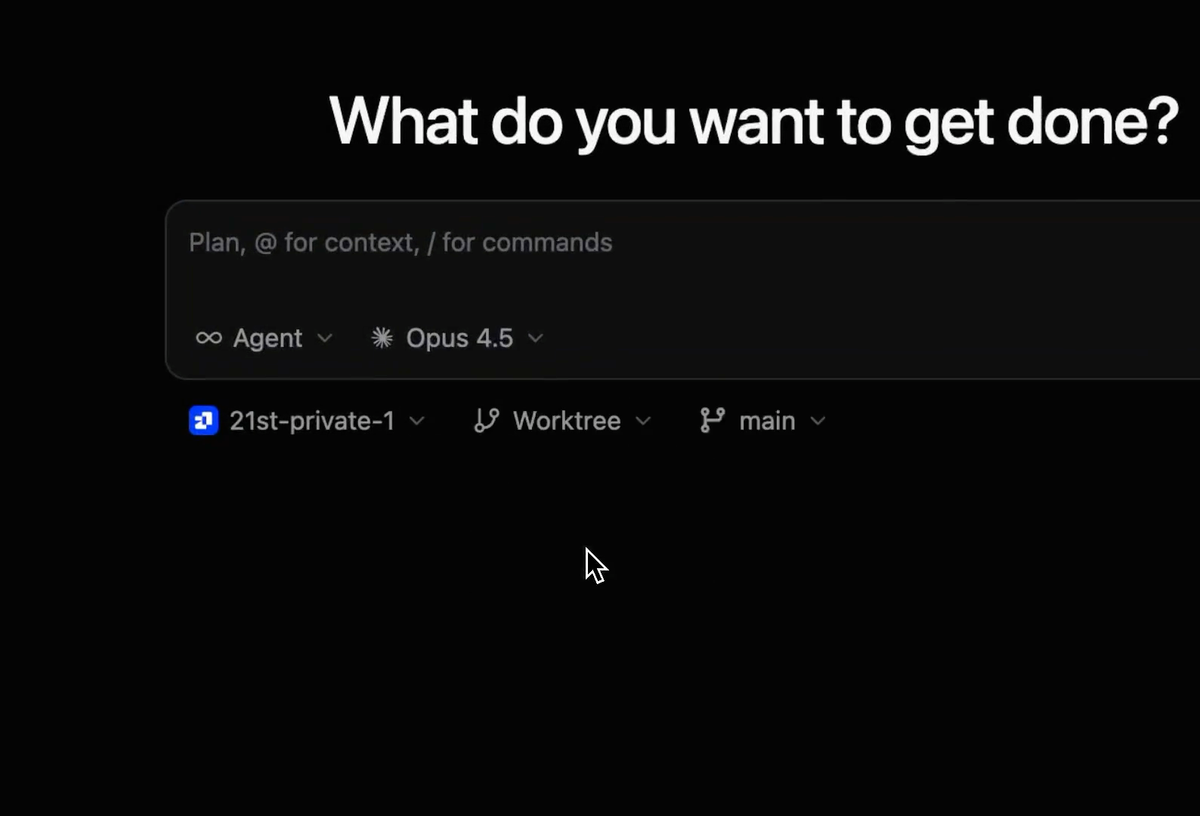
A git worktree is a native git feature — a separate working directory attached to the same repository, letting you have multiple branches checked out at once without stashing or cloning. 1Code uses this to isolate sessions: each session can run in its own worktree, so its file changes are separate from other sessions and from your main branch. You don't need a worktree for a single session working alone, but the moment you run multiple agents that might touch overlapping code, isolating each in its own worktree is what prevents their changes from colliding. The rule of thumb: one agent, optional; multiple agents on the same project, isolate them. Because the worktree is git-native, the isolation is real git-level separation, not a 1Code-only abstraction.
Avoid overlapping file ownership across sessions
Even with worktree isolation, think about file ownership before you launch parallel sessions, because two sessions editing the same file — even in separate worktrees — will produce changes you'll later have to reconcile when merging. Isolation prevents them from corrupting each other mid-flight; it doesn't make conflicting edits to the same file disappear at merge time. So assign sessions to non-overlapping areas of the codebase where you can: one in the frontend, one in the API layer, one in tests. When sessions must touch shared files, sequence them rather than running them truly in parallel. Designing for non-overlapping ownership upfront is far cheaper than untangling merge conflicts after the fact.
Review Before Merging
Inspect terminal activity and file changes
As sessions run, 1Code shows you what each agent is doing — live tool execution and diff previews of the changes as they're made. Use this: watch what each session is actually doing rather than waiting for a final result. The real-time visibility lets you catch an agent going in the wrong direction early (and stop it) rather than discovering a sprawling, wrong change after it's done. Inspecting activity as it happens is the difference between supervising parallel agents and merely launching them.
Run tests before accepting a branch
Before you accept any session's work, run your project's test suite against its changes. A session that produced a clean-looking diff can still have broken something, and the test suite is what tells you. Because each session's work is isolated in its worktree/branch, you can test it independently before deciding whether it's good — run the tests, confirm they pass, and only then treat the branch as a candidate for merging. Never merge an agent's branch on the strength of the diff alone; the tests are the gate.
Merge or discard the isolated work
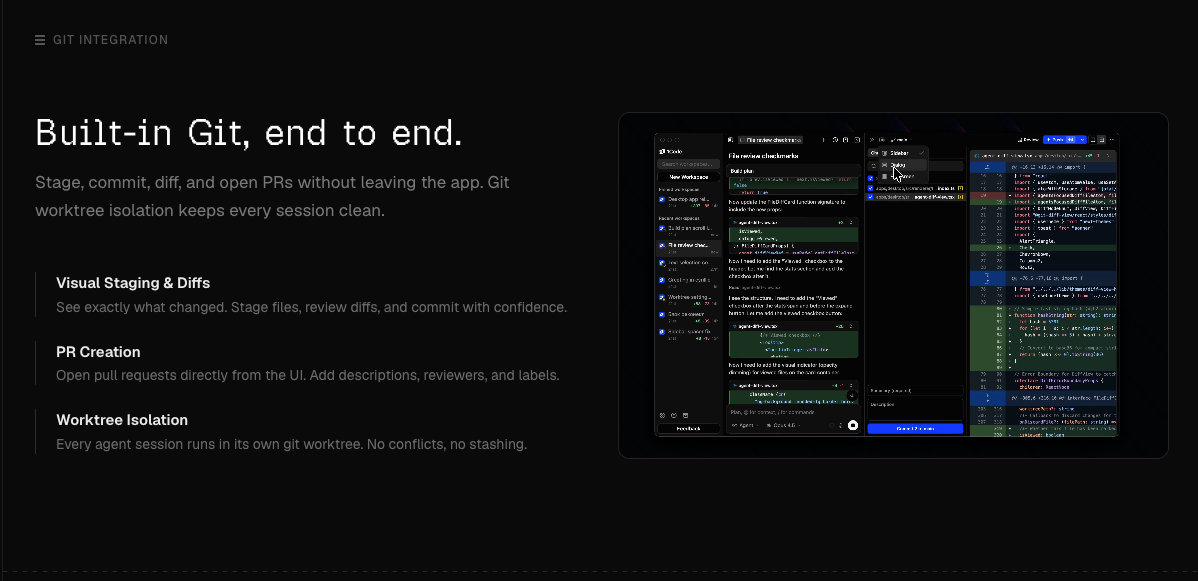
For each session that passes review and tests, use 1Code's built-in git client to commit and merge its branch — staging changes, reviewing the diff once more, and opening a PR or merging directly. For sessions whose work isn't good, discard the branch and worktree instead of merging. The isolation pays off here: because each session's changes are separate, you can accept the good ones and throw away the bad ones independently, without one session's failure contaminating another's success. Merge the winners, discard the rest, one session at a time.
Recover from Failed Sessions
Preserve useful changes before restarting
When a session goes wrong but produced something partially useful, preserve the useful part before you restart. Rather than discarding everything, commit the good changes to the session's branch (or cherry-pick the specific useful edits) so a restart doesn't throw away work worth keeping. Because the work is isolated in its own branch/worktree, salvaging the good part is a contained operation — you're not picking through a tangle of mixed changes from several sessions. Save what's worth saving first, then restart clean.
Remove abandoned branches and worktrees
Failed and abandoned sessions leave branches and worktrees behind, and these accumulate. Clean them up: remove the worktree and delete the branch for any session you've abandoned, so your repository doesn't fill with dead parallel work. This is ordinary git hygiene (removing a worktree and pruning a branch are standard git operations), and 1Code's git integration surfaces the sessions so you can see what's still around. Periodic cleanup keeps the repository state clear and prevents confusion about which branches represent live work versus abandoned attempts. Treat worktree cleanup as part of finishing a parallel session, not an afterthought.
FAQ
What happens to uncommitted changes before a worktree is created?
Uncommitted changes live in your main working directory, and creating a worktree gives a session a separate working directory — so the cleanest practice is to commit or stash your uncommitted changes before starting parallel sessions. Starting from a committed state means each session begins from a known, clean point, and there's no risk of loose changes getting entangled with what the agents produce. If you have valuable uncommitted work when you decide to start, commit or stash it first; don't begin parallel sessions on top of a dirty working tree, because reconciling agent edits against uncommitted changes later is exactly the confusion the clean-tree habit avoids.
How should a failed or abandoned parallel session be cleaned up?
Salvage first, then remove. If the session produced anything useful, commit or cherry-pick that to preserve it before cleaning up. Then remove the session's worktree and delete its branch — standard git operations that 1Code's git integration helps you see and manage. The reason to clean up promptly is that abandoned worktrees and branches accumulate and make it hard to tell live work from dead attempts; clearing them keeps your repository state legible. Because each session is isolated, removing a failed one doesn't affect the others, so you can clean up abandoned sessions individually without disturbing work that's still running or already merged.
Can one project mix Claude Code and Codex sessions?
1Code supports both Claude Code and Codex and lets you switch agents per session, so whether to use one or both on a single project is your choice rather than a hard restriction. Some developers prefer to route different tasks to different agents based on each agent's strengths; others keep a project on a single agent for consistency. If you do mix them, the same collision-prevention discipline applies regardless of which agent runs a session — bounded tasks, worktree isolation, and non-overlapping file ownership. The mixing question is about workflow preference, not a capability limit; confirm any current specifics of multi-agent behavior in the official documentation.
What should be reviewed before merging an agent-created branch?
Review the same things you'd review for any branch, plus the awareness that an agent generated it. Read the full diff (does it do what was asked, only what was asked?), run the test suite (does it pass without breaking existing behavior?), and check it against your project's conventions and for anything the tests wouldn't catch — security-sensitive changes, side effects, or edits to shared files that might conflict with another session's work. Because agents can produce changes that pass tests while being poorly designed, the human review of the actual code matters as much as the test result. Only merge once the diff, the tests, and your review all hold up — never on the diff alone.
Conclusion
Running parallel coding agents in 1Code is powerful precisely because it's structured to prevent the collision that makes naive parallelism fail. The workflow is a sequence: bound each session to a specific task, isolate sessions in git worktrees (a native git feature 1Code surfaces, not a proprietary trick), review every session's activity and tests before accepting it, merge the good work, and clean up the failed branches and worktrees afterward. Keep file ownership non-overlapping where you can, protect your uncommitted changes before you start, and treat review and cleanup as part of the work rather than optional extras. Do that, and parallel agents become a genuine multiplier instead of a merge-conflict generator — and check the official docs for the current interface specifics, since the app keeps evolving.
Related Reading