You're three hours into a session. Cursor's been flying — autocomplete on point, Agent mode turning rough prompts into clean code. Then it stops. The chat panel shows a spinner that never resolves, autocomplete vanishes, and you get a vague "request failed" badge. This isn't a rare bug — developers across Windows, macOS, and Linux report the same patterns on the official forums. The good news: almost every Cursor problem follows a recognizable pattern with a known fix. Here's the practical troubleshooting path, from the fastest fixes to the deeper causes.
Fixes verified against community reports and documentation as of May 2026. Cursor updates frequently — check the Cursor status page and forum for current issues.
Start with the Quick Fix Checklist
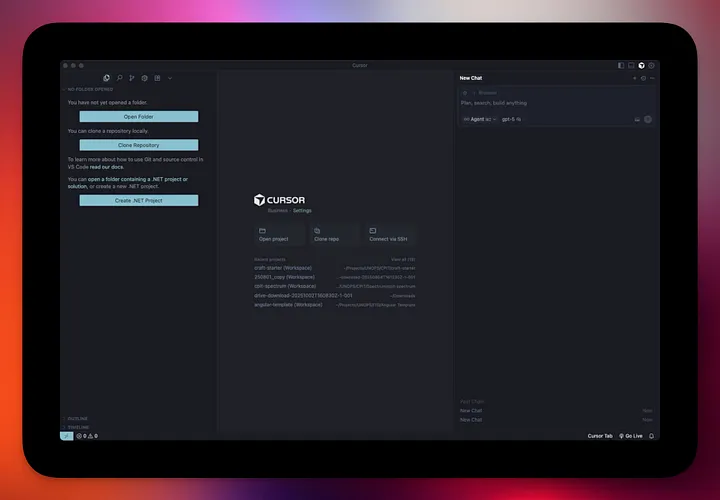
Before diving into specific errors, run this checklist — it resolves a surprising share of issues in under five minutes:
- Check the Cursor status page (status.cursor.com) — if there's an outage, the problem isn't on your end and no local fix will help. Wait it out.
- Restart Cursor — closes hung connections and clears transient state. The single most effective first step.
- Check your internet connection — Cursor's AI features require a stable connection; all chat, autocomplete, and indexing run through the network.
- Update Cursor — Help → Check for Updates. Many bugs are fixed in point releases; running an old build reintroduces solved problems.
- Clear the cache and restart — clearing Cursor's cache resolves startup crashes, frozen chat, and broken autocomplete in a significant number of cases.
- Re-authenticate — sign out and back in. Expired or corrupted auth tokens cause failures that look like connection errors.
If the checklist doesn't fix it, the error falls into one of the categories below.
Cursor Connection Errors
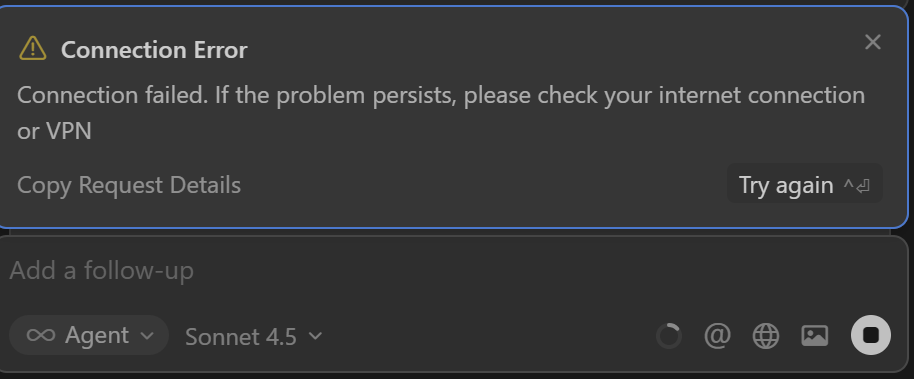
Connection errors — including the "cursor connection error" message, generic "request failed" badges, and codes like error 1101 (typically a connection/network-layer failure) — usually trace to network, auth, or protocol issues.
Network and auth issues
Symptom: Chat spinner never resolves, "Unable to reach the model provider," or ERROR_OPENAI messages.
Fixes in order:
- Verify your connection is stable (not just "connected" — actually passing traffic). Test by loading a website.
- Re-authenticate: sign out (Settings → Account) and sign back in. This refreshes auth tokens.
- Check your subscription status in the Cursor dashboard. Some users — including paying Pro subscribers — have been locked out of models due to billing or account state issues. Confirm your plan is active and you haven't hit a usage limit.
- Verify API** key** (if using your own key): an expired or revoked key produces model-provider-unreachable errors. Regenerate it in your provider's console and update it in Cursor settings.
Proxy or firewall problems
This is the highest-impact and most underused fix in 2026. Cursor relies on HTTP/2 for all AI streaming features — chat, autocomplete, indexing. Corporate networks and proxies like Zscaler, and some firewalls, block HTTP/2. The result looks like a general connection problem but is actually a protocol-level block.
The fix:
- Open Cursor Settings
- Find the HTTP/2 setting and enable Disable HTTP/2
- Restart Cursor
This forces HTTP/1.1, which virtually all networks support. (This network/protocol troubleshooting path is documented for autocomplete failures as well.) For developers on corporate networks, this single setting often resolves every AI feature failure at once. If you're on a VPN or behind a corporate proxy and Cursor's AI features won't connect, try this before anything else.
If you're on a custom proxy, also check that Cursor's endpoints aren't being blocked by your firewall — Cursor needs to reach its API endpoints, and an overly aggressive firewall rule can silently block them.
Tool Call Errors
Tool call errors — "cursor tool call error," and specifically "Error calling tool 'edit_file'" — happen when Agent mode tries to use a tool but the call fails. These are among the most common and most frustrating Cursor errors.
edit_file errors
Symptom: "Error calling tool 'edit_file'" appears when the agent tries to modify a file.
The most common cause is project context. As community analysis of this error notes, if you opened an individual file instead of the full project folder, Cursor's edit_file tool doesn't know where to place changes — it lacks the workspace context to resolve the file path.
Fixes in order:
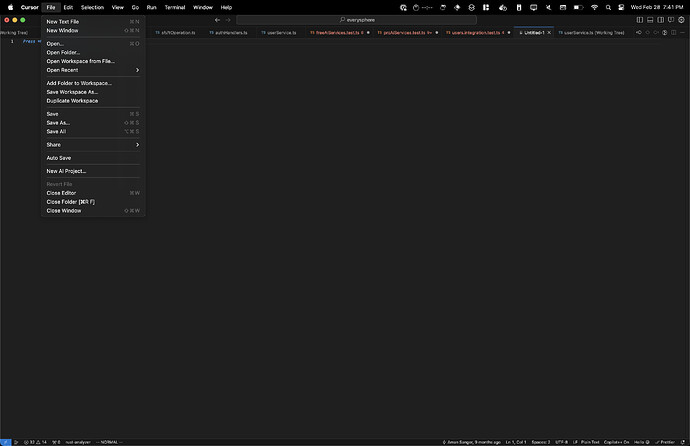
- Open the full project folder, not individual files. File → Open Folder, and select your project root. This is the single most common fix —
edit_fileneeds the workspace context that only a folder (not a loose file) provides. - **Check the file ****isn't **read-only or locked by another process. A file open in another editor with a lock, or with restrictive permissions, can't be edited.
- Verify the file path exists — if the agent is trying to edit a file that was moved or deleted mid-session, the tool call fails. Re-sync by reopening the project.
- Restart the agent with a smaller scope. If the agent is confused about a large multi-file change, breaking it into smaller, explicit edits reduces tool-call failures.
- Switch models. Some
edit_fileerrors are model-specific — if one model consistently fails on tool calls, try switching (e.g., to Claude Sonnet, a popular choice for reliability) via the model dropdown.
Permission or workspace issues
Symptom: Tool calls fail with permission errors, or the agent can't access files it should be able to.
Fixes:
- Workspace trust: Cursor (like VS Code) has a workspace trust model. If the workspace isn't trusted, some operations are restricted. Check that you've trusted the workspace.
- File system permissions: On macOS, Cursor may need accessibility or full-disk permissions for some operations. Check System Settings → Privacy & Security.
- Directory ownership: If you're working in a directory with restrictive ownership (e.g., a system directory, or files owned by a different user), the agent can't write to it. Work in a directory you own.
Cursor Autocomplete and Tab Not Working
Symptom: "cursor autocomplete not working" or "cursor tab not working" — Tab completion stops suggesting, or suggestions never appear.
Autocomplete and Tab run through the same network and protocol path as chat, so connection-layer issues affect them too. Fixes specific to autocomplete:
- Check the HTTP/2 setting (see Connection Errors above) — autocomplete is an AI streaming feature, so a blocked HTTP/2 connection breaks it. This is the most common cause on corporate networks.
- Verify Tab is enabled: Settings → check that Cursor Tab is on (see Cursor's documentation). It can be toggled off accidentally.
- Repair the project index: Autocomplete uses the codebase index. If the index is stale or corrupted, suggestions degrade or stop. Resync the index in Settings (look for codebase indexing options).
- Clear cache and restart: A corrupted cache breaks autocomplete in a significant share of cases. Clear it and restart.
- Check you haven't hit a usage limit: On metered plans, exhausting your included usage stops premium features. Check Settings → Usage.
- Update Cursor: Autocomplete bugs are frequently fixed in point releases.
If autocomplete works after a restart but stops again after the first few suggestions, that pattern usually points to a connection-stability issue (intermittent HTTP/2 problems) rather than a configuration issue — start with the HTTP/2 fix.
When the Problem Is Workflow, Not a Bug
Some "errors" aren't bugs — they're the agent struggling with a task structure that's set up to fail. Recognizing these saves you from chasing fixes for problems that aren't technical.
Large context
When you load too much into context — many large files, a long conversation history — the agent's performance degrades and tool calls become less reliable. This isn't a bug; it's the model struggling with an overloaded context. The fix is to reduce context: close irrelevant files, start a fresh conversation thread, use @-mentions to target specific code rather than loading everything. Reliability improves immediately with a leaner context.
Too-broad task
A common Agent mode failure: the agent gets stuck in a loop, repeating steps without making progress. This usually happens when the agent can't verify its own progress — it completes a step, checks the state, doesn't see what it expected, and tries again indefinitely. The cause is almost always a task that's too broad or too vaguely scoped.
The fix isn't a technical setting — it's task decomposition. Stop the agent, break the task into smaller explicit steps, and restart with a clearer success condition in your prompt. "Fix the auth system" invites a loop; "add a JWT refresh endpoint to src/auth/refresh.py that returns a new token" gives the agent a verifiable target.
Missing tests
When the agent makes changes but can't tell whether they're correct, it either stops uncertain or proceeds on assumptions that may be wrong. Without tests, the agent has no objective signal for "done correctly" — it's guessing. Adding tests (or asking the agent to write tests first) gives it a verification signal, which makes the whole agent loop more reliable.
This points to a broader truth about agentic coding: the more structured your workflow — clear scoped tasks, explicit success conditions, tests that verify output — the more reliably any agent performs. For genuinely complex, multi-step work, a more structured agent workflow with explicit planning and verification gates produces more reliable results than repeatedly retrying a single broad agent prompt. Tools built around Plan-First execution and verification (like Verdent) formalize this structure, but the principle applies regardless of tool: scope tasks tightly, verify with tests, and the "errors" that were actually workflow problems largely disappear.
FAQ
Why is Cursor not working today?
First, check the Cursor status page — if there's a service outage, the problem is on Cursor's end and no local fix will help. If the status page is green, run the quick fixes: restart Cursor, check your internet connection, clear the cache and restart, and re-authenticate. The most common cause of sudden failures on a previously working setup is a connection/protocol issue — on corporate networks, the HTTP/2 block (fixed by enabling "Disable HTTP/2" in settings) resolves it. If you're a paying subscriber locked out of all models, check your subscription status in the dashboard and contact Cursor support if billing looks correct but access is blocked.
How do I fix Cursor error calling tool edit_file?
The most common cause is opening individual files instead of the full project folder — edit_file needs workspace context to know where to place changes. Fix: File → Open Folder and select your project root. If that doesn't resolve it, check the file isn't read-only or locked by another process, verify the file path still exists, break large multi-file changes into smaller scoped edits, and try switching models (some tool-call errors are model-specific). Restarting Cursor and the agent after these changes clears any stale state.
Why is Cursor autocomplete not working?
Autocomplete runs through the same network path as chat, so connection issues break it. Most common fix on corporate networks: enable "Disable HTTP/2" in settings (Cursor's streaming features need HTTP/2, which many corporate proxies block). Other fixes: verify Cursor Tab is enabled in settings, repair the codebase index, clear the cache and restart, check you haven't hit a usage limit on a metered plan, and update Cursor. If autocomplete works briefly after restart then stops, that's typically an intermittent connection issue — start with the HTTP/2 fix.
When should I stop retrying and change workflow?
When you've hit the same error three or more times after applying the relevant fixes, or when the agent is stuck in a loop on a task. Repeated tool-call failures or agent loops on a complex task usually signal a workflow problem, not a bug: the task is too broad, the context is overloaded, or there's no verification signal (tests) for the agent to check against. The fix at that point isn't another retry — it's restructuring: break the task into smaller explicit steps with clear success conditions, reduce the context, and add tests. For consistently complex multi-step work, a structured agent workflow with explicit planning and verification produces more reliable results than retrying broad prompts. If Cursor itself is genuinely broken (confirmed via the status page or persistent errors across all fixes), contact Cursor support through the forum or in-app help.
Related Reading