If you saw OpenAI drop the Codex Chrome extension on May 7 and immediately thought "okay but should I actually install this" — same. The announcement was brief, the coverage was mostly press release rewrites, and the real question nobody answered was: how does this fit into the tools Codex already has?
I spent time digging through the official docs and testing the extension. Here's the honest breakdown from a developer's perspective.
What the Codex Chrome Extension Is
A new browser surface for OpenAI Codex
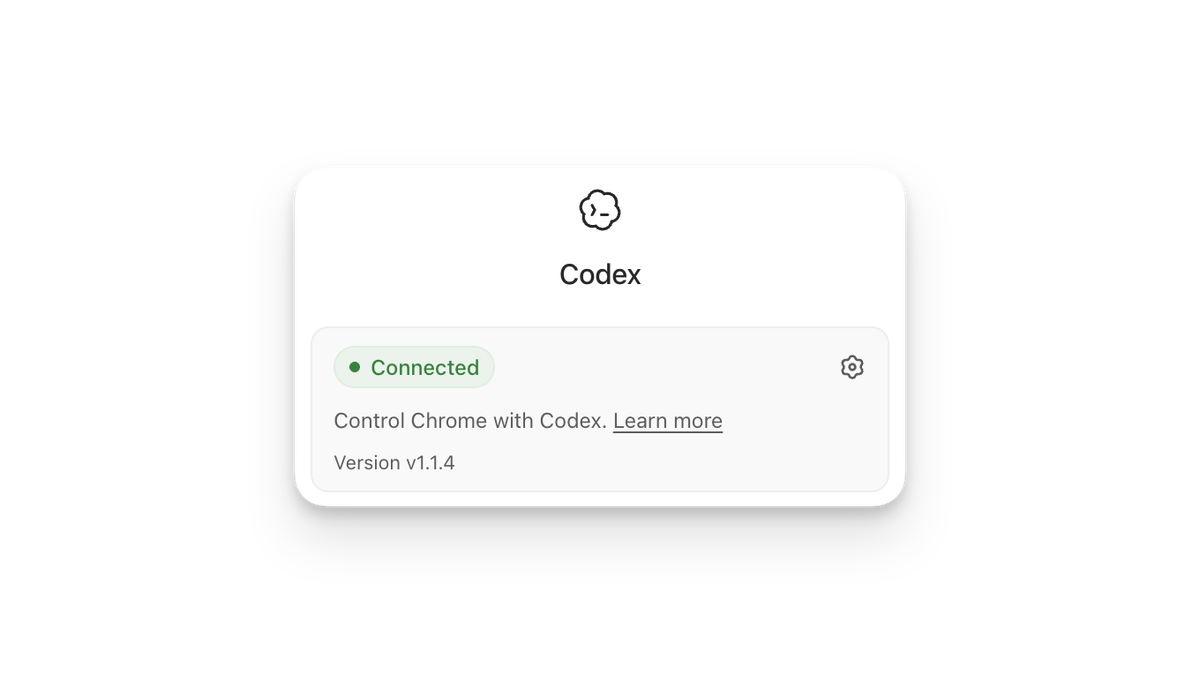
The Codex Chrome extension (currently version 1.1.4, released May 7, 2026) gives Codex the ability to operate inside your actual Chrome browser — using the sessions where you're already logged in. That's the key phrase: signed-in browser state.
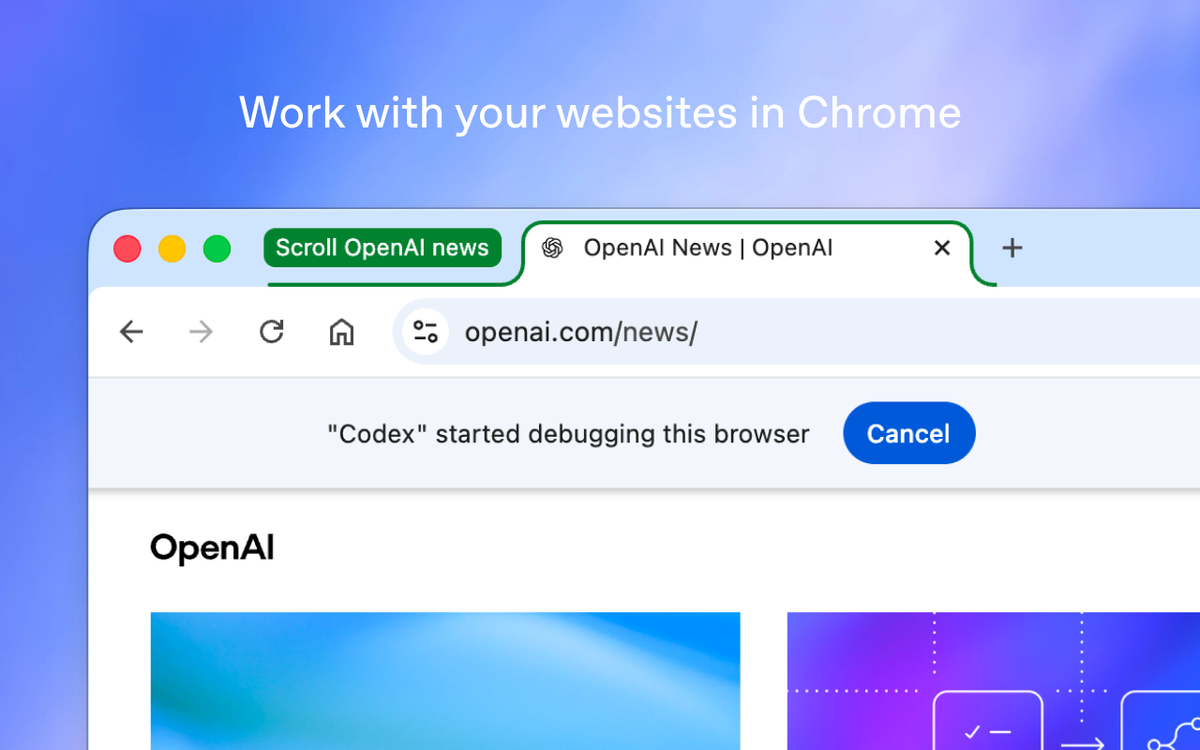
Before this, Codex had two ways to interact with the web. It could call dedicated plugins when integrations existed, or use its own in-app browser for local stuff. What it couldn't do was step into your Gmail, internal dashboards, or any tool that lives behind a login. The Chrome extension closes that gap.
After OpenAI launched Computer Use in the desktop Codex app, it found that most common workflows happened in the browser — which explains why this extension exists. The full release notes are in the Codex changelog. The plugin-or-nothing approach left too much work on the table.
What it adds beyond Codex's existing in-app browser
This is where a lot of the confusion comes from, so let's be direct: the Chrome extension and the in-app browser are not the same thing and they're not competing for the same job.
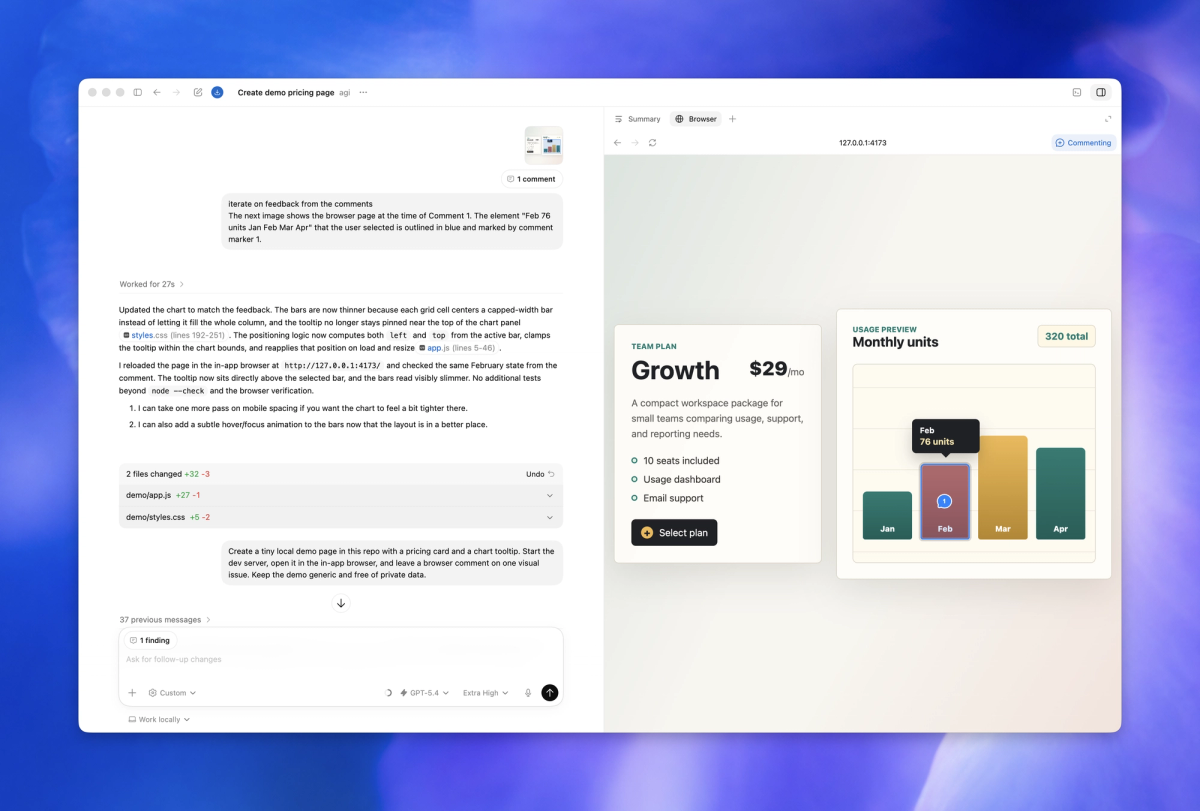
The in-app browser is sandboxed. It's for local dev servers, file-backed previews, and public pages that don't require you to be signed in. It never touches your Chrome profile.
The Chrome extension operates inside your real Chrome session. It can help with research, update records, review dashboards, fill forms, and move through multi-step workflows across logged-in tools like CRMs and internal apps, as well as external websites. These are fundamentally different environments.
When Codex Reaches for Chrome Instead of Other Tools
The three-tier model: plugins, Chrome, in-app browser
Codex can switch between tools as a task requires — using plugins when a dedicated integration is available, Chrome when it needs logged-in browser context, and the in-app browser for localhost.
Think of it as a priority stack:
- Plugins first. If a dedicated API integration exists (Jira, Linear, GitHub), Codex prefers that. More reliable, less noisy.
- Chrome extension second. When the task requires a real browser session with authenticated state and no plugin covers it.
- In-app browser last resort for local. Localhost, local dev servers, file-backed HTML previews — none of these need your Chrome profile.
Codex picks automatically based on what the task requires. You can also invoke Chrome directly: @Chrome open [tool] and do [thing].
Tasks that need a real signed-in browser session
Use the Chrome extension when Codex needs to read or act on sites such as LinkedIn, Salesforce, Gmail, or internal tools.
More concretely, this is where it starts earning its keep for developers:
- Checking a staging dashboard that requires SSO login
- Navigating a ticketing system that has no public API (or a terrible one)
- Running browser-based QA flows across a multi-step authenticated workflow
- Grabbing context from an internal wiki that's behind your company's identity provider
- Debugging a production web app while staying logged in as a test user
The common thread is session state. If the page only makes sense when you're already logged in, the in-app browser can't help. Chrome can.
Where the in-app browser is still the better choice
For local development servers, file-backed previews, and public pages that do not require sign-in, use the in-app browser first. The in-app browser keeps preview and verification work inside Codex without using your Chrome profile.
Running localhost:3000? In-app browser. Verifying a static HTML export? In-app browser. Reading a public docs page to check API behavior? In-app browser.
The cleaner separation is: don't bring your real Chrome session into sandboxed dev work. There's no reason to, and it unnecessarily expands what Codex can touch.
How It Behaves in Practice
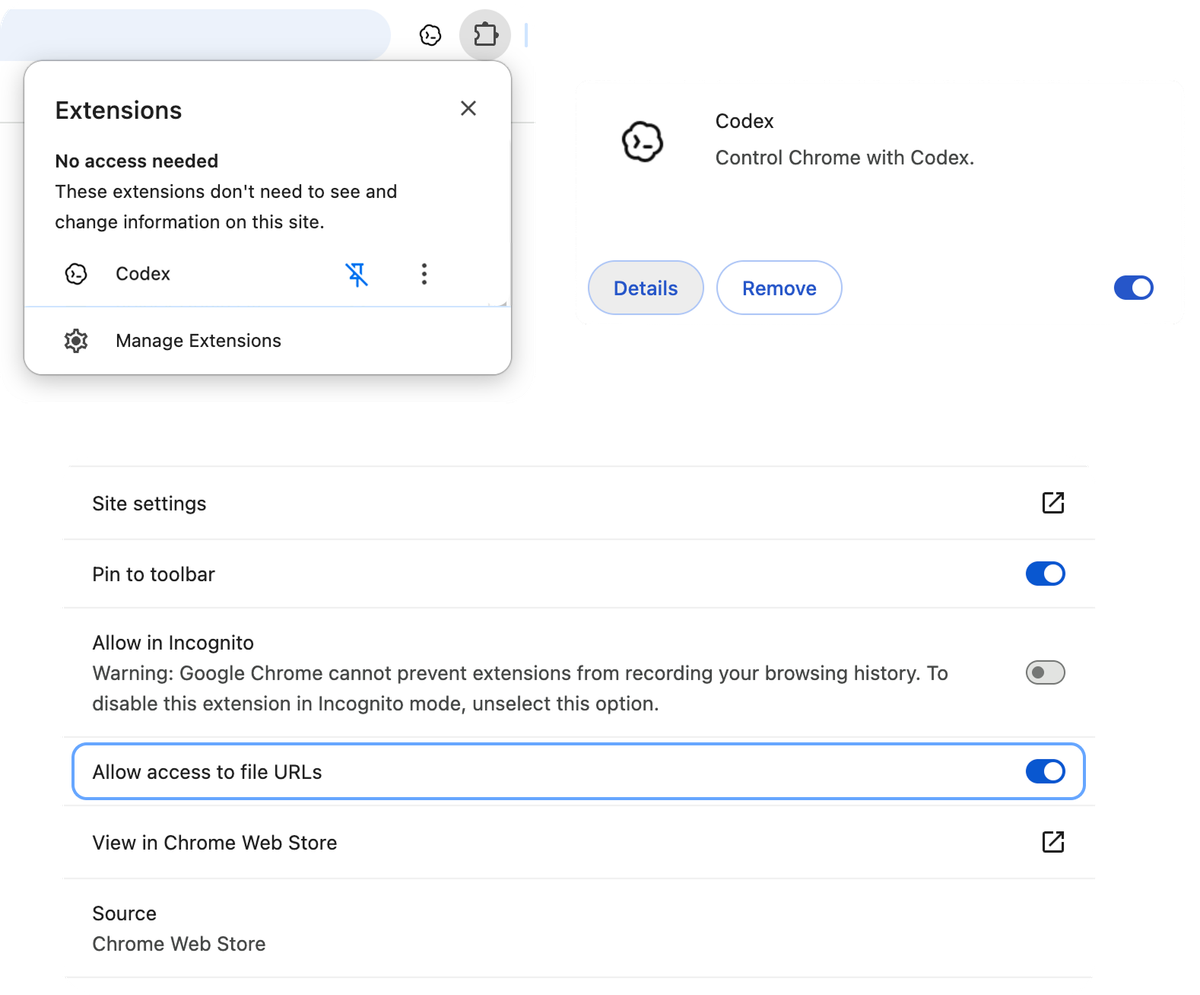
Tab groups and the active session
Codex works in task-specific tab groups, so it can gather context and take actions without taking over your active browsing session.
This is a meaningful design choice. Codex doesn't commandeer whatever tab you have open — it creates its own tab group per thread and works in there. You can keep using Chrome normally while a task runs in the background. When it's done, the relevant pages stay grouped for your review.
Per-site permission prompts
By default, Codex asks before it touches any new site — this is documented in the Codex browser permissions guide. Codex bases the prompt on the website host, such as example.com. When Codex asks to use a website, you can choose to allow the website for the current chat, always allow the host so Codex can use that website again without asking, or decline the website.
The per-request prompt for browser history is stricter — there's no always-allow option for history. Every time Codex wants access to history, it asks.
Allowlist, blocklist, and the Memories toggle
Under Computer Use settings, you can maintain a domain allowlist and blocklist. Domains on the allowlist skip the confirmation prompt. Domains on the blocklist are off-limits entirely.
Browser use follows your Codex Memories setting. If Memories is on, Codex can use relevant saved memories while working in Chrome. If Memories is off, browser use doesn't use memories.
Worth noting on data storage: OpenAI doesn't store a separate complete record of your Chrome actions from the extension. OpenAI stores browser activity only when it becomes part of the Codex context, such as text Codex reads from a page, screenshots, tool calls, summaries, messages, or other content included in the thread.
Limits and Things to Know Before Trying It
Region availability (no EU/UK at launch)
The Codex Chrome extension is available today in the Codex app on macOS and Windows in all regions except the EU and UK. OpenAI says support for those regions is coming soon. No specific timeline was given.
Also worth knowing: the extension only works with Chrome proper. Codex does not support other Chromium-based web browsers at the moment. If you're on Arc, Brave, or Edge, you're out of luck for now.
Why OpenAI tells you to treat page content as untrusted
This is in the official docs and it shouldn't be buried in a footnote. OpenAI's official guidance is explicit: treat page content as untrusted context, and review the website before allowing Codex to continue.
Why? Because once an AI agent is reading arbitrary web pages, those pages can contain content designed to influence the agent's behavior. A malicious or misconfigured internal tool could surface instructions that Codex might interpret as legitimate task direction.
Browser history can include sensitive telemetry, internal URLs, search terms, and activity from Chrome sessions on signed-in devices. If you allow Codex to access browser history, relevant history entries can become part of the context Codex uses for the task.
The review step before allowing site access isn't just bureaucratic UX. It's a meaningful checkpoint.
When prompt injection becomes a real concern
Prompt injection is when malicious content on a page tries to hijack the agent's instruction set. With a sandboxed coding agent, the blast radius is limited. With an agent that has access to your signed-in browser state — including cookies, session tokens, and potentially credentials — the blast radius is much larger.
Malicious or misleading page content can increase the risk that Codex copies this data somewhere unintended.
Practical mitigation: don't run the Chrome extension against sites you don't trust, keep the blocklist updated, and review the per-site prompts instead of blanket allowing everything. For workflows that require a hermetic, reproducible environment — automated security testing, anything touching production credentials — the Chrome extension is the wrong tool regardless of how convenient it looks.
Who This Is Actually For
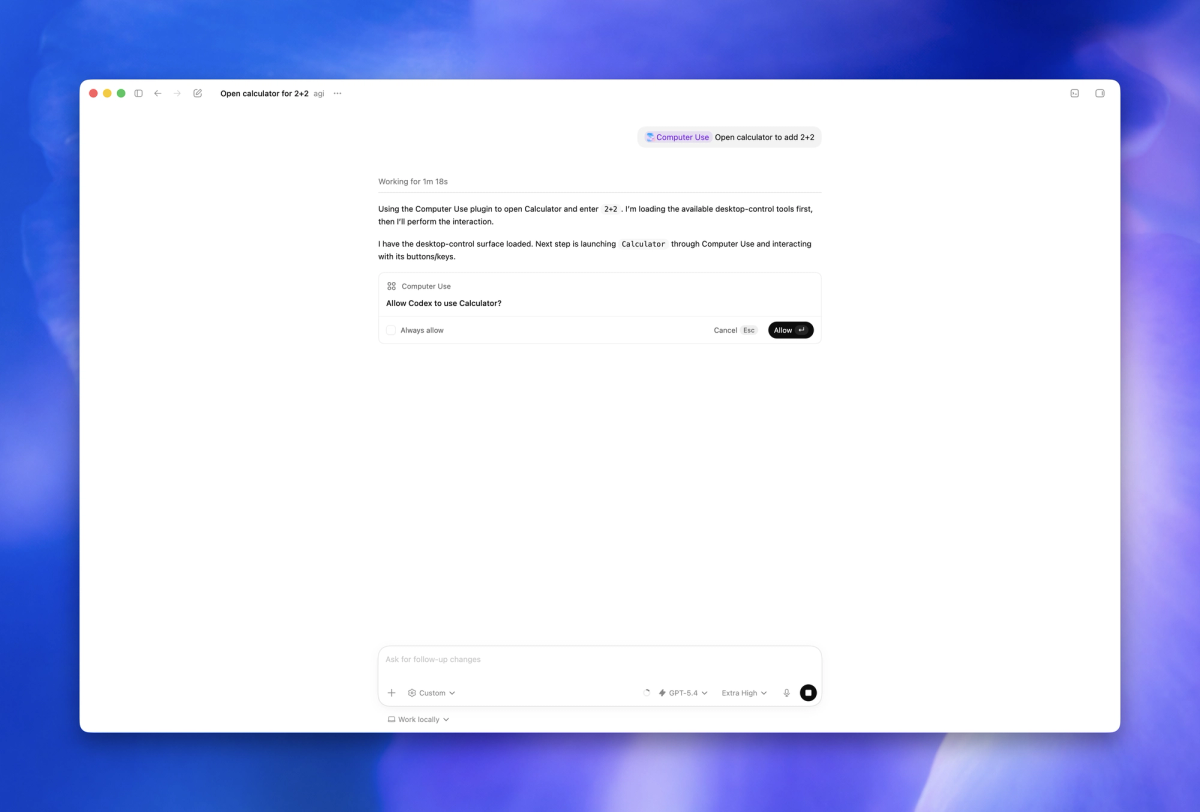
Developers debugging browser flows
If your work involves reproducing bugs that only appear in logged-in states — a checkout flow that breaks for authenticated users, a dashboard widget that renders wrong after session refresh — the Chrome extension finally gives Codex the context to help meaningfully. Previously you'd have to describe what you were seeing. Now Codex can see it alongside you.
Engineers running web app testing across multiple tabs
The extension works in parallel across tabs in the background without taking over your browser. For engineers doing multi-tab QA runs — checking how a flow behaves across different user roles, or validating that a feature flag is toggling correctly — the tab group approach keeps things organized per thread rather than creating tab chaos.
Who should wait
EU and UK developers: The extension isn't available in your region yet. OpenAI says it's coming, without committing a date. Save the bookmark for now.
Projects requiring hermetic test environments: The Chrome extension uses your actual browser profile with your actual session state. If your testing infrastructure requires clean, isolated, reproducible browser environments, this isn't that. Playwright or Puppeteer with controlled profiles will serve you better.
Zero-tolerance prompt injection scenarios: Any workflow where a single compromised page could cause serious damage — financial systems, security tooling, anything touching production data directly — warrants waiting until OpenAI's permission model matures further and you've had time to evaluate it against your threat model.
And one honest note: if your workflow already centers around IDE-anchored multi-agent parallel coding — the pattern where you're running multiple agents across isolated worktrees in tools like Verdent — the Chrome extension adds a browser layer, but it's a complement to that workflow, not a replacement for it.
FAQ
Does the Codex Chrome extension work without the Codex desktop app?
The extension is installed as a Chrome plugin, but the setup flow runs through the Codex app's Plugins menu. You need the Codex app to configure and activate it. The extension on its own in Chrome, without the Codex app connected, shows as disconnected and won't function.
Is the Chrome extension available to all Codex plans?
OpenAI hasn't explicitly broken out Chrome extension access by plan tier in their documentation. Codex itself requires at least ChatGPT Plus ($20/month) for sustained use — the free tier has limited Codex Mini access. If you're on a Plus or Pro plan and in a supported region, the Plugins menu should show the Chrome option. Verify against your current account before planning around it.
Does the Chrome extension replace the in-app browser?
No. These are different tools for different jobs. The Chrome extension handles signed-in browser work — sites where your session state matters. The in-app browser handles localhost, local dev servers, and public pages that don't require authentication. They're designed to work together in the three-tier model (plugins → Chrome → in-app browser), not to replace each other.
Can Codex use the Chrome extension to test localhost apps?
No. Localhost and local development servers are explicitly the in-app browser's job. The official docs are clear: use the in-app browser for local development servers and file-backed previews. Installing the Chrome extension and pointing it at localhost:3000 is the wrong approach — use the in-app browser instead.
Will EU and UK users get access at launch?
OpenAI has confirmed that EU and UK support is coming, without committing to a specific date. "Coming soon" is the extent of the official statement. No timeline has been published by OpenAI directly.
Related Reading