One command installs it. One wrong package name wastes twenty minutes. The most common Codex CLI install failure isn't a missing dependency or a platform issue — it's running npm i -g codex instead of npm i -g @openai/codex. The unscoped codex package is a 2012 project with no relation to OpenAI; it installs silently and then does nothing useful. Teams comparing terminal agents with full generators can also check the Best AI Code Generators ranking.
Get past that, and the actual install is straightforward. This guide covers macOS, Windows, and Linux with the commands that work in 2026, the Node.js version requirement that catches people off guard, and fixes for the errors that show up after a clean install.
Verified against the official Codex CLI documentation and npm package, May 2026.
What Codex CLI Is
Codex CLI is OpenAI's open-source terminal coding agent. It runs locally, reads your repository, edits files, and executes commands — all from your terminal. You give it a task; it proposes changes; you approve or reject them. For long sessions that need to be paused and resumed later, see Codex CLI Session Resume / Continue.
How it differs from the Codex desktop app
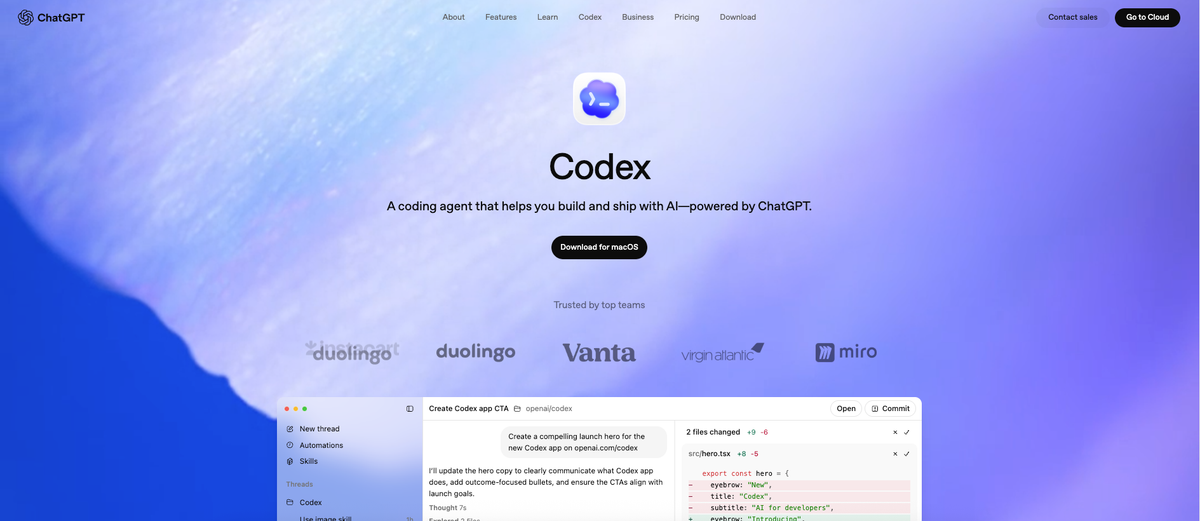
The Codex desktop app is a full GUI application with computer use, a plugin marketplace, and a visual interface. Codex CLI is the terminal version: no GUI, no mouse, no computer use. It's faster to set up, scriptable, and integrates with existing terminal workflows. If you want to run agents in CI/CD pipelines, write shell scripts that invoke Codex, or just prefer to stay in the terminal, CLI is the right choice.
Where Codex CLI fits in OpenAI tooling
Four Codex surfaces exist: the terminal CLI (this guide), the desktop app (codex app), VS Code/JetBrains IDE extensions, and Codex Web (cloud-based, at chatgpt.com/codex). This guide covers CLI installation only. Developers who also need mobile or browser access should review Codex Mobile / ChatGPT Developer options.
Prerequisites Before You Install
Node.js version requirement
The npm installation path requires Node.js 22 or later. Earlier versions will fail or produce unexpected behavior.
Check your current version:
node --versionIf you're below 22, install or upgrade:
# Using nvm (recommended for managing Node versions):
nvm install 22
nvm use 22

# Or download directly from nodejs.org
If you don't want to install Node.js at all, use the prebuilt binary download path instead — described in each platform section below.
OpenAI account and plan tier
Codex CLI is included with ChatGPT Plus, Pro, Business, Edu, and Enterprise plans. There is no separate Codex CLI purchase. Usage limits vary by plan tier. If you're on a free ChatGPT account, you'll need to upgrade before Codex CLI will authenticate.
API key authentication is also supported, primarily for CI/CD pipelines and headless environments.
Network and proxy considerations
Codex CLI makes outbound HTTPS requests to OpenAI's APIs. If your environment uses an HTTP proxy, set the HTTPS_PROXY or https_proxy environment variable before running. Corporate firewalls that do TLS inspection may interfere with the OAuth login flow; in those environments, API key authentication is more reliable.
Install on macOS
Official install command
Three install paths are available. Pick one:
# Option 1: npm (requires Node.js 22+)
npm install -g @openai/codex

# Option 2: Homebrew
brew install --cask codex

# Option 3: Prebuilt binary (no Node.js required)
# Download from https://github.com/openai/codex/releases
# Choose: codex-aarch64-apple-darwin.tar.gz (Apple Silicon)
#      or codex-x86_64-apple-darwin.tar.gz (Intel)
tar -xzf codex-aarch64-apple-darwin.tar.gz
mv codex /usr/local/bin/codex
chmod +x /usr/local/bin/codex
The npm path and Homebrew path both end up with the same CLI binary. Use whichever matches your existing package management workflow.
Verify with codex --version
codex --versionIf a version number prints, the binary is installed and on your PATH. If you get command not found, your npm global bin directory isn't in your PATH — fix below.
macOS-specific issues
command not found after npm install:
# Find where npm installs global binaries:
npm bin -g

# Add to your shell profile (~/.zshrc or ~/.bash_profile):
export PATH="$PATH:$(npm bin -g)"
source ~/.zshrc
Gatekeeper blocks execution (Apple Silicon, downloaded binary):
If macOS blocks the binary with "cannot be opened because the developer cannot be verified":
xattr -d com.apple.quarantine /usr/local/bin/codexOr go to System Settings → Privacy & Security and click "Allow Anyway" after the first blocked launch.
Homebrew path issues: If brew install --cask codex installed the desktop app instead of the CLI, use the npm path for CLI specifically.
Install on Windows
PowerShell setup
The recommended native Windows path in 2026 is PowerShell with npm:
# Install Node.js 22 first if needed (use nvm-windows or direct download)
# Then:
npm install -g @openai/codex

# Verify:
codex --version
Important: the package name is @openai/codex, not codex. The unscoped codex package on npm is an unrelated 2012 project. Installing the wrong one produces confusing errors with no obvious cause.
Windows sandbox: Codex CLI on native Windows uses an AppContainer-based sandbox that restricts filesystem writes and limits network access by default. OpenAI still labels Windows sandbox support as experimental — see the official Windows setup guide for current details.
WSL2 vs native install
Two paths work on Windows:
Native PowerShell — install via npm and run directly in PowerShell or Windows Terminal. Works for most workflows. Use this if your project is in the Windows filesystem and you don't need Linux-specific tooling.
WSL2 — install Linux inside WSL2, then install Codex CLI there. Use this when:
- Your project is already in the WSL filesystem
- You need Linux-native sandbox behavior
- Your build toolchain requires Linux
# Inside WSL2:
npm install -g @openai/codex
codex --version
Do not try to run WSL2's Codex CLI binary from PowerShell directly — invoke it from inside the WSL terminal.
Windows-specific issues
npm permission errors in PowerShell:
# Run PowerShell as Administrator, then:
npm install -g @openai/codex

# Or configure npm to install to user directory:
npm config set prefix "$env:APPDATA\npm"
# Add %APPDATA%\npm to your user PATH in System Settings
codex not found after npm install:
Verify the npm global bin is in PATH:
npm bin -g
# Add the printed path to your user PATH via System Settings → Environment Variables
Login browser window doesn't open: If the OAuth browser flow doesn't open, use API key authentication instead (see First-Time Login section).
Install on Linux
Ubuntu and Debian
# Install Node.js 22 via NodeSource:
curl -fsSL https://deb.nodesource.com/setup_22.x | sudo -E bash -
sudo apt-get install -y nodejs

# Install Codex CLI:
npm install -g @openai/codex

# Verify:
codex --version
No deb package: Codex CLI does not ship a .deb or .rpm package. npm and the prebuilt binary from GitHub Releases are the supported paths on Linux.
Bubblewrap sandbox: The Linux version uses Bubblewrap (bwrap) for sandboxing. Recent releases bundle a standalone bwrap fallback for npm and DotSlash installs, so manual Bubblewrap installation is no longer required on most systems.
Fedora and RHEL
# Install Node.js 22:
sudo dnf install nodejs npm   # or use nvm

# Install Codex CLI:
npm install -g @openai/codex
Arch Linux
# Node.js:
sudo pacman -S nodejs npm

# Codex CLI:
npm install -g @openai/codex
Prebuilt binary (all Linux distros, no Node.js required)
# Download from GitHub Releases — choose your architecture:
# x86_64: codex-x86_64-unknown-linux-musl.tar.gz
# ARM64:  codex-aarch64-unknown-linux-musl.tar.gz

curl -L -o codex.tar.gz \
  "https://github.com/openai/codex/releases/latest/download/codex-x86_64-unknown-linux-musl.tar.gz"
tar -xzf codex.tar.gz
mv codex-x86_64-unknown-linux-musl /usr/local/bin/codex
chmod +x /usr/local/bin/codex
codex --version
The musl binary is statically linked — it runs on any Linux distribution without additional runtime dependencies.
Linux-specific issues
npm permission errors:
# Configure npm to install to user directory (no sudo):
mkdir ~/.npm-global
npm config set prefix '~/.npm-global'
echo 'export PATH=~/.npm-global/bin:$PATH' >> ~/.bashrc
source ~/.bashrc
npm install -g @openai/codex
Missing Bubblewrap on older distros:
# Ubuntu/Debian:
sudo apt-get install bubblewrap

# Fedora:
sudo dnf install bubblewrap
First-Time Login and Authentication
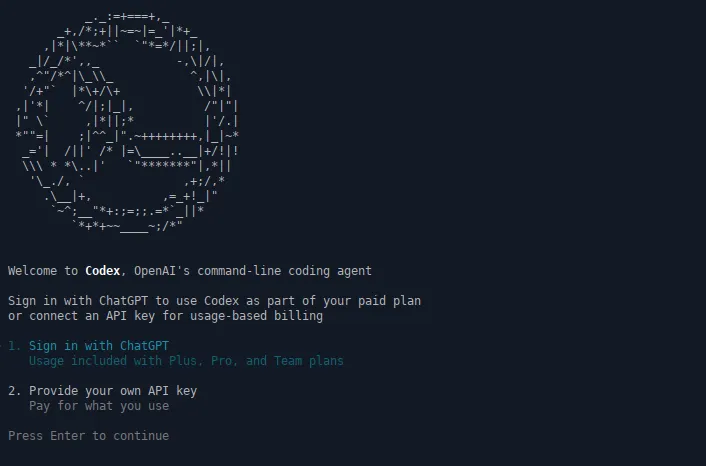
ChatGPT account flow (recommended)
The first time you run codex, it prompts you to sign in:
codexSelect Sign in with ChatGPT. Your browser opens to an OAuth page. Sign in with the ChatGPT account that has your Plus/Pro/Business subscription. When authentication completes, return to the terminal — the session is active. After login, you can further extend the agent with Codex CLI MCP Configuration for external tools.tive.
This flow ties Codex CLI to your ChatGPT subscription. No API key management required.
API key flow (for CI/CD and headless environments)
export OPENAI_API_KEY="sk-..."
codex
Or add to your shell profile for persistence. With an API key, Codex uses your API credits rather than your ChatGPT subscription quota. Check the pricing page for current token rates.
Where credentials are stored
ChatGPT OAuth credentials are stored in the system keychain (macOS Keychain, Windows Credential Manager, Linux Secret Service). The credential is not stored in a plaintext config file. To log out: run codex auth logout or remove the entry from your system keychain directly.
Your First Codex CLI Command
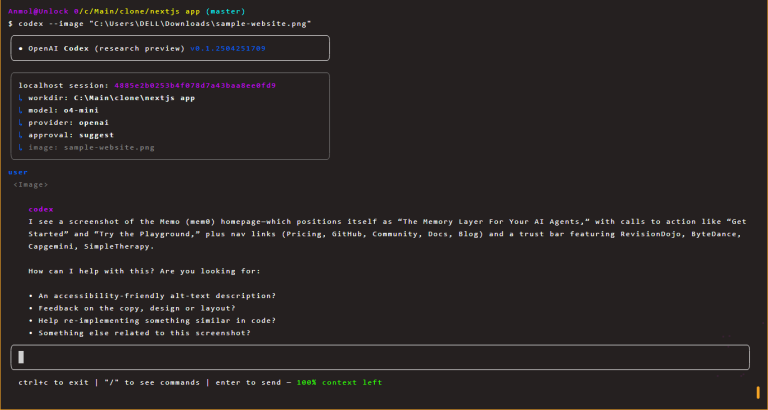
# Navigate to a project directory first:
cd your-project

# Start an interactive session:
codex
Minimal first task
Once the TUI opens, try a read-only task to verify everything is working:
> Summarize what this project does based on the README and top-level filesCodex will read the repository files and return a summary. No file modifications. If this works, authentication and tool access are both functioning correctly.
What success looks like
You'll see a split terminal interface: the conversation on one side, file/command output on the other. For tasks that modify files, Codex will show you a diff and ask for approval before applying changes. Approve with y, skip with n, or review more with e.
Common Install Errors and Fixes
| Error | Cause | Fix |
|---|---|---|
| command not found: codex | npm global bin not in PATH | Run npm bin -g, add that path to your shell profile |
| npm ERR! code EACCES | npm lacks permission to global dir | Configure npm to use a user directory (see platform sections) |
| Installed wrong package | Used npm i -g codex instead of @openai/codex | npm uninstall -g codex && npm install -g @openai/codex |
| Node.js version error | Node < 22 installed | Install Node.js 22+ via nvm ornodejs.org |
| OAuth browser window doesn't open | Headless environment or proxy | Use export OPENAI_API_KEY and skip OAuth |
| bwrap: No such file or directory (Linux) | Bubblewrap missing | Install bubblewrap via your package manager |
| Login keeps failing | Account not on a paid plan | Upgrade to Plus or use API key |
FAQ
What Node.js version is actually required for Codex CLI?
Node.js 22 or later is required for the npm installation path. The prebuilt binary from GitHub Releases requires no Node.js — it's a statically compiled Rust binary that runs standalone. If you're managing multiple Node versions across projects, use nvm (macOS/Linux) or nvm-windows to install 22 without affecting other projects.
How do I install Codex CLI on Windows without using WSL?
Install Node.js 22 from nodejs.org, then run npm install -g @openai/codex in PowerShell. Codex CLI runs natively in PowerShell with an AppContainer-based sandbox. WSL2 is optional — use it if your project is in the WSL filesystem or if you specifically need Linux-native behavior. The native Windows path works for most coding workflows.
Why does Codex CLI login keep failing?
The most common causes: (1) your ChatGPT account is on the free plan — Codex requires Plus, Pro, Business, Edu, or Enterprise; (2) your corporate proxy is intercepting TLS and the OAuth browser flow can't complete — use API key auth instead; (3) the browser window opened but you signed in with a different account than your paid plan. Try codex auth logout to clear the session and re-authenticate from scratch.
How do I update or completely uninstall Codex CLI?
# Update:
npm update -g @openai/codex
# or:
npm install -g @openai/codex@latest

# Uninstall:
npm uninstall -g @openai/codex
# Remove config and credentials:
rm -rf ~/.codex
codex auth logout  # clears system keychain entry
For Homebrew installs: brew uninstall --cask codex. For binary installs: remove the binary from wherever you placed it (e.g., rm /usr/local/bin/codex).
Related Reading