Bir @ işaretini atlamak yirmi dakikanı çöpe atabilir. Ama 2026'da npm artık tek başlangıç yolu da değil.
Codex CLI'yi npm ile kuruyorsan en yaygın hata eksik dependency veya işletim sistemi değil: npm i -g @openai/codex yerine npm i -g codex çalıştırmak. Scope'suz codex paketi, OpenAI ile ilgisi olmayan 2012 tarihli başka bir proje; sessizce kurulur ve sana işe yarar bir Codex CLI vermez.
Güncel OpenAI quickstart, macOS/Linux ve Windows için standalone one-line installer'ı öne çıkarıyor; npm, Homebrew ve release binary'leri alternatif olarak kalıyor. Bu rehber üç işletim sistemindeki güncel başlangıç yolunu, npm seçersen gereken Node.js sürümünü ve kurulumdan sonra çıkan hataların çözümlerini bir araya getiriyor.
Verdent kaynak yazısı Mayıs 2026'da hazırlanmıştı. Aşağıdaki kurulum sırası, 17 Temmuz 2026'da Codex CLI quickstart ve OpenAI Codex repository README'si ile güncellendi.
Codex CLI nedir?
Codex CLI, OpenAI'ın açık kaynak terminal coding agent'ıdır. Yerel ortamda çalışır; repository'ni okur, dosyaları düzenler ve terminal komutları yürütür. Sen görevi verirsin, Codex değişiklik önerir, sen onaylar veya reddedersin.
Codex desktop app'ten farkı ne?
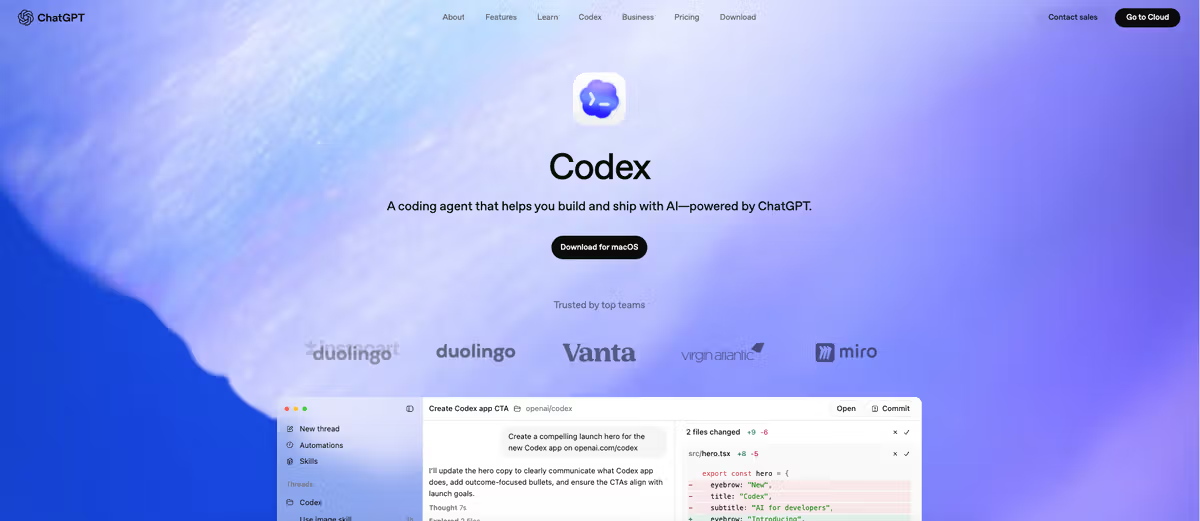
Codex desktop app, computer use, plugin marketplace ve görsel arayüz içeren tam bir GUI uygulamasıdır. Codex CLI ise terminal sürümüdür: GUI yok, mouse yok, computer use yok.
Karşılığında daha hızlı kurulur, script'lerle çalıştırılabilir ve mevcut terminal workflow'una doğrudan girer. Agent'ları CI/CD pipeline'ında çalıştırmak, Codex çağıran shell script'leri yazmak veya terminalden çıkmadan çalışmak istiyorsan CLI daha uygun seçimdir.
OpenAI araçları içinde nerede duruyor?
Dört Codex yüzeyi bulunur: bu rehberdeki terminal CLI, Codex desktop app, VS Code/JetBrains IDE extension'ları ve chatgpt.com/codex üzerindeki cloud tabanlı Codex Web. Burada yalnızca CLI kurulumunu ele alıyorum.
Kurulumdan önce gerekenler
Node.js yalnızca npm yolu için gerekir
@openai/codex paketinin güncel package.json dosyası Node.js 16 veya üzerini kabul ediyor. Yine de güvenlik ve package-manager uyumluluğu için desteklenen güncel bir Node.js LTS sürümü kullan. Standalone installer veya prebuilt binary yolunda Node.js gerekmez.
Mevcut sürümü kontrol et:
node --versionSürüm 16'nın altındaysa ya da artık desteklenmeyen bir Node sürümündeyse güncel LTS'e geç:
# Using nvm (recommended for managing Node versions):
nvm install --lts
nvm use --lts

# Or download directly from nodejs.org
Node.js kurmak istemiyorsan standalone installer'ı veya prebuilt binary yolunu kullan. Her işletim sistemi bölümünde bu seçenek ayrıca gösteriliyor.
OpenAI hesabı ve plan tier'ı
Codex, güncel OpenAI yardım sayfasına göre Free, Go, Plus, Pro, Business, Edu ve Enterprise planlarında kullanılabilir; kullanım limitleri ve ek kredi seçenekleri plana göre değişir. Kaynak yazıdaki “ücretsiz hesap yeterli değil” bilgisi artık güncel değildir. Son durum için Codex'in ChatGPT planlarındaki erişim sayfasını kontrol et.
API key ile authentication da desteklenir. Bu yol daha çok CI/CD pipeline'ları ve headless ortamlar içindir.
Network ve proxy
Codex CLI, OpenAI API'larına outbound HTTPS request gönderir. Ortamın HTTP proxy kullanıyorsa çalıştırmadan önce HTTPS_PROXY veya https_proxy environment variable'ını ayarla.
TLS inspection yapan kurumsal firewall'lar OAuth login akışını bozabilir. Böyle bir ağda API key ile authentication genellikle daha güvenilirdir.
macOS'ta Codex CLI kurulumu
Önerilen standalone installer ve alternatifler
Dört yol var. OpenAI quickstart standalone installer'ı öne çıkarıyor; mevcut package management düzenine göre diğerlerinden birini de seçebilirsin:
# Option 1: Standalone installer (recommended; no Node.js required)
curl -fsSL https://chatgpt.com/codex/install.sh | sh

# Option 2: npm (requires Node.js 16+; current LTS recommended)
npm install -g @openai/codex

# Option 3: Homebrew
brew install --cask codex

# Option 4: Prebuilt binary (no Node.js required)
# Download from https://github.com/openai/codex/releases
# Choose: codex-aarch64-apple-darwin.tar.gz (Apple Silicon)
#      or codex-x86_64-apple-darwin.tar.gz (Intel)
tar -xzf codex-aarch64-apple-darwin.tar.gz
mv codex /usr/local/bin/codex
chmod +x /usr/local/bin/codex
Standalone installer'ı güncelleme için yeniden çalıştırabilirsin. npm ve Homebrew yolları da aynı CLI deneyimine ulaşır; hangisini kullandığın esas olarak paket yönetimi tercihidir.
codex --version ile doğrula
codex --versionBir sürüm numarası görüyorsan binary kuruldu ve PATH üzerinde bulunuyor. command not found alırsan npm global bin dizini PATH içinde değildir.
macOS'a özel sorunlar
npm kurulumundan sonra command not found:
# Find where npm installs global binaries:
npm bin -g

# Add to your shell profile (~/.zshrc or ~/.bash_profile):
export PATH="$PATH:$(npm bin -g)"
source ~/.zshrc
Gatekeeper, Apple Silicon'da indirilen binary'yi engelliyorsa:
macOS “cannot be opened because the developer cannot be verified” mesajını gösterirse:
xattr -d com.apple.quarantine /usr/local/bin/codexAlternatif olarak ilk engellenen çalıştırmadan sonra System Settings → Privacy & Security bölümünde “Allow Anyway” seçeneğini kullan.
Homebrew kurulumundan sonra komut görünmüyorsa: brew info --cask codex ve which codex ile cask'in kurulduğunu ve binary'nin PATH üzerinde olduğunu doğrula; gerekirse terminali yeniden aç.
Windows'ta Codex CLI kurulumu
PowerShell kurulumu
2026'da önerilen native Windows yolu PowerShell standalone installer'ıdır:
# Recommended standalone installer:
powershell -ExecutionPolicy ByPass -c "irm https://chatgpt.com/codex/install.ps1 | iex"

# Alternative: npm (Node.js 16+; current LTS recommended)
npm install -g @openai/codex

# Verify:
codex --version
npm alternatifini seçersen paket adı @openai/codex; yalnızca codex değil. Scope'suz npm paketi, OpenAI ile ilgisi olmayan 2012 tarihli projedir ve nedeni ilk bakışta anlaşılmayan hatalar üretir.
Native Windows'ta Codex CLI, filesystem write'larını kısıtlayan ve network erişimini varsayılan olarak sınırlayan AppContainer tabanlı bir sandbox kullanır. OpenAI, Windows sandbox desteğini deneysel olarak işaretliyordu; güncel sınırlar için Windows sandbox kurulum sayfasını kontrol et.
WSL2 mi, native kurulum mu?
Windows'ta iki yol da çalışır.
Native PowerShell: standalone installer veya npm ile kur ve doğrudan PowerShell ya da Windows Terminal içinde çalıştır. Projen Windows filesystem içindeyse ve Linux'a özel toolchain gerekmiyorsa çoğu workflow için yeterlidir.
WSL2: Linux'u WSL2 içinde çalıştır, Codex CLI'yi de oraya kur. Şu durumlarda seç:
- Proje zaten WSL filesystem içindeyse
- Linux-native sandbox davranışı gerekiyorsa
- Build toolchain Linux istiyorsa
# Inside WSL2:
npm install -g @openai/codex
codex --version
WSL2 içindeki Codex CLI binary'sini PowerShell'den doğrudan çalıştırma. Komutu WSL terminalinin içinden çağır.
Windows'a özel sorunlar
PowerShell'de npm permission hatası:
# Run PowerShell as Administrator, then:
npm install -g @openai/codex

# Or configure npm to install to user directory:
npm config set prefix "$env:APPDATA\npm"
# Add %APPDATA%\npm to your user PATH in System Settings
npm kurulumundan sonra codex** bulunamıyor:**
npm bin -g
# Add the printed path to your user PATH via System Settings → Environment Variables
Login browser penceresi açılmıyor: OAuth browser akışı başlamıyorsa aşağıdaki ilk login bölümündeki API key yolunu kullan.
Linux'ta Codex CLI kurulumu
OpenAI quickstart'ın önerdiği en kısa yol macOS ile aynıdır:
curl -fsSL https://chatgpt.com/codex/install.sh | sh
codex --version
Node.js tabanlı package management istiyorsan aşağıdaki dağıtım adımlarını kullan.
Ubuntu ve Debian
# Install a supported Node.js LTS with nvm:
nvm install --lts
nvm use --lts

# Install Codex CLI:
npm install -g @openai/codex

# Verify:
codex --version
Codex CLI için .deb veya .rpm paketi yoktur. Linux'ta desteklenen yollar standalone installer, npm ve GitHub Releases üzerindeki prebuilt binary seçeneğidir.
Linux sürümü sandbox için Bubblewrap (bwrap) kullanır. Yeni sürümler npm ve DotSlash kurulumlarında bağımsız bir bwrap fallback'i paketlediği için çoğu sistemde manuel Bubblewrap kurulumu gerekmez.
Fedora ve RHEL
# Install Node.js and npm; verify Node is 16+ before continuing:
sudo dnf install nodejs npm   # or use nvm

# Install Codex CLI:
npm install -g @openai/codex
Arch Linux
# Node.js:
sudo pacman -S nodejs npm

# Codex CLI:
npm install -g @openai/codex
Tüm Linux dağıtımları için prebuilt binary
Bu yol Node.js gerektirmez:
# Download from GitHub Releases — choose your architecture:
# x86_64: codex-x86_64-unknown-linux-musl.tar.gz
# ARM64:  codex-aarch64-unknown-linux-musl.tar.gz

curl -L -o codex.tar.gz \
  "https://github.com/openai/codex/releases/latest/download/codex-x86_64-unknown-linux-musl.tar.gz"
tar -xzf codex.tar.gz
mv codex-x86_64-unknown-linux-musl /usr/local/bin/codex
chmod +x /usr/local/bin/codex
codex --version
musl binary statik linklenmiştir; ek runtime dependency olmadan Linux dağıtımlarında çalışır.
Linux'a özel sorunlar
npm permission hatası:
# Configure npm to install to user directory (no sudo):
mkdir ~/.npm-global
npm config set prefix '~/.npm-global'
echo 'export PATH=~/.npm-global/bin:$PATH' >> ~/.bashrc
source ~/.bashrc
npm install -g @openai/codex
Eski dağıtımlarda Bubblewrap eksikse:
# Ubuntu/Debian:
sudo apt-get install bubblewrap

# Fedora:
sudo dnf install bubblewrap
İlk login ve authentication
ChatGPT hesabıyla giriş
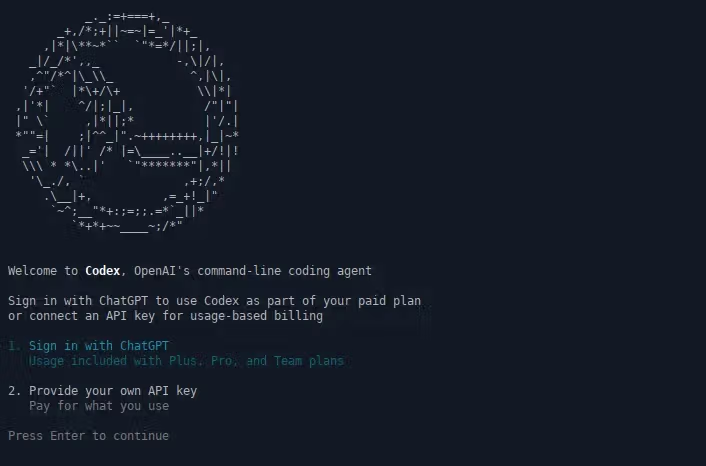
codex komutunu ilk kez çalıştırdığında giriş ister:
codexSign in with ChatGPT seçeneğini seç. Browser bir OAuth sayfası açar. Free, Go, Plus, Pro, Business, Edu veya Enterprise hesabınla giriş yap; authentication tamamlanınca terminale dön. Kullanım limiti planına göre değişir.
Bu akış Codex CLI'yi ChatGPT aboneliğine bağlar, ayrıca API key yönetmen gerekmez.
CI/CD ve headless ortamlar için API key
printenv OPENAI_API_KEY | codex login --with-api-key
codex
Kalıcı olması için environment variable'ı shell profile'a ekleyebilirsin. API key kullandığında Codex, ChatGPT abonelik kotası yerine API kredilerini tüketir; güncel token ücretlerini OpenAI fiyatlandırma sayfasından kontrol et.
Credential'lar nerede saklanıyor?
Codex login bilgilerini yerel ~/.codex/auth.json dosyasında veya işletim sisteminin credential store'unda saklayabilir. cli_auth_credentials_store ayarı file, keyring ya da auto olabilir; auto, mümkünse OS store'u kullanır, değilse dosyaya döner. auth.json access token içerdiği için bunu repository'ye commit etme, ticket'a yapıştırma veya paylaşma.
Aktif yöntemi görmek için codex login status, credential'ları temizlemek için codex logout çalıştır.
İlk Codex CLI komutun
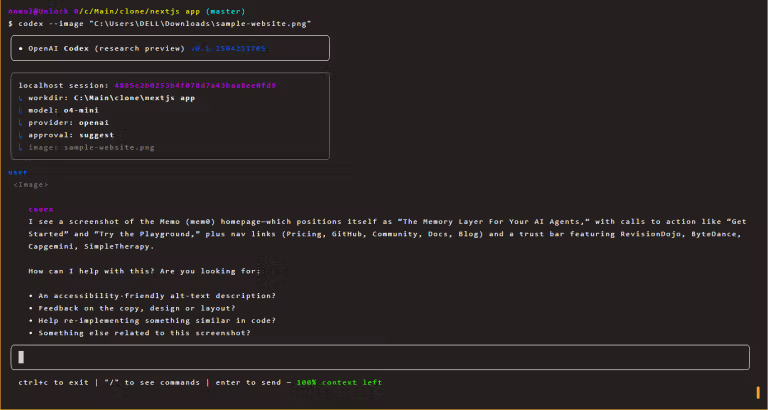
Önce proje dizinine geç, ardından interactive session başlat:
# Navigate to a project directory first:
cd your-project

# Start an interactive session:
codex
Minimum ilk görev
TUI açılınca önce read-only bir görevle kurulumun tamamını doğrula:
> Summarize what this project does based on the README and top-level filesCodex repository dosyalarını okuyup bir özet döndürür; dosya değiştirmez. Bu çalışıyorsa authentication ve tool erişimi birlikte doğru yapılandırılmıştır.
Başarılı kurulum nasıl görünür?
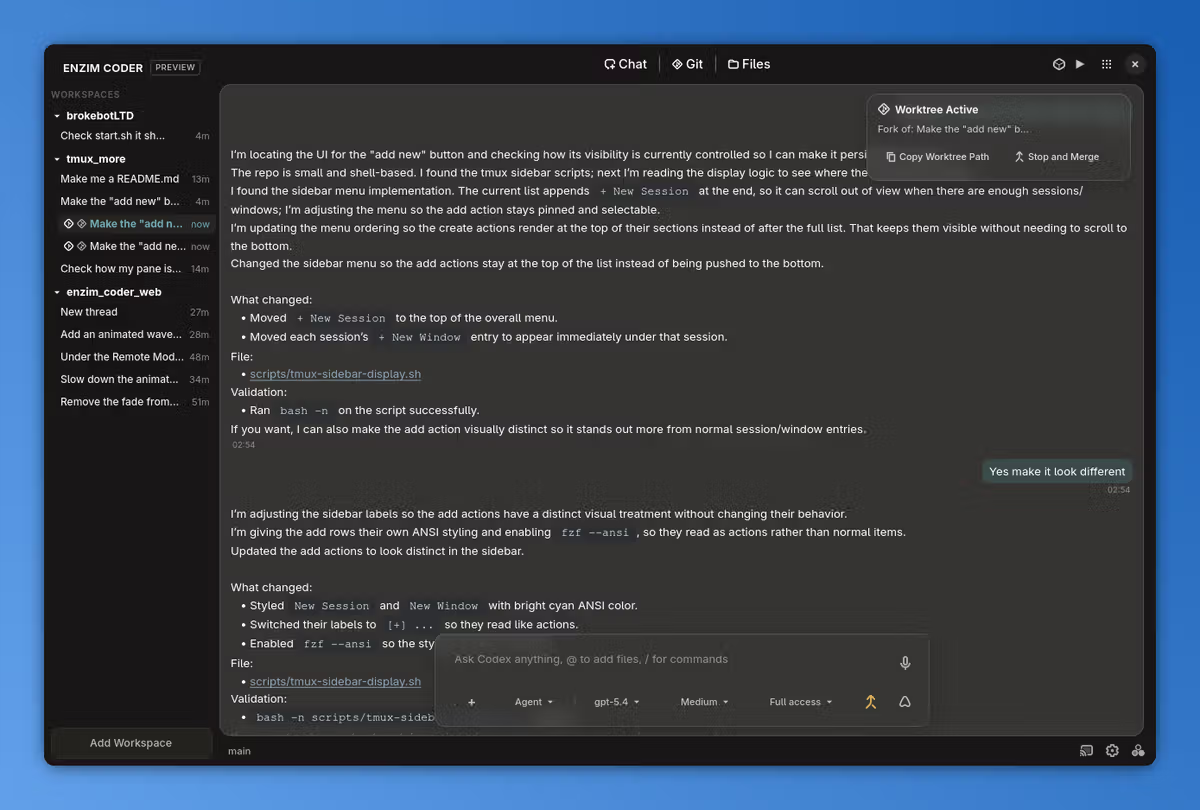
Terminalde konuşmayı, çalıştırılan komutları ve değişiklik diff'lerini görürsün. Onay davranışı seçtiğin permissions ayarına bağlıdır; gerçek repository üzerinde edit başlatmadan önce komut ve diff kontrollerinin ekranda göründüğünü doğrula.
Yaygın kurulum hataları ve çözümleri
| Hata | Neden | Çözüm |
|---|---|---|
| command not found: codex | npm global binPATHiçinde değil | npm bin -gçalıştır, çıkan yolu shell profile'a ekle |
| npm ERR! code EACCES | npm global dizine yazamıyor | npm prefix'ini kullanıcı dizinine taşı |
| Yanlış paket kuruldu | @openai/codexyerinecodexkullanıldı | npm uninstall -g codex && npm install -g @openai/codex |
| Node.js sürüm hatası | npm yolunda Node 16'nın altında veya destek dışı sürüm | güncel Node.js LTS kur ya da standalone installer'a geç |
| OAuth browser açılmıyor | Headless ortam, callback engeli veya proxy | codex login --device-authkullan; gerekirse API key yoluna geç |
| bwrap: No such file or directory | Linux'ta Bubblewrap eksik | Package manager ilebubblewrapkur |
| Login sürekli başarısız | Yanlış hesap/workspace, admin kısıtı veya callback engeli | codex login statusile kontrol et; doğru workspace, device auth veya API key kullan |
Sık sorulan sorular
Codex CLI için hangi Node.js sürümü gerekiyor?
npm paketinin güncel engine alanı Node.js 16 veya üzerini kabul eder; desteklenen güncel LTS sürümü daha güvenli seçimdir. Standalone installer ve GitHub Releases'teki prebuilt binary Node.js istemez. Projeler arasında sürüm ayırman gerekiyorsa macOS/Linux'ta nvm, Windows'ta nvm-windows kullan.
WSL kullanmadan Windows'a Codex CLI nasıl kurulur?
En kısa yol, PowerShell'de powershell -ExecutionPolicy ByPass -c "irm https://chatgpt.com/codex/install.ps1 | iex" çalıştırmaktır. npm kullanmak istersen desteklenen güncel Node.js LTS'i kurup npm install -g @openai/codex çalıştır. WSL2 zorunlu değildir; yalnızca projen WSL filesystem içindeyse veya Linux-native davranış gerekiyorsa seç.
Codex CLI login neden sürekli başarısız oluyor?
En yaygın nedenler yanlış ChatGPT hesabı veya workspace, kurumsal proxy'nin OAuth callback'ini bozması ve admin'in izin verilen login yöntemini kısıtlamasıdır. Önce codex login status, ardından gerekirse codex logout çalıştır. Browser callback'i kullanılamıyorsa codex login --device-auth; otomasyon için API key yoluna geç.
Codex CLI nasıl güncellenir veya tamamen kaldırılır?
Standalone installer kullandıysan güncellemek için aynı installer komutunu yeniden çalıştır:
curl -fsSL https://chatgpt.com/codex/install.sh | shnpm yolu için:
# Update:
npm update -g @openai/codex
# or:
npm install -g @openai/codex@latest

# Sign out, then uninstall:
codex logout
npm uninstall -g @openai/codex
# Remove config and credentials:
rm -rf ~/.codex
Homebrew kurulumu için brew uninstall --cask codex kullan. Binary'yi elle kurduysan yerleştirdiğin dosyayı kaldır; örneğin /usr/local/bin/codex.
Şunu söyleyeyim: standalone installer en kısa yol; npm seçersen doğru paket adı ve Node sürümü hâlâ kritik. Önce codex --version, sonra read-only bir görev çalıştır; ikisi de geçmeden gerçek repository üzerinde edit başlatma.
İyi kodlamalar.