# User Interface Overview (/docs/verdent/getting-started/interface)
> Overview of the Verdent interface and components
Verdent provides a comprehensive development environment with integrated chat, editor, terminal, and diff viewing capabilities.
## What You'll Learn [#what-youll-learn]
* Navigate the main interface components
* Use the chat panel effectively
* Work with the integrated editor and terminal
* Review changes
***
## Interface Overview [#interface-overview]
Verdent uses a multi-panel layout with six main areas:
* **Top Bar** - Project switching, workspace management, and user account
* **Workspace Bar** - Current workspace, branch, workspace actions, and panel toggles
* **Left Panel** - Task list and task creation
* **Sidebar** - Source Control and Explorer tabs
* **Middle Panel** - Chat view, integrated editor, and terminal
* **Chat Input Box** - Text input with context controls, mode selection, and send button
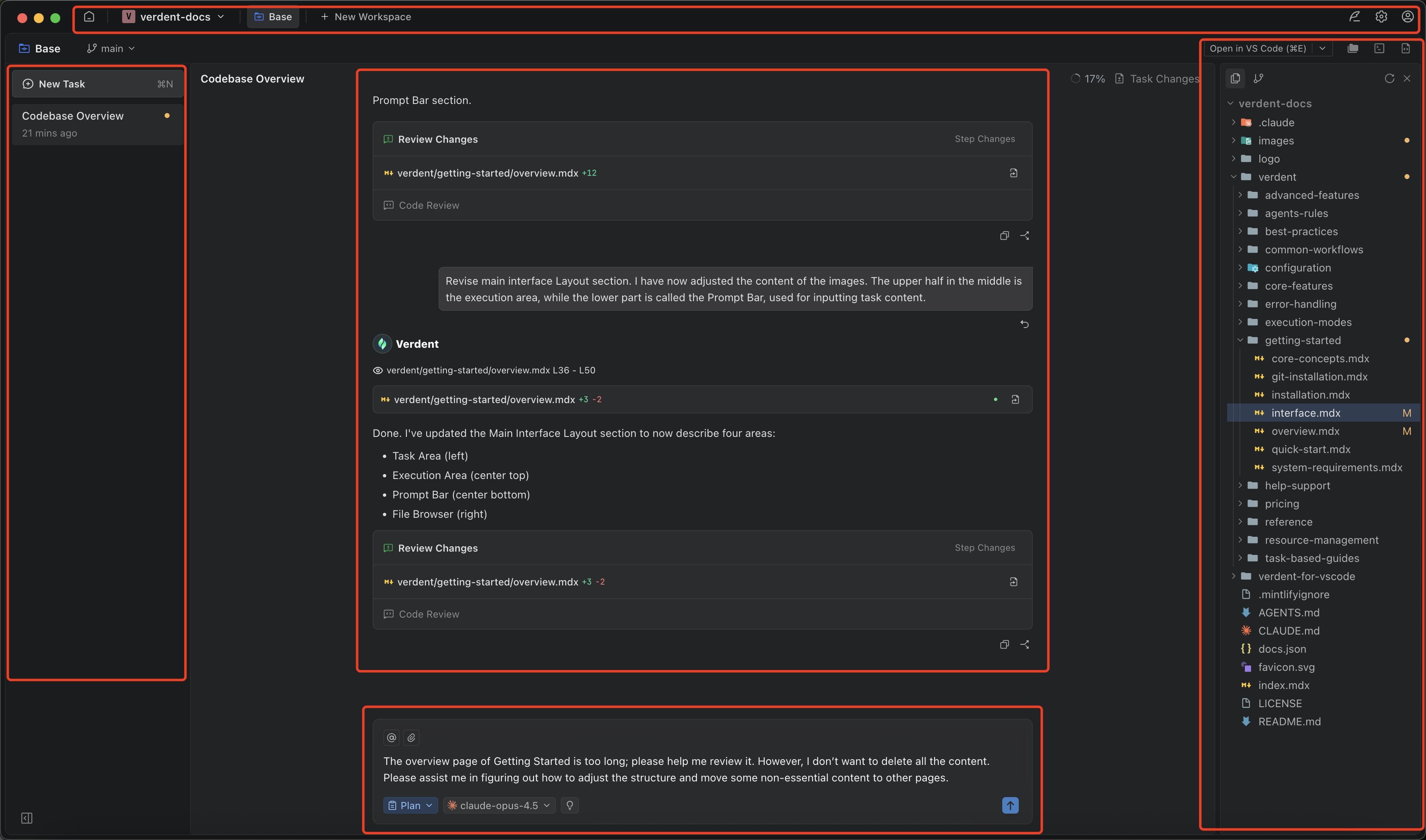 Resize any panel by dragging its edges. Your layout preferences are saved automatically.
***
## Top Bar [#top-bar]
The top bar provides quick access to essential functions:
| Component | Purpose |
| ------------------- | ---------------------------------------------------- |
| **Verdent** | App menu (About, Settings, Reload) |
| **Home** | Return to home screen |
| **Current Project** | Shows current project name, click to switch projects |
| **New Workspace** | Create a new isolated workspace |
| **All Workspaces** | Switch between active workspaces |
| **Feedback** | Submit feedback or report issues |
| **Settings** | Open settings modal |
| **User Menu** | Account info, credit balance |
**Key Actions:**
* Click **Verdent** → Access About, Settings, Reload
* Click **Home** → Return to home screen
* Click project name → Switch projects or access recent projects
* Click **New Workspace** → Create isolated workspace for parallel work
* Click **All Workspaces** → Switch between active workspaces
* Click **Feedback** → Submit feedback or report issues
* Click **Settings** → Configure Verdent preferences
* Click **User Menu** → View credits, account info
***
## Workspace Bar [#workspace-bar]
The workspace bar sits below the top bar and provides workspace-specific controls:
**Left Side:**
| Component | Description |
| --------------------- | ---------------------------------------------------------------------- |
| **Current Workspace** | Shows the active workspace name |
| **Branch** | Indicates the current git branch (can change branch on base workspace) |
| **Delete Workspace** | Remove the workspace (when available) |
| **Workspace Actions** | Dropdown with Rebase to main branch, Sync with main branch |
**Right Side:**
| Component | Description |
| ----------------------------------------------- | ------------------------- |
| **Open in VS Code (Ctrl+E)** | Open workspace in VS Code |
| **Toggle Explorer and Source Control (Ctrl+B)** | Show/hide Sidebar |
| **Terminal Panel (Ctrl+J or Ctrl+\`)** | Toggle terminal panel |
| **Editor (Ctrl+L)** | Focus the editor |
***
## Left Panel: Tasks [#left-panel-tasks]
The left panel manages your tasks within the current workspace:
**Task List:**
* Lists all tasks in current workspace
* Each task is a separate conversation thread
* Click to switch between tasks
**Task Actions:**
| Action | Description |
| --------------- | ------------------------------------- |
| **New Task** | Start a new task (`Cmd+N` / `Ctrl+N`) |
| **Switch Task** | Click any task to switch to it |
Tasks share the workspace file state. Context is preserved when switching between tasks.
***
## Sidebar: Source Control & Explorer [#sidebar-source-control--explorer]
The Sidebar provides file management and version control:
**Version Control:** (`Ctrl+Shift+G` / `Cmd+Shift+G`)
* View changed files
* Stage and commit changes
* Diff view for individual files
* Revert changes
**File Browser:** (`Ctrl+Shift+E` / `Cmd+Shift+E`)
* Navigate project files
* Open files in editor
* Create, rename, delete files
* Search within project
**Additional Controls:**
* **Create File** - Create a new file
* **Create Folder** - Create a new folder
* **Collapse All** - Collapse all expanded folders
**Panel Controls:**
| Control | Description |
| ----------- | ---------------------------- |
| **Refresh** | Refresh file list and status |
| **Close** | Hide the Sidebar |
***
## Middle Panel [#middle-panel]
The middle panel displays your work and can show multiple views.
**Task Changes** - Click to view all files changed within the current task. Shows modifications for the current workspace only, not across different workspaces.
**Context Remaining** - Indicates how much context remains within the model for the current conversation.
**Chat Panel:**
* Full conversation history with Verdent
* Code blocks with syntax highlighting
* File references and links
* Expandable tool usage details
**Chat Features:**
* Scroll through conversation history
* Copy code blocks with one click
* Click file paths to open in editor
* Expand/collapse long responses
* **Rollback to this point** - Revert the chat to a specific point in time
**Integrated Editor:**
* Full-featured code editor
* Syntax highlighting for many languages
* Line numbers and code folding
* Find and replace
**Editor Features:**
* Multiple file tabs
* Go to definition (for supported languages)
* Keyboard shortcuts similar to VS Code
**Integrated Terminal:**
* Full terminal emulator
* Command execution history
* Multiple terminal tabs
* Automatic working directory
**Terminal Features:**
* Copy/paste support
* Scrollback buffer
* Clear terminal
***
## Chat Input Box [#chat-input-box]
Chat Input Box is where you describe what you want Verdent to do. It supports natural-language requests, quick context attachments, and run settings.
Resize any panel by dragging its edges. Your layout preferences are saved automatically.
***
## Top Bar [#top-bar]
The top bar provides quick access to essential functions:
| Component | Purpose |
| ------------------- | ---------------------------------------------------- |
| **Verdent** | App menu (About, Settings, Reload) |
| **Home** | Return to home screen |
| **Current Project** | Shows current project name, click to switch projects |
| **New Workspace** | Create a new isolated workspace |
| **All Workspaces** | Switch between active workspaces |
| **Feedback** | Submit feedback or report issues |
| **Settings** | Open settings modal |
| **User Menu** | Account info, credit balance |
**Key Actions:**
* Click **Verdent** → Access About, Settings, Reload
* Click **Home** → Return to home screen
* Click project name → Switch projects or access recent projects
* Click **New Workspace** → Create isolated workspace for parallel work
* Click **All Workspaces** → Switch between active workspaces
* Click **Feedback** → Submit feedback or report issues
* Click **Settings** → Configure Verdent preferences
* Click **User Menu** → View credits, account info
***
## Workspace Bar [#workspace-bar]
The workspace bar sits below the top bar and provides workspace-specific controls:
**Left Side:**
| Component | Description |
| --------------------- | ---------------------------------------------------------------------- |
| **Current Workspace** | Shows the active workspace name |
| **Branch** | Indicates the current git branch (can change branch on base workspace) |
| **Delete Workspace** | Remove the workspace (when available) |
| **Workspace Actions** | Dropdown with Rebase to main branch, Sync with main branch |
**Right Side:**
| Component | Description |
| ----------------------------------------------- | ------------------------- |
| **Open in VS Code (Ctrl+E)** | Open workspace in VS Code |
| **Toggle Explorer and Source Control (Ctrl+B)** | Show/hide Sidebar |
| **Terminal Panel (Ctrl+J or Ctrl+\`)** | Toggle terminal panel |
| **Editor (Ctrl+L)** | Focus the editor |
***
## Left Panel: Tasks [#left-panel-tasks]
The left panel manages your tasks within the current workspace:
**Task List:**
* Lists all tasks in current workspace
* Each task is a separate conversation thread
* Click to switch between tasks
**Task Actions:**
| Action | Description |
| --------------- | ------------------------------------- |
| **New Task** | Start a new task (`Cmd+N` / `Ctrl+N`) |
| **Switch Task** | Click any task to switch to it |
Tasks share the workspace file state. Context is preserved when switching between tasks.
***
## Sidebar: Source Control & Explorer [#sidebar-source-control--explorer]
The Sidebar provides file management and version control:
**Version Control:** (`Ctrl+Shift+G` / `Cmd+Shift+G`)
* View changed files
* Stage and commit changes
* Diff view for individual files
* Revert changes
**File Browser:** (`Ctrl+Shift+E` / `Cmd+Shift+E`)
* Navigate project files
* Open files in editor
* Create, rename, delete files
* Search within project
**Additional Controls:**
* **Create File** - Create a new file
* **Create Folder** - Create a new folder
* **Collapse All** - Collapse all expanded folders
**Panel Controls:**
| Control | Description |
| ----------- | ---------------------------- |
| **Refresh** | Refresh file list and status |
| **Close** | Hide the Sidebar |
***
## Middle Panel [#middle-panel]
The middle panel displays your work and can show multiple views.
**Task Changes** - Click to view all files changed within the current task. Shows modifications for the current workspace only, not across different workspaces.
**Context Remaining** - Indicates how much context remains within the model for the current conversation.
**Chat Panel:**
* Full conversation history with Verdent
* Code blocks with syntax highlighting
* File references and links
* Expandable tool usage details
**Chat Features:**
* Scroll through conversation history
* Copy code blocks with one click
* Click file paths to open in editor
* Expand/collapse long responses
* **Rollback to this point** - Revert the chat to a specific point in time
**Integrated Editor:**
* Full-featured code editor
* Syntax highlighting for many languages
* Line numbers and code folding
* Find and replace
**Editor Features:**
* Multiple file tabs
* Go to definition (for supported languages)
* Keyboard shortcuts similar to VS Code
**Integrated Terminal:**
* Full terminal emulator
* Command execution history
* Multiple terminal tabs
* Automatic working directory
**Terminal Features:**
* Copy/paste support
* Scrollback buffer
* Clear terminal
***
## Chat Input Box [#chat-input-box]
Chat Input Box is where you describe what you want Verdent to do. It supports natural-language requests, quick context attachments, and run settings.
 **Prompt Input & Send**
* Type your request in the input area.
* Press Enter or click Send to submit.
* Use `/` for commands.
* Use `@` to search files.
**Run Controls**
Use the controls below the input to configure how Verdent runs this request:
* **Mode**: choose how Verdent works, Agent Mode (execute) or Plan Mode (clarify + plan).
* **Model / Preset**: select the model used for this task.
* **Thinking depth**: adjust how deeply the model reasons (if available).
**Prompt Input & Send**
* Type your request in the input area.
* Press Enter or click Send to submit.
* Use `/` for commands.
* Use `@` to search files.
**Run Controls**
Use the controls below the input to configure how Verdent runs this request:
* **Mode**: choose how Verdent works, Agent Mode (execute) or Plan Mode (clarify + plan).
* **Model / Preset**: select the model used for this task.
* **Thinking depth**: adjust how deeply the model reasons (if available).
 **Context Attachments**
Attach files to improve accuracy:
* **@ (Codebase files)**: attach files from the current repository.
* **Pin (Local files)**: attach files from your computer.
**Context Attachments**
Attach files to improve accuracy:
* **@ (Codebase files)**: attach files from the current repository.
* **Pin (Local files)**: attach files from your computer.
 | Component | Description |
| ------------------ | ------------------------------------------------- |
| **Text Area** | Type your prompts and messages |
| **Send Button** | Submit your message (`Enter`) |
| **Add Context** | Reference files with @-mentions |
| **Add Images** | Upload screenshots or diagrams |
| **Switch Mode** | Toggle between Agent Mode and Plan Mode |
| **Model Selector** | Choose AI model for the task (`Ctrl+/` / `Cmd+/`) |
**Input Tips:**
* Press `Enter` to send, `Shift+Enter` for new line
* Use `@filename` to reference specific files
* Drag and drop images directly into the input
* Switch modes with `Shift+Tab` or `Ctrl+.`
* Switch models with `Ctrl+/` or `Cmd+/`
***
## Review Changes Component [#review-changes-component]
After Verdent completes changes, the Review Changes component provides visibility:
**Tabs:**
| Tab | Description |
| --------------- | ----------------------------------- |
| **Code Review** | Structured feedback and suggestions |
**Features:**
* View exact changes made by Verdent
* Natural language summaries of modifications
* File links to jump to specific changes
* Transparent view with no black boxes
In Agent Mode, changes execute autonomously. Use Review Changes after completion to understand what changed, then use Source Control to commit, modify, or revert.
***
## Terminal Panel [#terminal-panel]
The integrated terminal provides command-line access:
**Terminal Features:**
| Feature | Description |
| ------------------- | -------------------------------- |
| **Auto-Directory** | Opens in project/workspace root |
| **Multiple Tabs** | Open multiple terminal instances |
| **Command History** | Access previous commands |
| **Copy/Paste** | Standard keyboard shortcuts |
**Usage:**
* Terminal commands executed by Verdent appear here
* Manual command execution for testing
* View build output, test results, etc.
***
## Keyboard Shortcuts [#keyboard-shortcuts]
| Action | Windows | macOS |
| ----------------------- | ----------------------- | ---------------------- |
| **Send Message** | `Enter` | `Enter` |
| **New Line** | `Shift+Enter` | `Shift+Enter` |
| **New Task** | `Ctrl+N` | `Cmd+N` |
| **New Workspace** | `Ctrl+Shift+N` | `Cmd+Shift+N` |
| **Switch Mode** | `Shift+Tab` or `Ctrl+.` | `Shift+Tab` or `Cmd+.` |
| **Switch Model** | `Ctrl+/` | `Cmd+/` |
| **Open in VS Code** | `Ctrl+E` | `Cmd+E` |
| **Open Explorer** | `Ctrl+Shift+E` | `Cmd+Shift+E` |
| **Toggle Sidebar** | `Ctrl+B` | `Cmd+B` |
| **Terminal Panel** | `Ctrl+J` or ``Ctrl+` `` | `Cmd+J` or ``Cmd+` `` |
| **New Terminal** | ``Ctrl+Shift+` `` | ``Cmd+Shift+` `` |
| **Open Source Control** | `Ctrl+Shift+G` | `Cmd+Shift+G` |
| **Open Settings** | `Ctrl+,` | `Cmd+,` |
| **Editor** | `Ctrl+L` | `Cmd+L` |
| **Next Workspace** | `Ctrl+Tab` | `Ctrl+Tab` |
| **Previous Workspace** | `Ctrl+Shift+Tab` | `Ctrl+Shift+Tab` |
See [Keyboard Shortcuts](/docs/verdent/reference/shortcuts) for the complete list.
***
## Customization [#customization]
**Theme Settings:**
* Light, Dark, or System theme
* Settings → General → Appearance
**Layout Settings:**
* Panel sizes (adjustable)
**Editor Settings:**
* Font family and size
* Tab size and indentation
* Line numbers and word wrap
***
## FAQs [#faqs]
Drag the borders between panels to resize. Your layout preferences are saved automatically.
Currently, all panels remain within the main window. This helps maintain context between chat, editor, and terminal.
A workspace is an isolated git worktree for parallel work. A task is a conversation thread within a workspace. Multiple tasks can run in the same workspace and share the workspace file state.
Click **All Workspaces** in the top bar to see and switch between active workspaces.
Yes. Tasks share the workspace file state, and context is preserved when switching between tasks.
Click **Task Changes** in the middle panel to view all files changed within the current task. This shows modifications for the current workspace only, not across different workspaces.
Context Remaining shows how much model context is left for the current conversation. When context runs low, consider starting a new task.
Use Source Control (`Ctrl+Shift+G` / `Cmd+Shift+G`) to discard or revert specific file changes.
Hover over any message in the chat and click **Rollback to this point** to revert the conversation to that point in time.
Yes. Click **Open in VS Code** (`Ctrl+E` / `Cmd+E`) in the workspace bar to open the current workspace in VS Code.
***
## See Also [#see-also]
Complete keyboard shortcuts reference
Configuration options
| Component | Description |
| ------------------ | ------------------------------------------------- |
| **Text Area** | Type your prompts and messages |
| **Send Button** | Submit your message (`Enter`) |
| **Add Context** | Reference files with @-mentions |
| **Add Images** | Upload screenshots or diagrams |
| **Switch Mode** | Toggle between Agent Mode and Plan Mode |
| **Model Selector** | Choose AI model for the task (`Ctrl+/` / `Cmd+/`) |
**Input Tips:**
* Press `Enter` to send, `Shift+Enter` for new line
* Use `@filename` to reference specific files
* Drag and drop images directly into the input
* Switch modes with `Shift+Tab` or `Ctrl+.`
* Switch models with `Ctrl+/` or `Cmd+/`
***
## Review Changes Component [#review-changes-component]
After Verdent completes changes, the Review Changes component provides visibility:
**Tabs:**
| Tab | Description |
| --------------- | ----------------------------------- |
| **Code Review** | Structured feedback and suggestions |
**Features:**
* View exact changes made by Verdent
* Natural language summaries of modifications
* File links to jump to specific changes
* Transparent view with no black boxes
In Agent Mode, changes execute autonomously. Use Review Changes after completion to understand what changed, then use Source Control to commit, modify, or revert.
***
## Terminal Panel [#terminal-panel]
The integrated terminal provides command-line access:
**Terminal Features:**
| Feature | Description |
| ------------------- | -------------------------------- |
| **Auto-Directory** | Opens in project/workspace root |
| **Multiple Tabs** | Open multiple terminal instances |
| **Command History** | Access previous commands |
| **Copy/Paste** | Standard keyboard shortcuts |
**Usage:**
* Terminal commands executed by Verdent appear here
* Manual command execution for testing
* View build output, test results, etc.
***
## Keyboard Shortcuts [#keyboard-shortcuts]
| Action | Windows | macOS |
| ----------------------- | ----------------------- | ---------------------- |
| **Send Message** | `Enter` | `Enter` |
| **New Line** | `Shift+Enter` | `Shift+Enter` |
| **New Task** | `Ctrl+N` | `Cmd+N` |
| **New Workspace** | `Ctrl+Shift+N` | `Cmd+Shift+N` |
| **Switch Mode** | `Shift+Tab` or `Ctrl+.` | `Shift+Tab` or `Cmd+.` |
| **Switch Model** | `Ctrl+/` | `Cmd+/` |
| **Open in VS Code** | `Ctrl+E` | `Cmd+E` |
| **Open Explorer** | `Ctrl+Shift+E` | `Cmd+Shift+E` |
| **Toggle Sidebar** | `Ctrl+B` | `Cmd+B` |
| **Terminal Panel** | `Ctrl+J` or ``Ctrl+` `` | `Cmd+J` or ``Cmd+` `` |
| **New Terminal** | ``Ctrl+Shift+` `` | ``Cmd+Shift+` `` |
| **Open Source Control** | `Ctrl+Shift+G` | `Cmd+Shift+G` |
| **Open Settings** | `Ctrl+,` | `Cmd+,` |
| **Editor** | `Ctrl+L` | `Cmd+L` |
| **Next Workspace** | `Ctrl+Tab` | `Ctrl+Tab` |
| **Previous Workspace** | `Ctrl+Shift+Tab` | `Ctrl+Shift+Tab` |
See [Keyboard Shortcuts](/docs/verdent/reference/shortcuts) for the complete list.
***
## Customization [#customization]
**Theme Settings:**
* Light, Dark, or System theme
* Settings → General → Appearance
**Layout Settings:**
* Panel sizes (adjustable)
**Editor Settings:**
* Font family and size
* Tab size and indentation
* Line numbers and word wrap
***
## FAQs [#faqs]
Drag the borders between panels to resize. Your layout preferences are saved automatically.
Currently, all panels remain within the main window. This helps maintain context between chat, editor, and terminal.
A workspace is an isolated git worktree for parallel work. A task is a conversation thread within a workspace. Multiple tasks can run in the same workspace and share the workspace file state.
Click **All Workspaces** in the top bar to see and switch between active workspaces.
Yes. Tasks share the workspace file state, and context is preserved when switching between tasks.
Click **Task Changes** in the middle panel to view all files changed within the current task. This shows modifications for the current workspace only, not across different workspaces.
Context Remaining shows how much model context is left for the current conversation. When context runs low, consider starting a new task.
Use Source Control (`Ctrl+Shift+G` / `Cmd+Shift+G`) to discard or revert specific file changes.
Hover over any message in the chat and click **Rollback to this point** to revert the conversation to that point in time.
Yes. Click **Open in VS Code** (`Ctrl+E` / `Cmd+E`) in the workspace bar to open the current workspace in VS Code.
***
## See Also [#see-also]
Complete keyboard shortcuts reference
Configuration options