
Meta açıklama: Claude Code v2.1.49 ile gelen native Git Worktree desteği nasıl kurulur, tek ve çoklu paralel agent seansları nasıl yönetilir, temizlik mekanikleri ve bilmesen iş başa geliyor tuzaklar — adım adım.
Saat 23:00. İki Claude Code seansı aynı anda aynı dosyayı düzenliyor. Sabahtan beri üzerinde çalıştığın feature, bugfix branch'inin üzerine yazılıyor. İzliyorsun, yapacak bir şeyin yok.
Bu senaryoyu birden fazla yaşadım. Ve her seferinde aynı yere varıyorsun: ya seansları sıralı çalıştırıyorsun, ya da merdane ile uğraşır gibi stash/unstash yapıyorsun.
Claude Code v2.1.49 (19 Şubat 2026) bunu değiştirdi. Native git worktree desteği CLI'a indi — ve paralel agent iş akışlarını yürütme biçimini baştan aşağı değiştiriyor. Nasıl çalıştığını, nasıl kurulduğunu ve tuzakların nerede sakladığını aşağıda yazdım.
Claude Code Worktree Desteği Ne Yapıyor? — v2.1.49 (Şubat 2026)
Git worktree yeni bir kavram değil — komut, tek bir repo'nun aynı anda birden fazla çalışma ağacını desteklemesine izin veriyor; böylece repo'yu kopyalamadan aynı anda birden fazla branch'i checkout edebiliyorsun. Claude Code v2.1.49'un eklediği şey, bunu kendin kurman gerekmeyecek şekilde birinci sınıf native destek.
Temel mekanik şu: her claude --worktree name komutu izole bir branch ve .claude/worktrees/name/ dizininde özel bir çalışma dizini oluşturuyor. Her agent kendi dosya sistemi durumunu alıyor. Birbirlerinin üzerine yazmıyorlar. Ve kritik olan — tüm worktree'ler aynı .git geçmişini ve uzak bağlantıları paylaşıyor; dolayısıyla repo'nun tamamını kopyalamıyorsun.
Özellik CLI, Desktop uygulaması, IDE eklentileri (VS Code ve JetBrains) ve web arayüzünde yayımlandı. Desktop uygulamasında v2.1.49 öncesinde zaten yerleşik worktree desteği vardı — CLI'ın bu desteğe kavuşması hikayeyi tamamlayan şey.
Her claude --worktree name çağrısıyla ne oluşturuluyor:
| Nesne | Yol / İsim | Amaç |
|---|---|---|
| Çalışma dizini | .claude/worktrees// | Bu agent için izole dosya sistemi durumu |
| Git branch | worktree- | Varsayılan remote'dan fork edilmiş özel branch |
| Paylaşılan .git veritabanı | (repo kökü) | Tüm worktree'lerde paylaşılan tam geçmiş — kopyalama yok |
| Otomatik temizlik | Seans çıkışında | Değişiklik yoksa kaldırılır; commit varsa sorulur |
Worktree Nasıl Kurulur ve Kullanılır?
Tek Agent
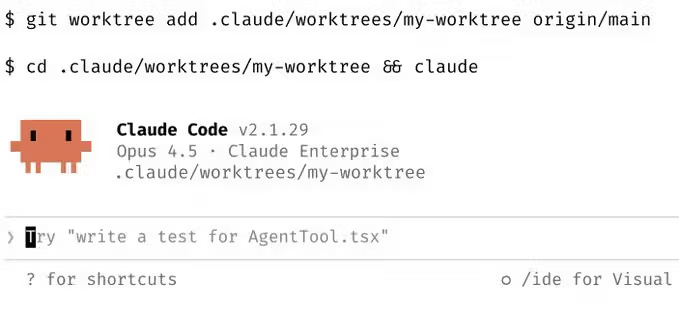
En basit yol: Claude Code'u başlatırken --worktree (veya -w) flag'ini bir isimle geç.
# .claude/worktrees/feature-auth/ dizini ve worktree-feature-auth branch'i oluşturur
claude --worktree feature-auth

# İsmi atla — Claude otomatik olarak rastgele bir isim üretir
claude --worktree

# --tmux ekle — terminali kapattığında çalışmaya devam etsin
claude --worktree feature-auth --tmux
Worktree modunu seans ortasında da tetikleyebilirsin. Claude'a "worktree içinde çalış" demen yeterli — anında oluşturuyor ve seansını içine taşıyor. Değişikliklerinin izolasyon gerektirdiğini yarı yolda fark ettiğinde kullanışlı.
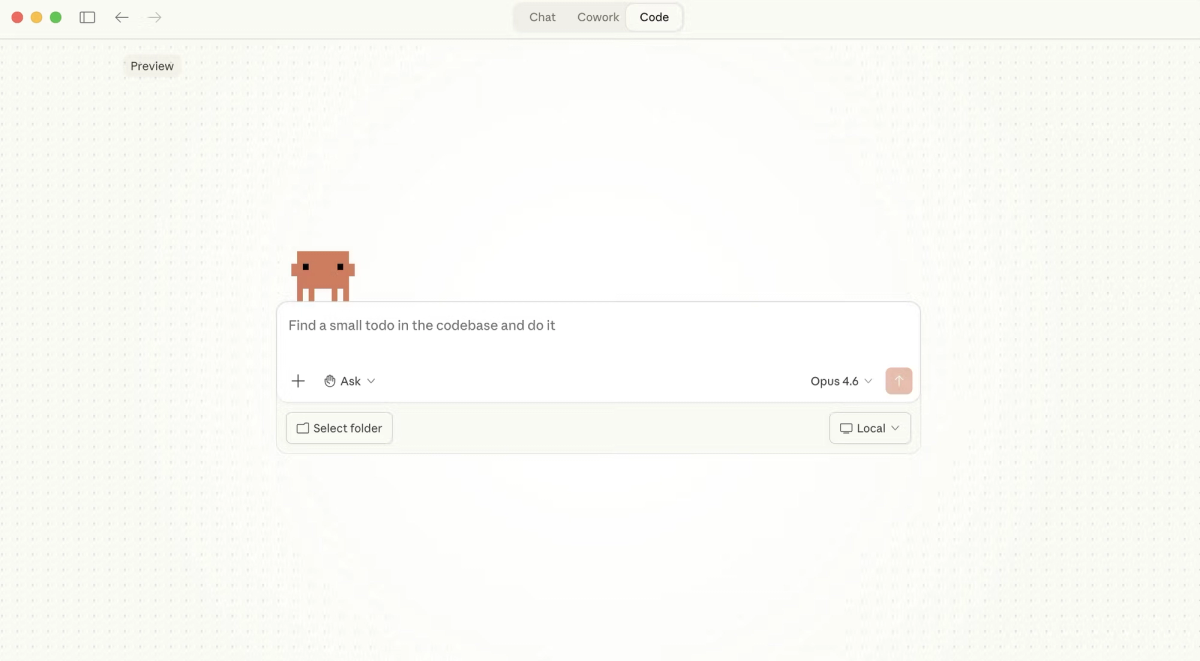
Desktop uygulaması için: Code sekmesine git, worktree modunu etkinleştir — her yeni seans otomatik olarak izole bir worktree alır. Flag gerekmez.
Paralel Olarak Birden Fazla Agent
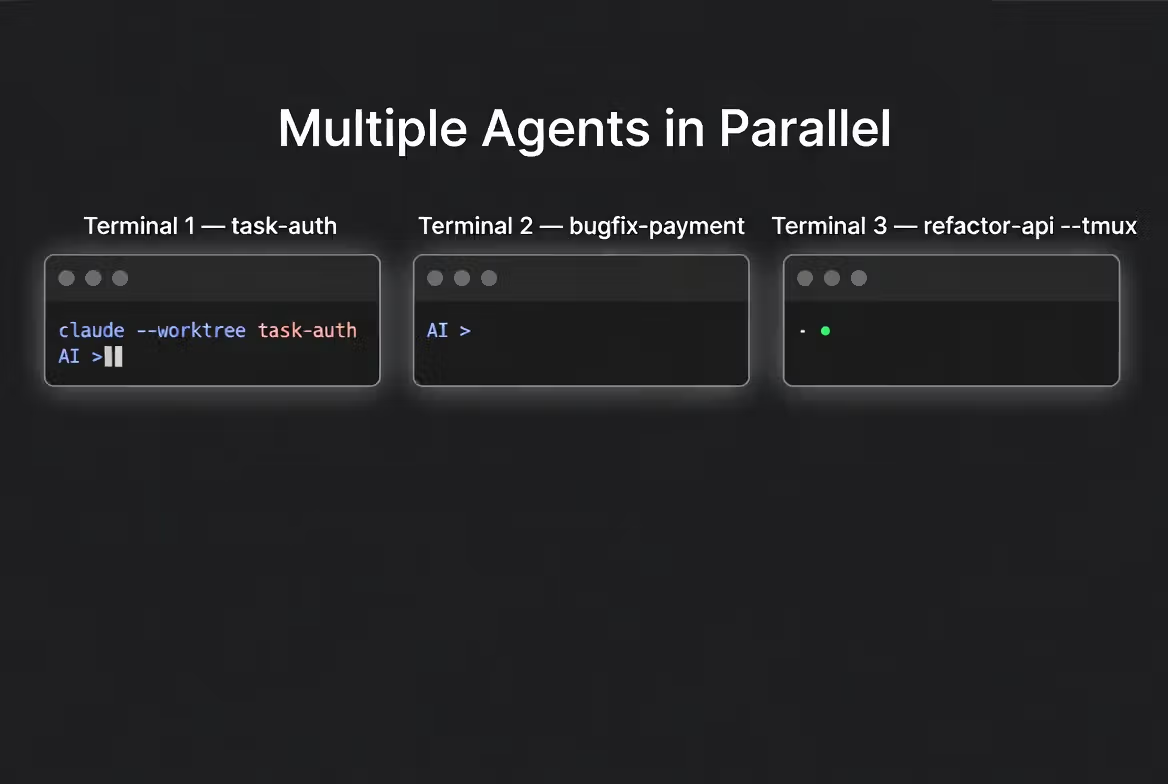
İşte işlerin gerçekten güçlendiği yer burası. Ayrı terminaller aç ve başlat:
# Terminal 1 — auth özelliği geliştirme
claude --worktree task-auth

# Terminal 2 — aynı anda production bug düzeltme
claude --worktree bugfix-payment

# Terminal 3 — tmux ile arka planda uzun süren refactoring
claude --worktree refactor-api --tmux
Her seans kendi dosyalarını, kendi branch'ini ve kendi context'ini alıyor. Agent'lar tamamen bağımsız — paylaşılan dosya durumu yok, seans ortasında merge conflict yok, birbirlerinin işini bozmak yok.
Tek seans vs. paralel worktree'ler karşılaştırması:
| Boyut | Tek seans | Paralel worktree'ler |
|---|---|---|
| Dosya izolasyonu | Yok — paylaşılan çalışma dizini | Tam — her agent'ın kendi dizini |
| Branch yönetimi | Manuel stash gerekli | Otomatik — worktree başına bir branch |
| Seans ortasında merge conflict | Görevler örtüşünce yaygın | Seans içinde imkânsız |
| Git geçmişi | Tek paylaşılan branch | Paylaşılan .git DB, bağımsız branch'ler |
| Temizlik | Manuel | Değişiklik yoksa otomatik; commit varsa sorulur |
Paralel seanslar arasında otomatik koordinasyon için — paylaşılan görev listeleri, agent'lar arası mesajlaşma — bu farklı bir araç: Claude Code agent teams. Her worker kendi bağımsız context penceresinde çalışıyor.
Subagent'lar, Özel Agent'lar ve Git Dışı VCS
Subagent'lar
Subagent'lar, otomatik temizlikle geçici bir git worktree'de çalışmak için isolation: "worktree" destekliyor. Claude görev dağıtımı için subagent'lar oluşturduğunda, her biri kendi izole ortamını alabilir. Şunu söylemen yeterli: "agent'ların için worktree kullan" — Claude gerisini halleder. Özellikle agent'ların aynı anda codebase'in farklı bölümlerine yazdığı büyük toplu değişiklikler ve migration'lar için güçlü.
Özel Agent'lar
Tekrarlanabilir iş akışları için worktree izolasyonunu doğrudan özel bir agent'ın frontmatter'ına ekle:
---
name: refactor-agent
description: Büyük ölçekli refactoring görevlerini yönetir
isolation: worktree
---
Bu agent her çalıştığında otomatik olarak kendi worktree'sini alıyor — manuel flag gerekmez. Ekip genelinde paylaşım için agent tanımlarını .claude/agents/ içinde sakla.
Git Dışı VCS (SVN, Perforce, Mercurial, vb.)
Worktree izolasyonu varsayılan olarak git ile çalışıyor. Diğer versiyon kontrol sistemleri için WorktreeCreate ve WorktreeRemove hook olayları özel worktree oluşturma ve temizleme mantığı sağlamana izin veriyor. Yapılandırıldığında bu hook'lar --worktree kullandığında varsayılan git davranışının yerini alıyor — script'in stdin'de JSON payload alıyor, ortamı istediğin gibi oluşturuyor ve stdout'a mutlak worktree yolunu yazdırıyor. Claude seansı bu dizinde başlatıyor. Aynı pattern, Laravel Valet veya Herd gibi framework'ler için .claude/worktrees/ dışında özel worktree konumuna ihtiyaç duyan projeler de dahil olmak üzere özel git kurulumlarında da çalışıyor.
Hook'ları .claude/settings.json içinde tanımla:
{
  "hooks": {
    "WorktreeCreate": [
      {
        "hooks": [
          {
            "type": "command",
            "command": "bash \"$CLAUDE_PROJECT_DIR\"/.claude/hooks/worktree-setup.sh",
            "timeout": 30
          }
        ]
      }
    ],
    "WorktreeRemove": [
      {
        "hooks": [
          {
            "type": "command",
            "command": "bash \"$CLAUDE_PROJECT_DIR\"/.claude/hooks/worktree-teardown.sh",
            "timeout": 15
          }
        ]
      }
    ]
  }
}
Bilmene değer bir nüans: WorktreeRemove hook'ları şu an bilgilendirme amaçlı — kaldırmayı engelleyemiyorlar. İş akışın seans çıkışında yıkılmaması gereken kalıcı çok seansı worktree'ler gerektiriyorsa, mevcut WorktreeCreate pattern'ini eşleştirmek için WorktreeRemove'da önerilen exit code 2 mekanizmasını izleyen bu açık GitHub issue'su takip edilmekte.
Temizlik ve Tuzaklar
Temizlik davranışı otomatik ama koşullu. Bir seans değişiklik olmadan sonlandığında worktree ve branch otomatik kaldırılıyor. Değişiklikler veya commit'ler varsa Claude soruyor: tut (dizin + branch daha sonrası için korunur) ya da kaldır (ikisi de silinir, commit edilmemiş çalışma gider).
Bir Claude seansı dışında manuel temizlik için:
# Tüm aktif worktree'leri listele
git worktree list

# Belirli bir worktree'yi kaldır
git worktree remove .claude/worktrees/feature-auth

# Force-delete sonrası eski meta veriyi temizle
git worktree prune
Bağımlılık kurulumlarını her worktree için ayrı yap. Her yeni worktree temiz bir checkout — node_modules, sanal ortamlar, build artifact'ları aktarılmıyor. Claude'un build veya test yapmasını beklemeden önce her worktree içinde proje kurulumunu çalıştır:
cd .claude/worktrees/feature-auth
npm install # ya da: pip install -r requirements.txt, bundle install, vb.**.claude/worktrees/'yi ****.gitignore'a ekle.** Bunu unutursan worktree dizinleri ana repo'nda takip edilmeyen dosyalar olarak görünüyor. Git worktree'leri yalnızca takip edilen dosyaları kopyalıyor — .gitignore'undaki hiçbir şey yeni worktree'lere aktarılmıyor:
echo ".claude/worktrees/" >> .gitignoreDesktop uygulamasında istemediğin otomatik oluşturma? GitHub takipçisindeki bilinen bir issue Desktop uygulamasının her yeni seans için rastgele bir worktree oluşturduğunu ve bunu devre dışı bırakmak için şu an bir toggle olmadığını belgeliyor. Geçici çözüm: doğrudan ana checkout üzerinde çalışmak için CLI'ı claude ile (yani --worktree flag'i olmadan) kullan ya da CLI seanslarında otomatik worktree girişini önlemek için /permissions çalıştırıp "EnterWorktree"'yi reddet listesine ekle.
Net konuşmak gerekirse: worktree desteği, paralel agent iş akışlarını gerçekten kullanılabilir kılıyor. Önceden elle çözdüğün şeyi — branch izolasyonu, dosya çakışmasını engelleme, seanslar arası bağımsızlık — artık tek bir flag hallediyor. Paralel görevler çalıştırıyorsan ama hâlâ aynı checkout üzerinde yapıyorsan, geçiş maliyeti minimum: bir --worktree flag'i ve .gitignore'a bir satır.
Verdent ile paralel agent iş akışı çalıştırıyorsan, Git Worktree izolasyonu native olarak her seansa dahil — ek kurulum olmadan. Kredi kartı gerekmeden ücretsiz başla →
İyi kodlamalar.